
Remote check-in
Remote Check-In – Reception Module
The Remote Check-In feature in the Reception Module allows patients to check in for their appointments without being physically present at the clinic. This improves front-desk efficiency, reduces wait times, and ensures necessary forms and confirmations are handled in advance.
Remote check-in can be initiated through three different methods, giving staff flexibility based on patient needs and operational preferences.
Remote Check-In Methods
1. Preflight Check-In Process
Patients are guided through a complete pre-visit digital flow, including information updates, consent forms, and questionnaires.
Navigation: Managed via the dedicated Preflight Check-In module
Automation: Triggered automatically before the appointment based on system settings
For full setup and usage, see the Preflight Check-In Guide.
2. Manual Link via Check-In Button
Staff can manually send a remote check-in link using the Check-In button near the appointment.
Steps:
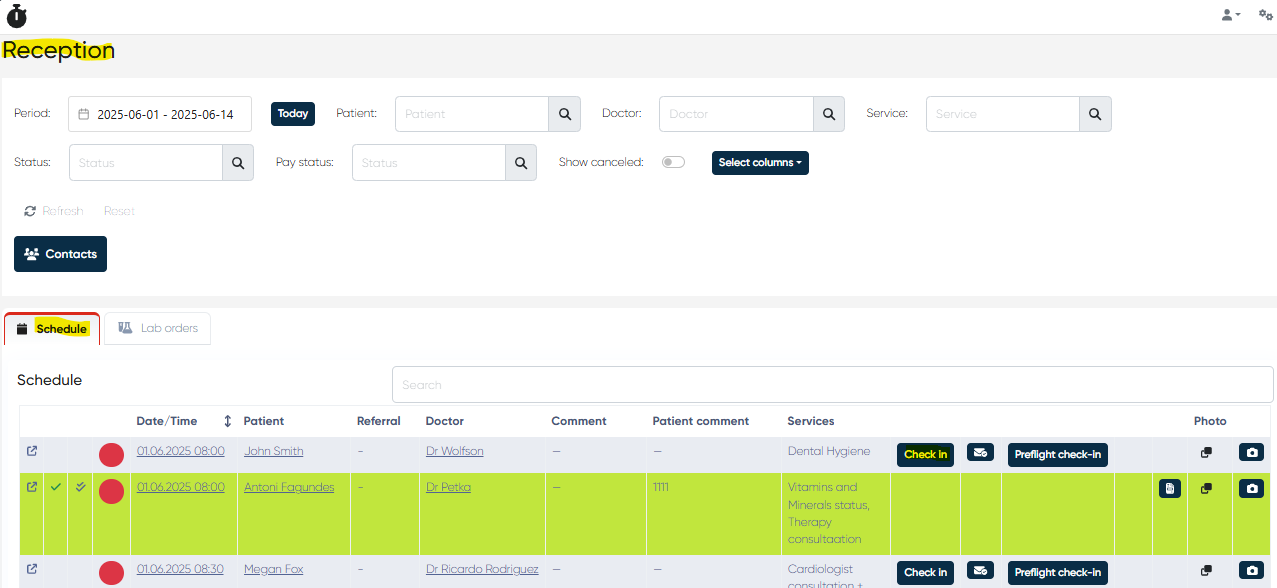
Go to the Reception > Schedule tab
Locate the relevant appointment
Click the Check-In button
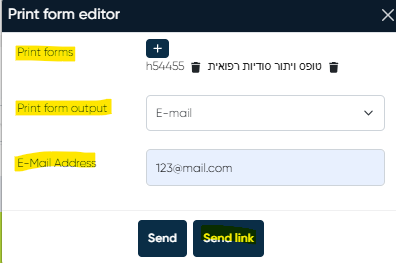
In the Print Form Editor window:
Select the appropriate Print Form
Choose Email from the Print Form Output dropdown
Enter the patient’s Email address
Click Send Link to dispatch the check-in form
The patient will receive a form link to complete their check-in from any device.
3. Send Reception Confirmation Message
This is the fastest method to prompt a check-in via SMS, containing a direct link to confirm arrival and optionally complete related steps.
Steps:
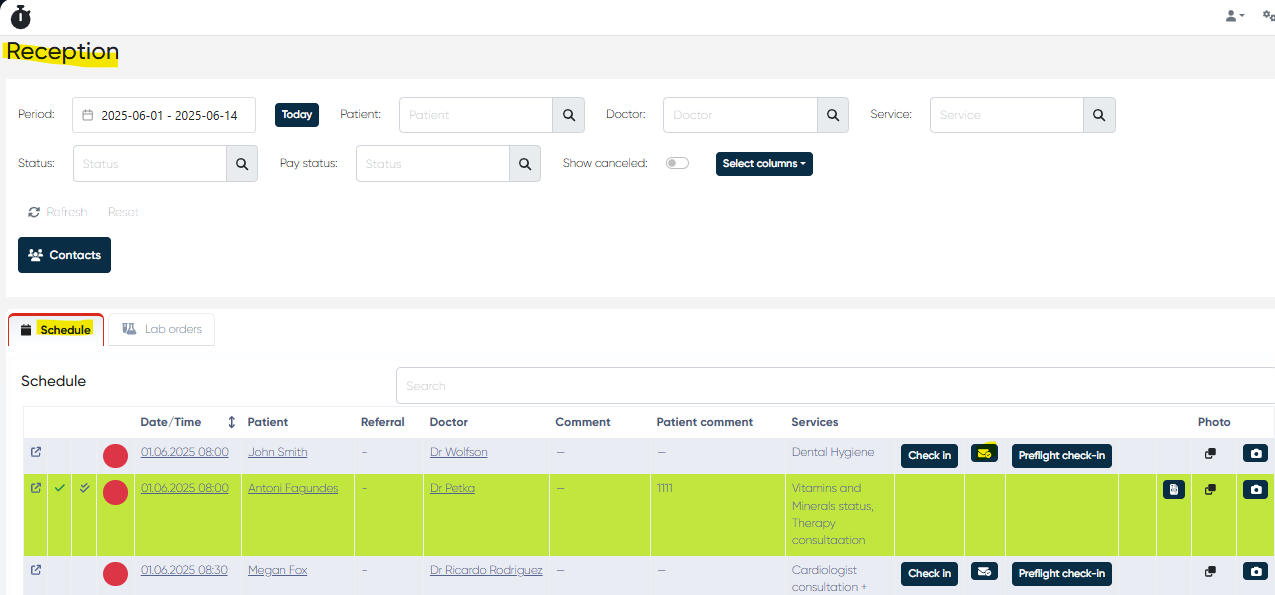
In the Reception > Schedule tab, locate the appointment
Click the Reception Confirmation Message button next to the appointment
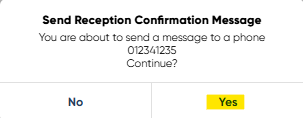
A confirmation window appears with the following text:
"Send Reception Confirmation Message. You are about to send a message to the phone 'XXX...'. Continue?"Click Yes to send the check-in message via SMS.
Patients receive an instant message with a link to check in directly from their mobile device.
Key Notes
All remote check-in submissions are reflected in the appointment status in the Reception>Schedule tab.
Completed forms and data are automatically saved in the patient's profile and appointment record.
Multiple check-in methods ensure both structured pre-appointment flows and flexible manual options.