
Protocols, Protocols Customization
The Protocols section is designed to support the customization, management, and implementation of structured medical documentation across your clinic. Protocols act as templates for medical documents and are configured via a flexible editor, allowing clinics to standardize workflows, ensure regulatory compliance, and save time during patient visits.
Protocols are configured in:
Settings > Medical Document Settings
The section contains three tabs for full control over the structure, layout, and multilingual titles of all medical document types used in your system.
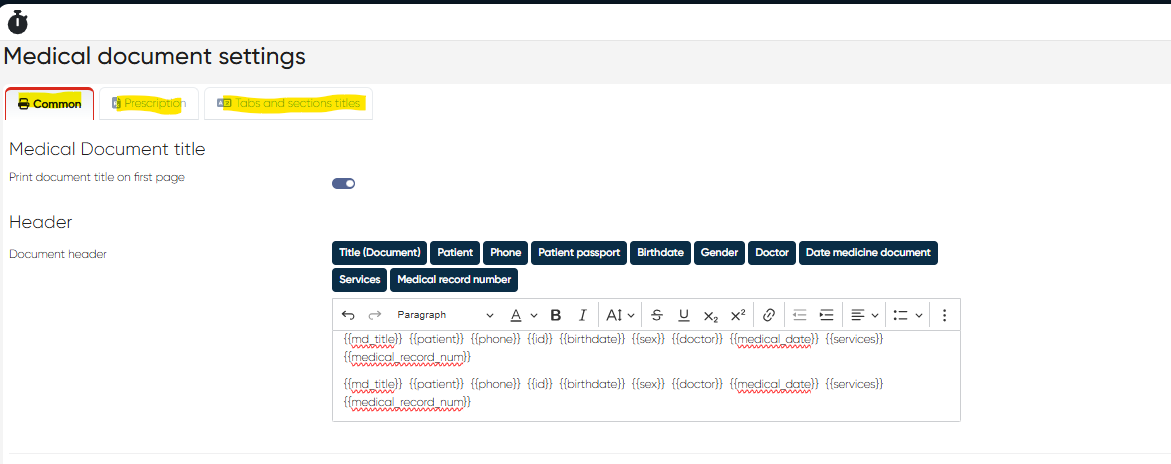
1. Common Tab
This tab allows you to manage general layout, visibility, and behavioral settings for medical documents across your clinic.
a) Medical Document Title Block
Print document title on first page – Toggle on/off
b) Header Block
Includes a standard formatting panel and buttons to insert dynamic variables:
{{md_title}}{{patient}}{{phone}}{{id}}{{birthdate}}{{sex}}{{doctor}}{{medical_date}}{{services}}{{medical_record_num}}
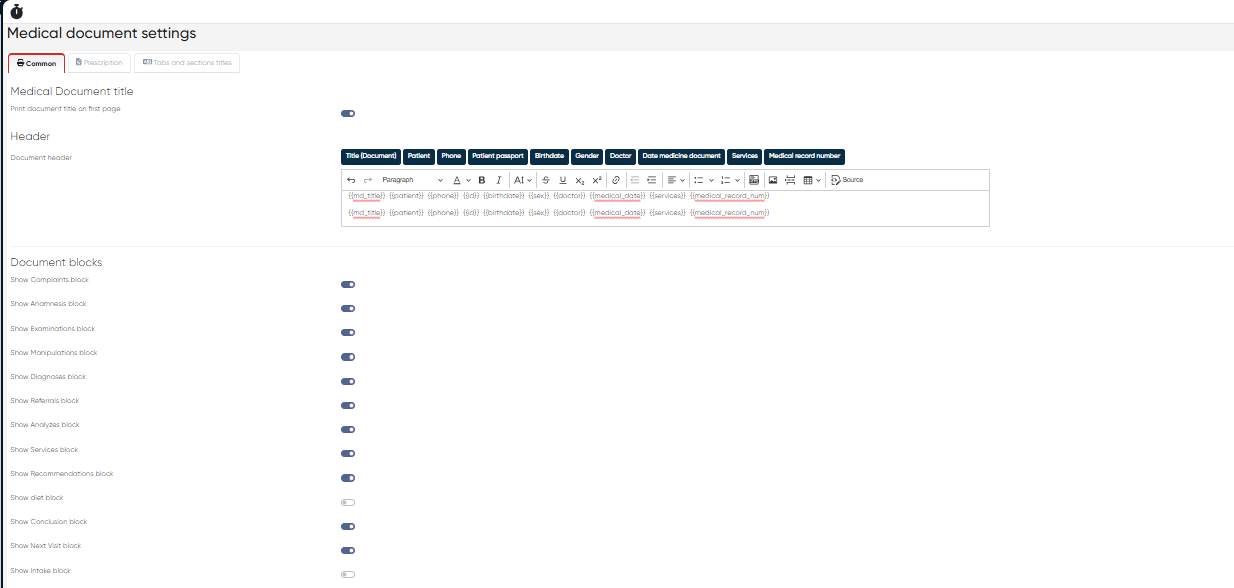
c) Document Blocks
Configure which blocks appear in medical documents using on/off toggles:
Complaints
Anamnesis
Examinations
Manipulations
Diagnoses
Referrals
Analyzes
Recommendations
Diet
Conclusion
Next Visit
Intake
Patomorphology
Risk Factors
Biological Age
Medications
Previous Medications
d) Medical Document Visibility Tabs
Control tab visibility for users via on/off toggles:
Info
Attached Documents
Complaints
Anamnesis
Examination
Manipulations
Diagnoses
Referrals
Lab Tests
Services
Recommendations
Next Visit
Conclusion
Patomorphology
Medication
Risk Factors
Biological Age
Intake
Special Tests
Diet
Psychiatry
Follow-Up
e) Footer Block
Similar to the header block, with a formatting panel and dynamic variable buttons:
Same list of tags as in the header
Show doctor’s signature toggle
f) Settings Block
Enable/disable global document features:
Show prices
Show the patient's phone
Print document
Send to the patient’s e-mail
Send via SMS
Suggest language
Review exam protocols before sending
Allow to create MedDoc after Check-in or Payment
Allow Follow-up
Allow Files instead of Protocols
Sign the document with the doctor’s active session ID
Default Print Language dropdown
Save and Reset buttons are available at the bottom of the tab.
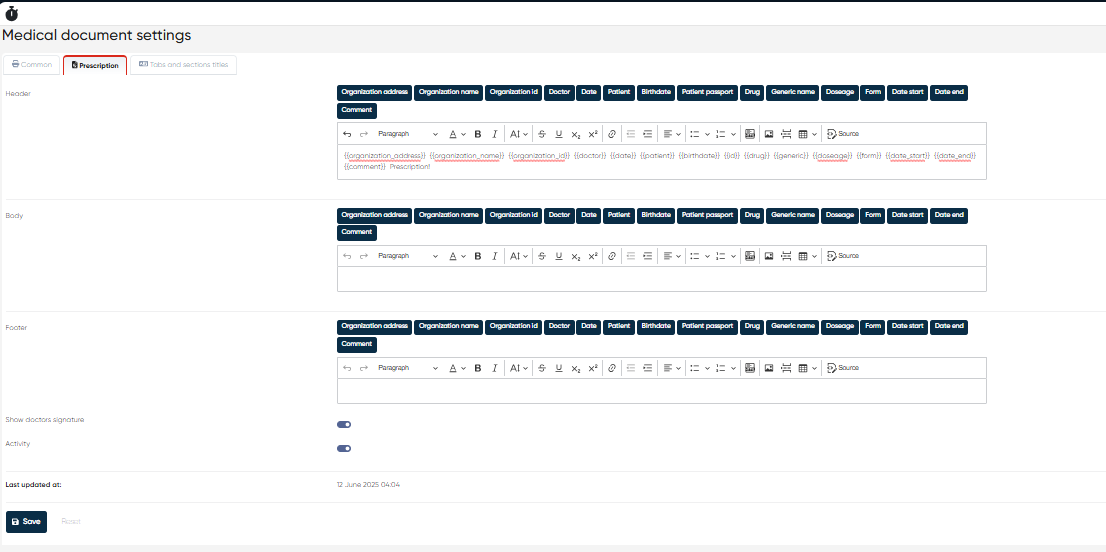
2. Prescription Tab
This tab allows you to customize the prescription templates used when generating medication documents.
a) Header
Includes formatting options and insert buttons:
{{organization_address}},{{organization_name}},{{organization_id}}{{doctor}},{{date}},{{patient}},{{birthdate}},{{id}}{{drug}},{{generic}},{{doseage}},{{form}},{{date_start}},{{date_end}},{{comment}}
b) Body
Same structure and options as the header, applies to the content area of the prescription.
c) Footer
Repeats the same dynamic tags and formatting options for footer customization.
d) Additional Options
Show doctor's signature (on/off)
Activity status (on/off)
Save and Reset buttons are available at the bottom of the tab.
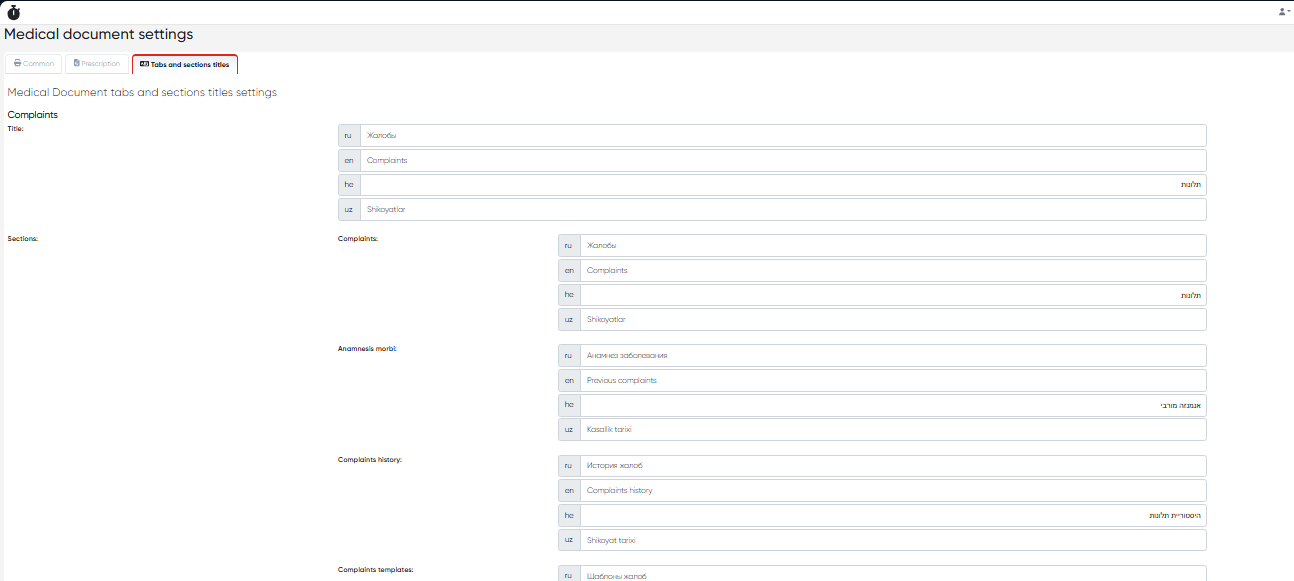
3. Tabs and Sections Titles Tab
Configure multilingual section and tab titles for medical documents.
Each section group includes a title bar and specific subsections, editable per language (English, Russian, Hebrew, Uzbek, etc)
Section Groups and Their Subsections:
Complaints:
Title + Complaints, Anamnesis morbi, History, TemplatesAnamnesis:
Title + Allergy, Anamnesis vitae, Epidemic anamnesis, Life history, Allergy history, Templates, Block 1–4, IntakeExamination:
Title + Examination, History, TemplatesManipulations:
Title + Manipulations, History, TemplatesDiagnoses:
Title + Clinical Diagnosis, DiagnosesReferrals:
Title + Selected and Available servicesLab Tests:
Title + Available and Selected analyzesServices:
Title + Available and Selected servicesRecommendations:
Title + Recommendations, History, TemplatesConclusion:
Title + Conclusion, History, TemplatesNext Visit:
Title onlyPhoto Protocol:
Title onlyFollow-Up:
Title onlyPatomorphology:
Title + Block 1–3Medication:
Title + Available drugs, HistoryRisk Factors:
Title onlyBiological Age:
Title onlyPsychiatry:
Title + Visit summary, Templates
Using Protocols During Medical Document Creation
Once protocols are configured, doctors can select them when creating a new Medical Document from the appointment view or ERP interface. The system will preload the selected protocol structure, helping streamline the documentation process.
For detailed instructions on using Medical Documents during appointments, see Medical Document Guide.