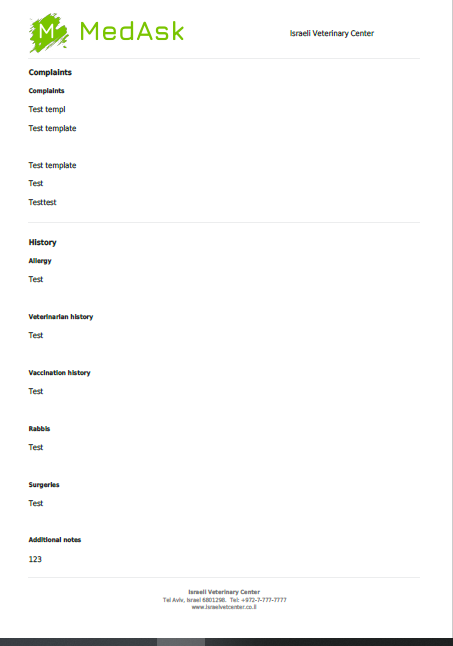
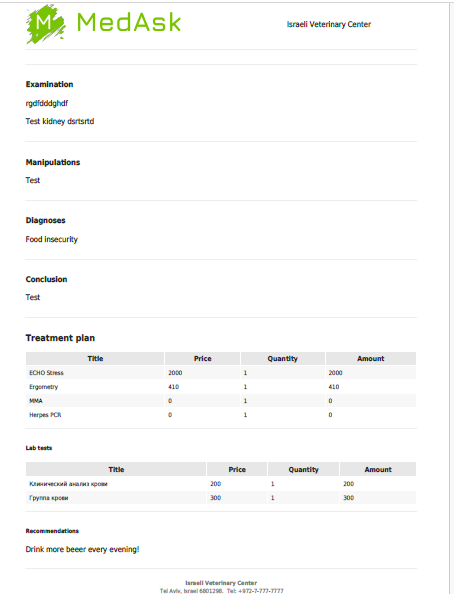
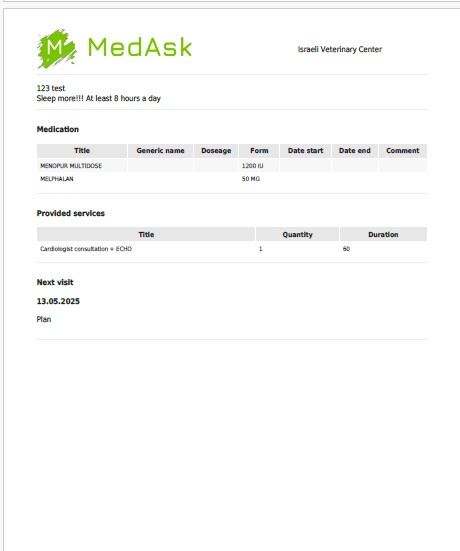
Medical document
Description
The Medical Document provides a structured format for recording patient consultations. It is generated when a patient arrives at the clinic, completes registration at the reception, and is assigned to a doctor. The document is composed of multiple sections (tabs), allowing the doctor to input, review, and manage patient information efficiently.
Navigation to the screen
Directories → Employees → Choose Employee → Actions → Open Doctor’s Cabinet → Choose Patient → “+ Med Doc” (available if the patient checked in) → Confirm creation of new medical document.
Doctor’s cabinet
Successfully checked-in patients: Hermione Granger; Harry Potter (highlighted with blue).
Not checked-in yet: busy lady.
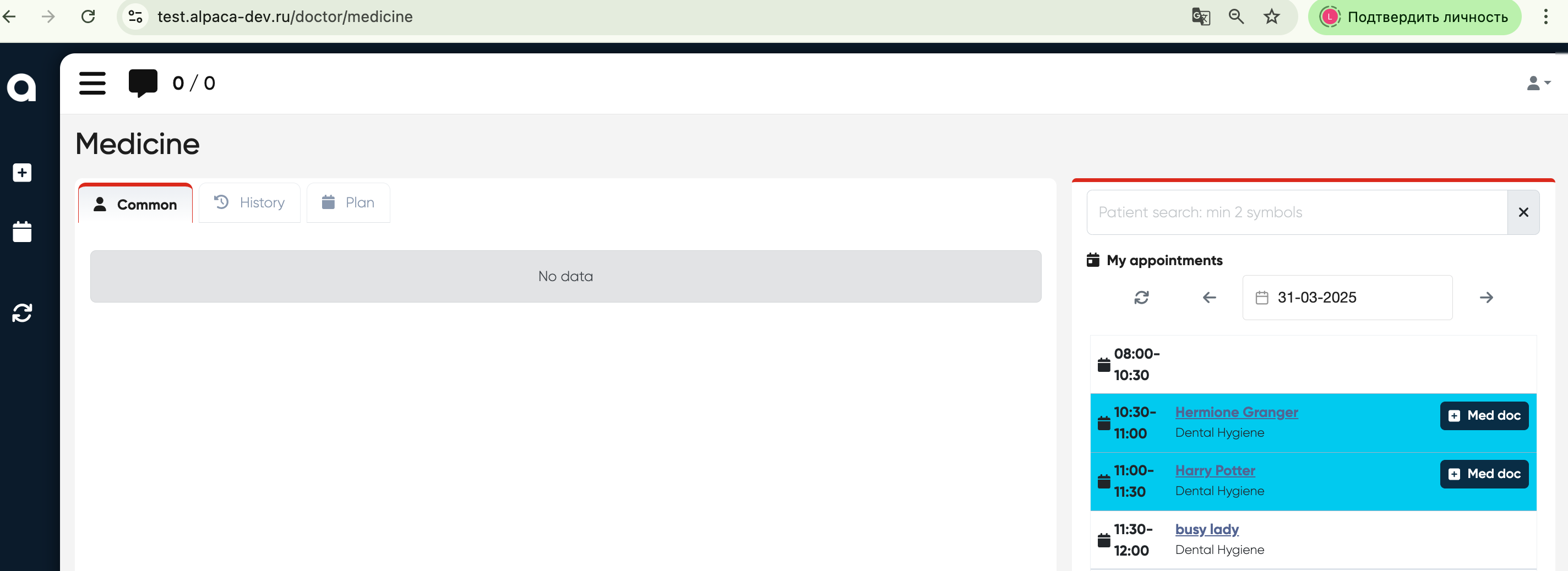
+ Med Doc (Create medical document button)

Design
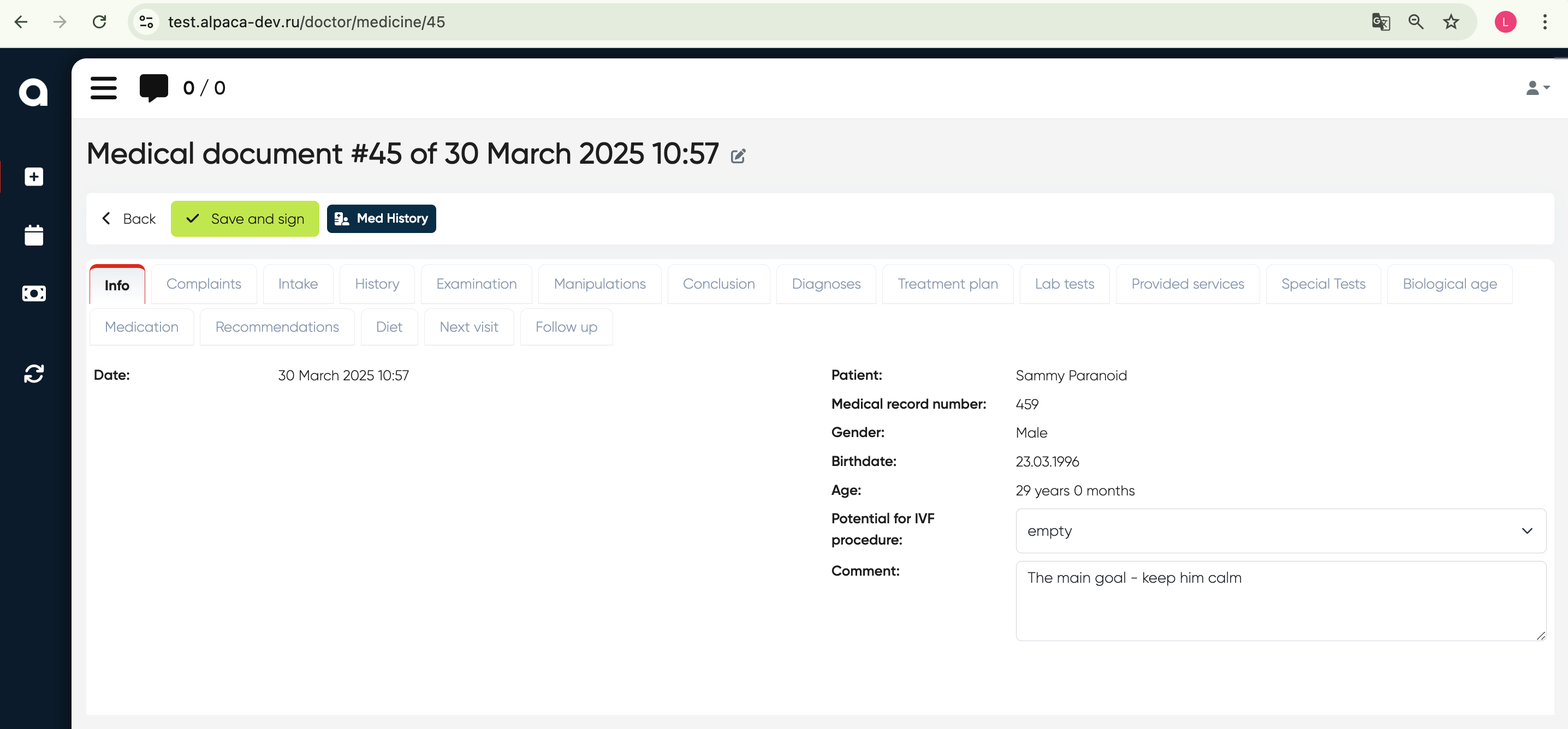
Common Flow
Patient checked in (at the reception). Mandatory part!
The doctor logs into the system and accesses the patient’s visit in the “Doctor’s cabinet“.
The system automatically generates a new Medical Document linked to the visit.
The doctor chooses the patient (only the one who is checked in) and clicks on the “+ Med Doc” button.
Doctor fills out relevant sections (e.g., complaints, examination, medication, recommendations).
The doctor saves and signs the document, finalizing the record.
The document can also be printed.
Psychiatry Tab in Medical Document
Navigation:Directories → Employees → Choose Employee → Actions → Open Doctor’s Cabinet → Choose Patient → +Med Doc (available if the patient is checked in) → Psychiatry
Overview
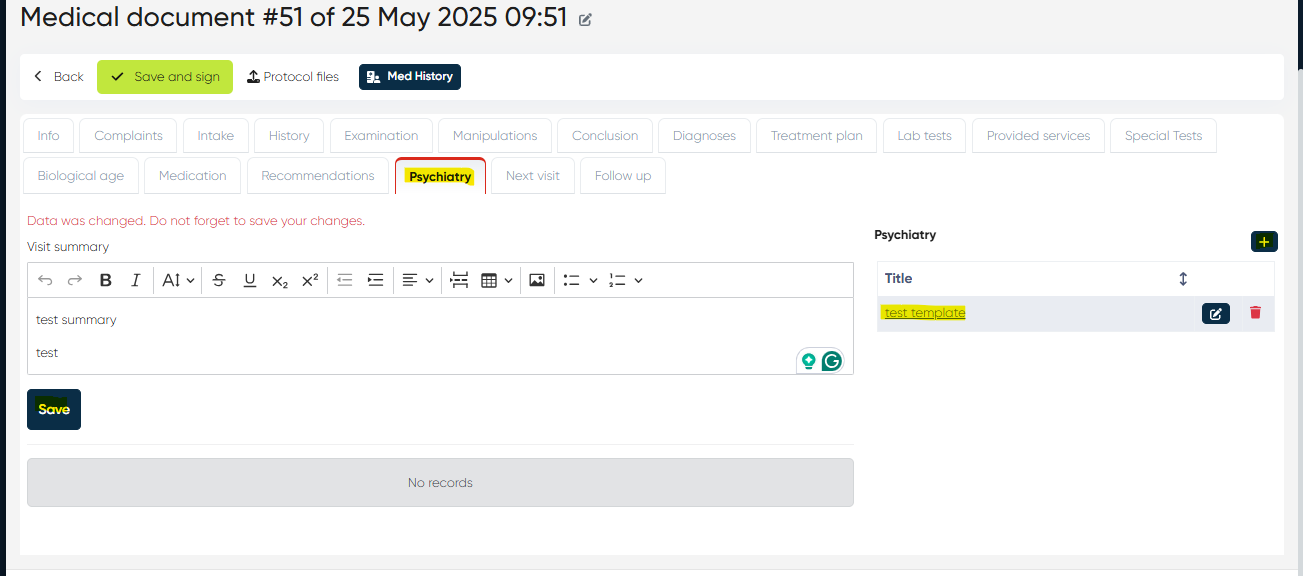
The Psychiatry tab allows clinicians to create and manage psychiatric evaluations, progress notes, and treatment plans directly within a patient’s medical document. It is specifically designed for mental health professionals who need structured and consistent documentation tools for psychiatric care.
Functionality
The tab provides structured templates that guide clinicians in documenting patient encounters. Users can manually enter visit summaries or utilize predefined templates to standardize documentation and streamline the note-taking process.
Creating and Editing Notes
Open the patient’s Medical Document and switch to the Psychiatry tab.
Enter the visit summary, including evaluation findings, progress details, and treatment recommendations.
You may type notes manually or apply an existing template.
Click Save to attach the completed note to the patient’s medical document.
Managing Templates
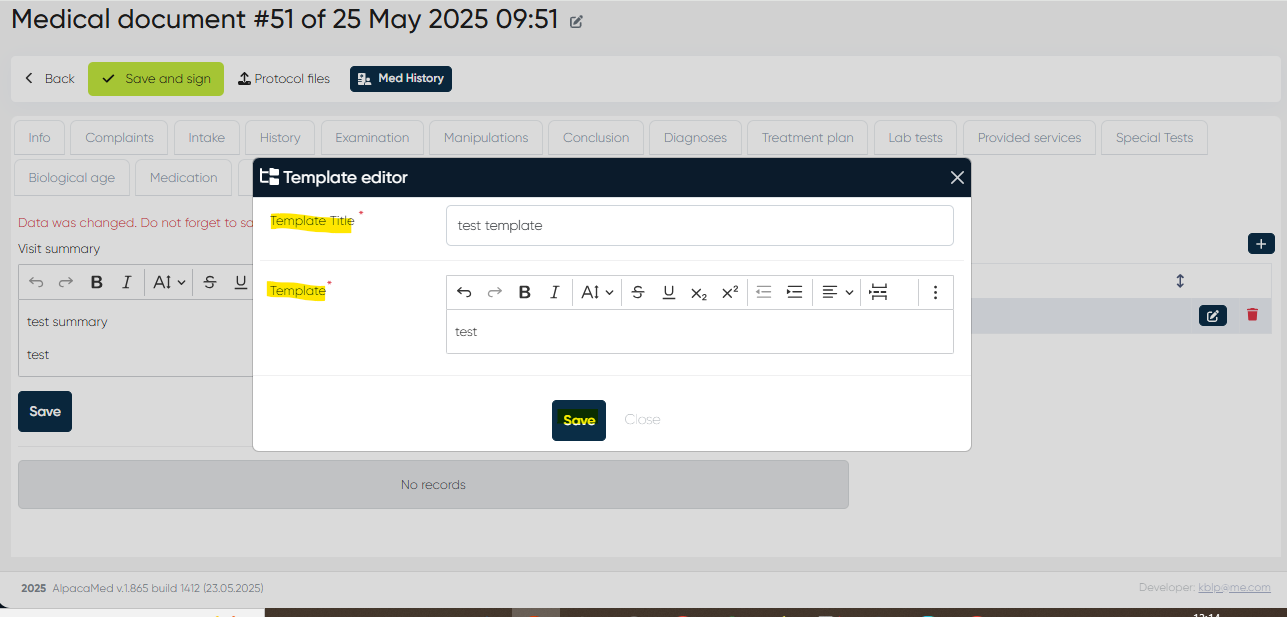
Clinicians can create their own templates for recurring or standardized note structures:
Click the “+” button on the right side of the Psychiatry tab.
In the Template Editor, provide:
Template Title
Template Body (main text or structure of the note)
Click Save to add the template to your personal list.
Notes
The Psychiatry tab is only available when a patient is checked in.
Templates can be reused across multiple encounters, ensuring documentation consistency.
All saved psychiatric notes are automatically linked to the patient’s overall medical record for future reference.
Med History
Since a Medical Document is created, the system will provide an option to view the patient's medical history. To view Medical History doctor should click on the 'Med History' button.
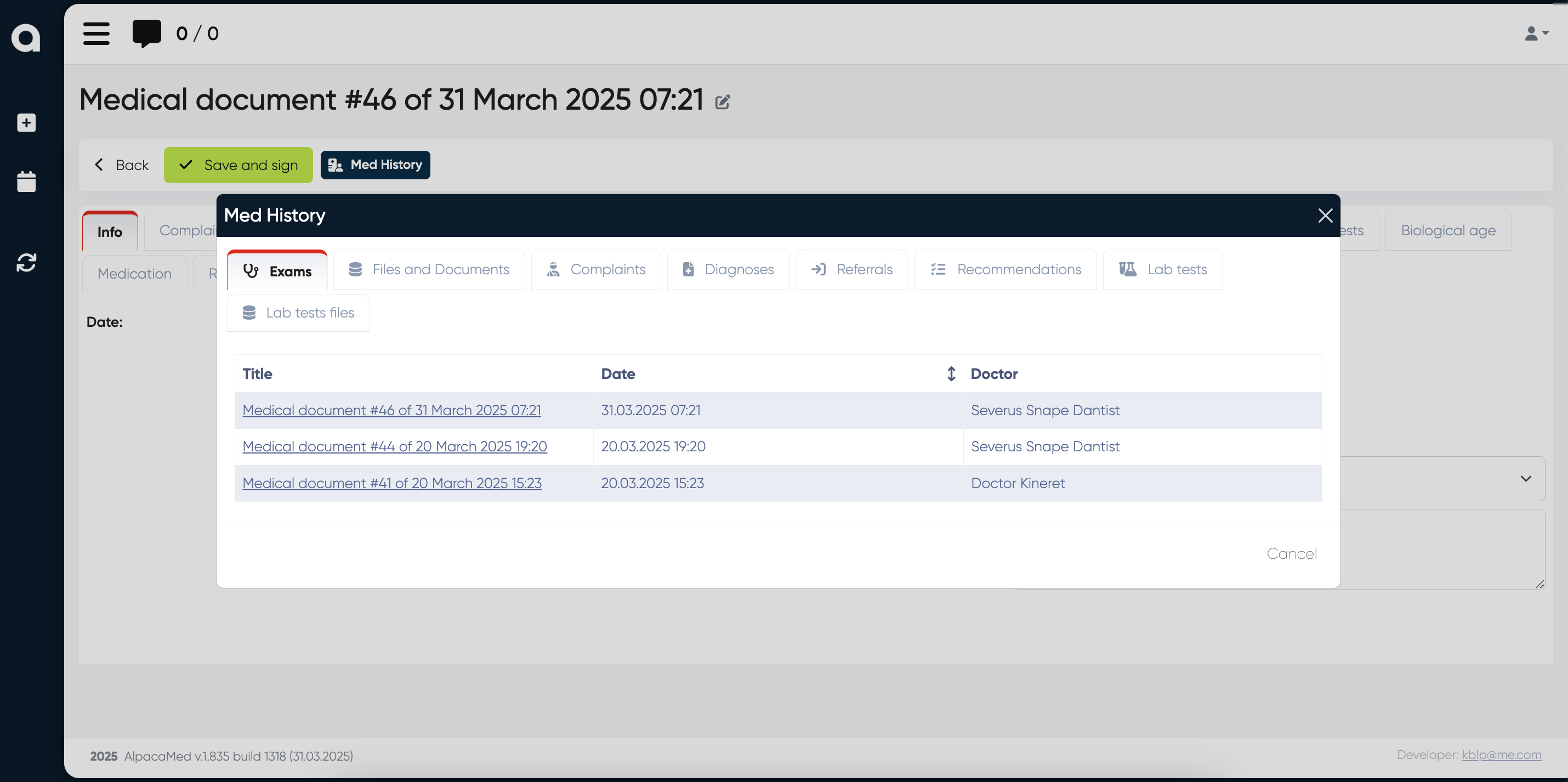
The following sections will be available for review:
Section |
|---|
Exams |
Files and Documents |
Complaints |
Diagnoses |
Referrals |
Recommendations |
Lab Tests |
Lab Test Files |
Structure of Medical Document
After the doctor clicks Save and Sign button on the Medical document panel, it’s possible to preview, print, and save the medical document. The sample structure of the document is as follows, it can vary depending on what data was added for the patient: