
New touch
Description
The New Touch screen is designed to log and manage client interactions across various communication channels (email, WhatsApp, phone, etc.). The system allows users to document the result of each interaction, such as appointment booking, refusal to pay, or other relevant outcomes.
Who uses this screen?
Receptionists / Call Center: log patient interactions and record appointment schedules.
Doctors / Medical Staff/HCP (healthcare providers): view scheduled appointments and previous patient interactions.
Administrators: monitor and analyze patient interactions for reporting and operational efficiency.
How to create appointment
Book an Appointment
Easy way (if we know exactly what doctor and what day and time); if the patient is not sure about any details, we can go through Complex form
Steps
Open the “New touch” section.
Click the search bar and find a patient (or add a new one).
Select a free slot in the clinic.
Select service.
Save.
Expected Result: Appointment is booked successfully.
Design
New touch
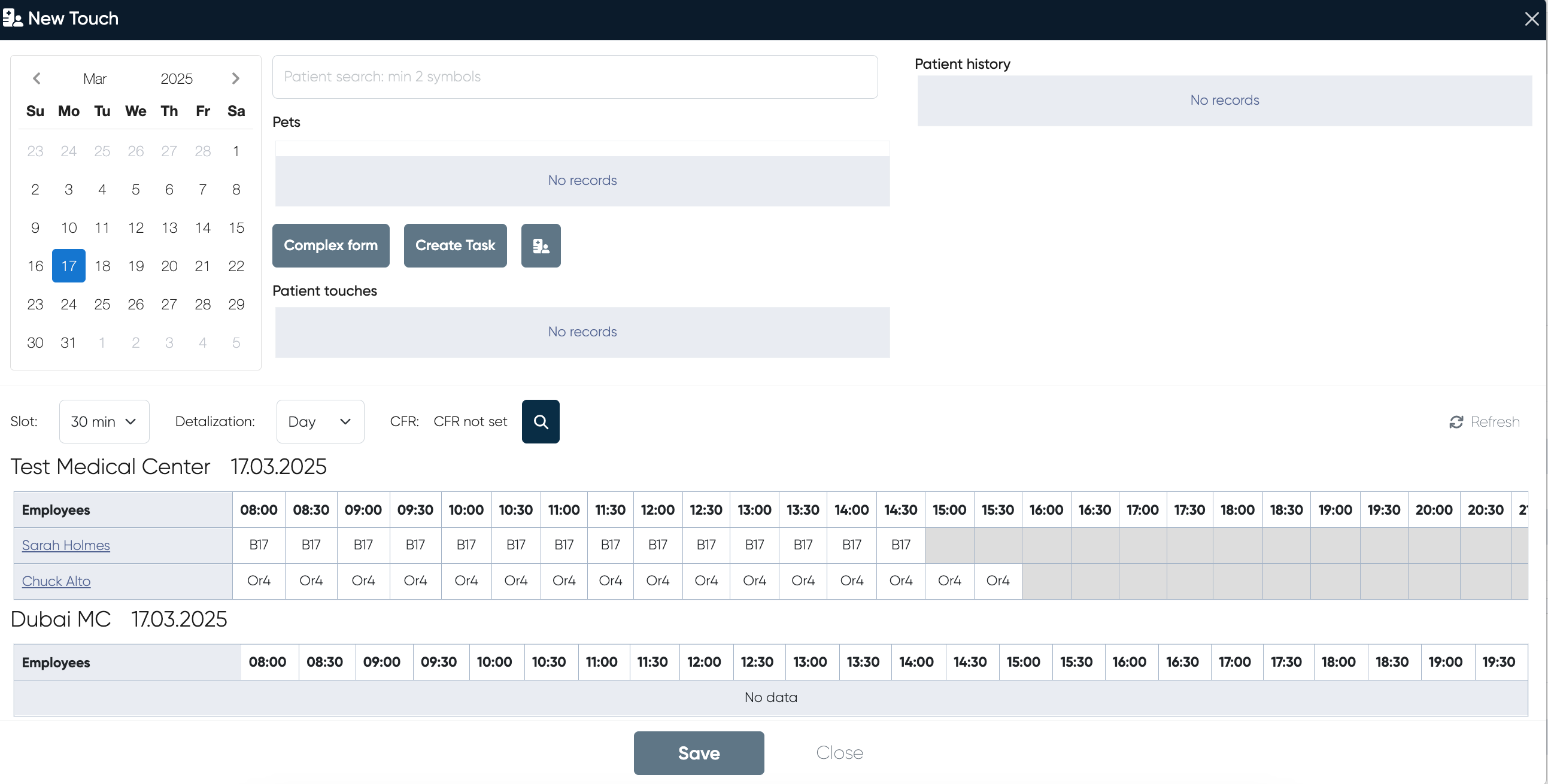
Touch results
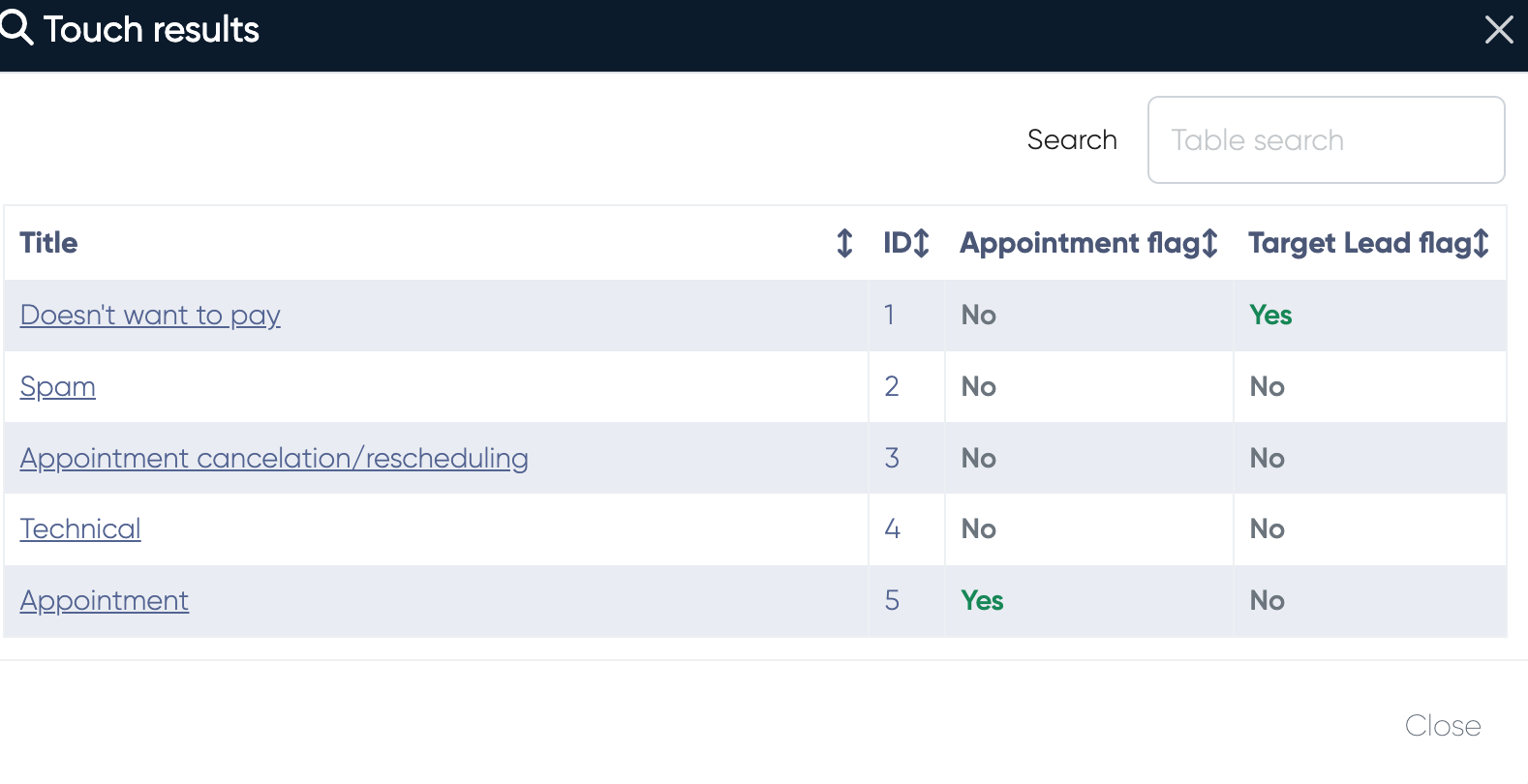
UI elements and functionality
All functionality becomes available only after the patient has been chosen in the search bar.
Calendar Selection (Appointment Scheduler)
Displays the current month and year.
Users can select a specific date to view or log interactions.
Patient Search bar
Search Field
Employee Search
A search-by-employee feature has been added to the New Touch interface.
Navigation: New Touch > Employee search
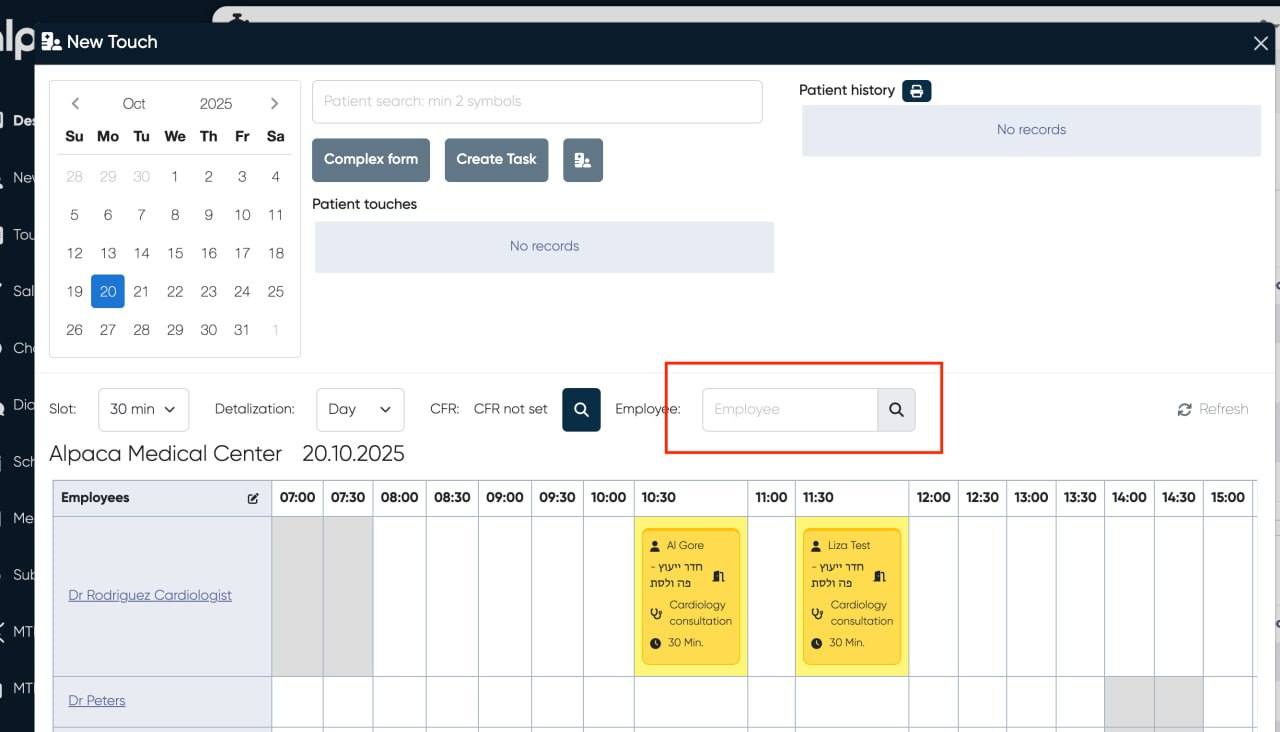
Functionality:
Staff can now search directly by employee (doctor) name when preparing a new booking or managing existing appointments.
The search automatically filters available slots and services for the selected specialist.
Benefits:
Faster access to a specific doctor’s schedule.
More intuitive navigation in clinics with large medical teams.
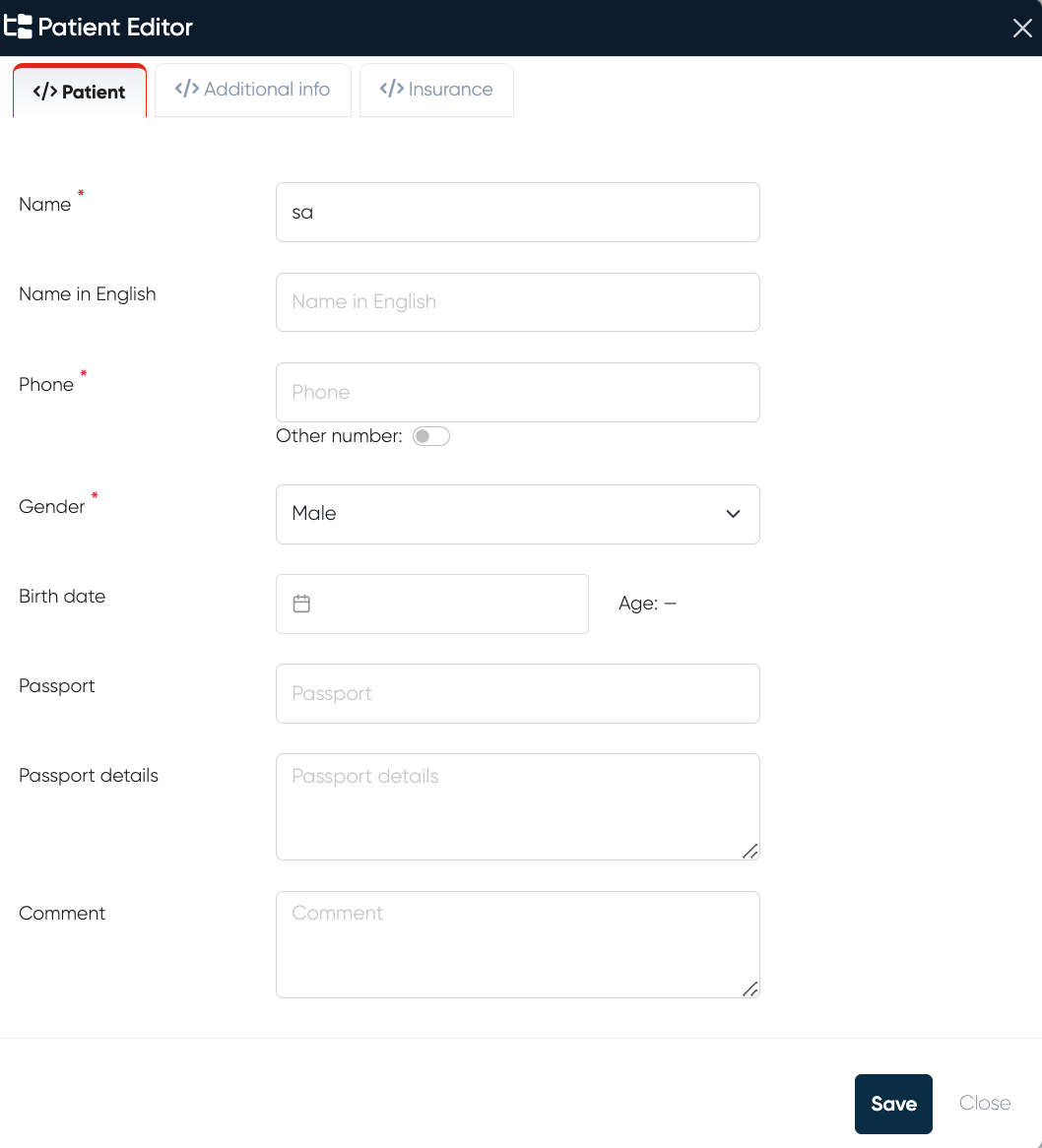
Create patient
Mandatory fields - Name of the Patient, Phone number and Gender information.
You can also add Name in English if you use it in your system, Birth date, Passport number and Details, any useful Comments.
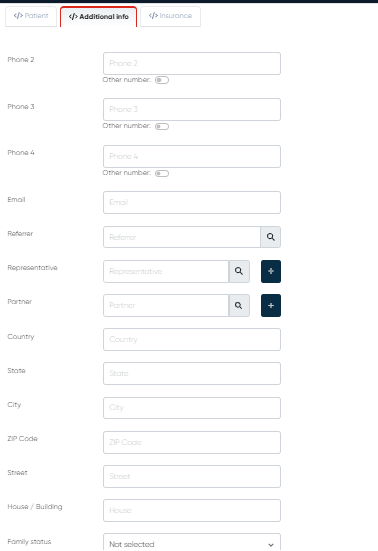
On the Additional info tab you can add any other details about the Patient, including Address, Family status, etc.
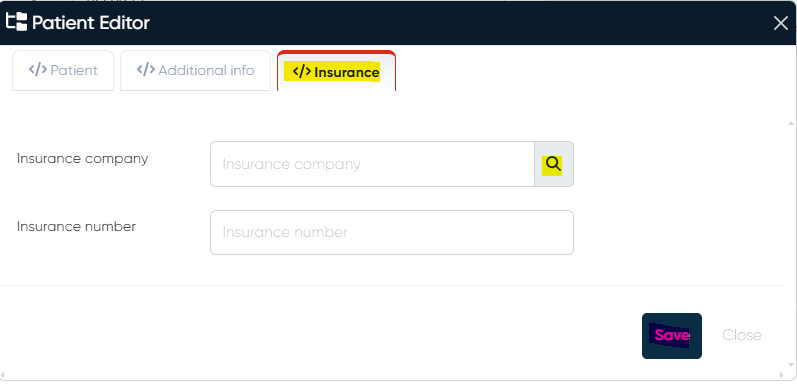
On the Insurance tab you can add the information about Patient’s Insurance company (it can be searched from the list by clicking magnifying glass button on the right of Insurance company bar) and Insurance number.
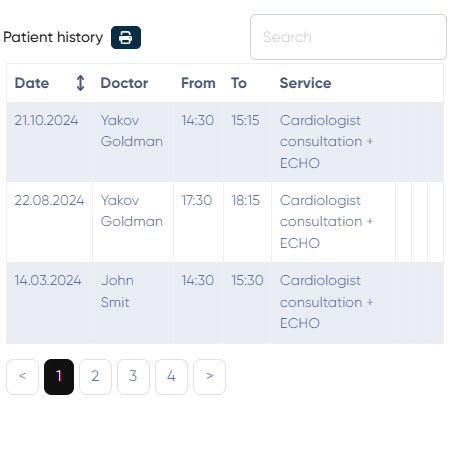
Patient History
Patient History Section: Displays past interactions and medical history (if available).
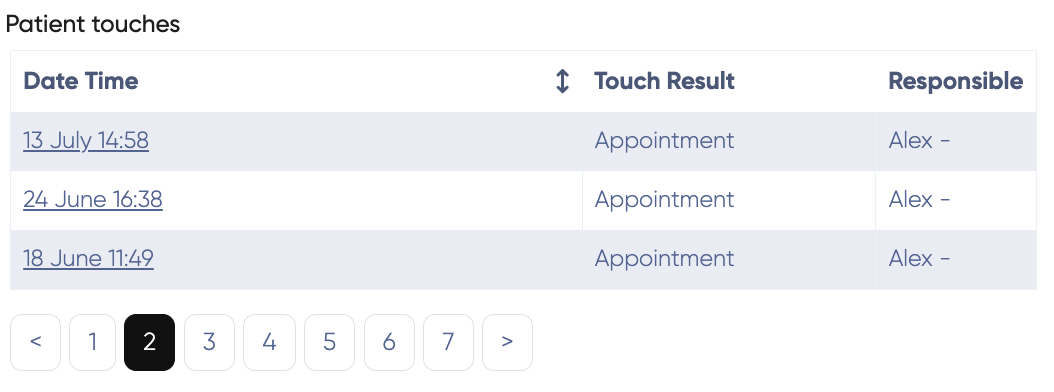
Patient touches
Provides a chronological record of past interactions between the clinic and the patient.
Information about patient’s touches contains: date and time; touch result (the outcome of the interaction); responsible (name of the staff member who handled the interaction).
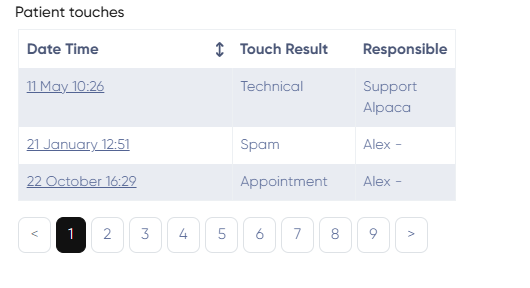
Pagination: allows navigation through multiple pages of interaction history if there are more than 3 touches.
Medical center’s schedule
Buttons
Complex Form: opens a detailed form to log extensive information about the interaction.
Create Task: assigns follow-ups or additional actions related to the patient.
Save
Close