
Breaks
The Breaks functionality allows administrators, support staff, and doctors to manage time away from work within the system. Breaks can be initiated in real-time, scheduled in advance, or managed centrally through dictionaries and reports.
1. Initiating a Break (Support/Admin Staff)
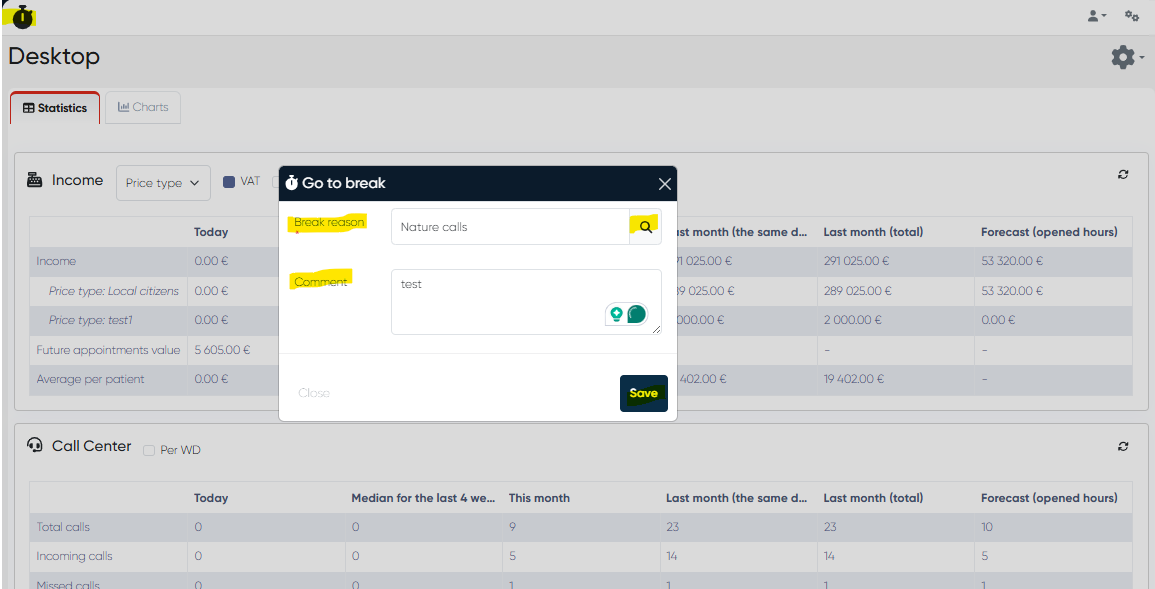
If you are a support or administration employee, you can initiate a break directly from any section of the main menu:
Click the Timer button in the top-left corner of the screen.
In the pop-up window:
Select a Break Reason from the list (mandatory).
Enter a Comment if additional clarification is needed.
Confirm to successfully start your break.
Once started, the system will register your break until you end it.
2. Breaks for Employees (Doctors)
Doctors’ breaks can be managed in two ways:
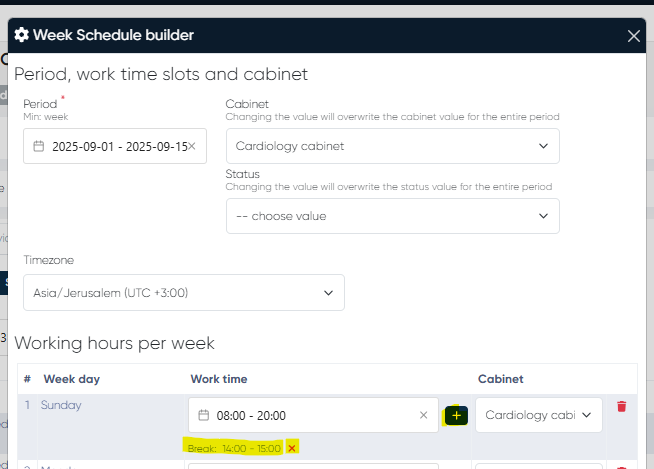
a) Pre-Scheduled Breaks (via Week Schedule Builder)
Navigation: Directories > Employees > Select a Doctor > Work Time Slots > Week Schedule Builder
Choose the time period to schedule.
Select the cabinet or status for the doctor.
Define work time slots.
Add breaks for each working day within the chosen schedule.
This ensures that the doctor’s availability is accurately reflected in the system.
b) Manual Break Reservation (via Schedule)
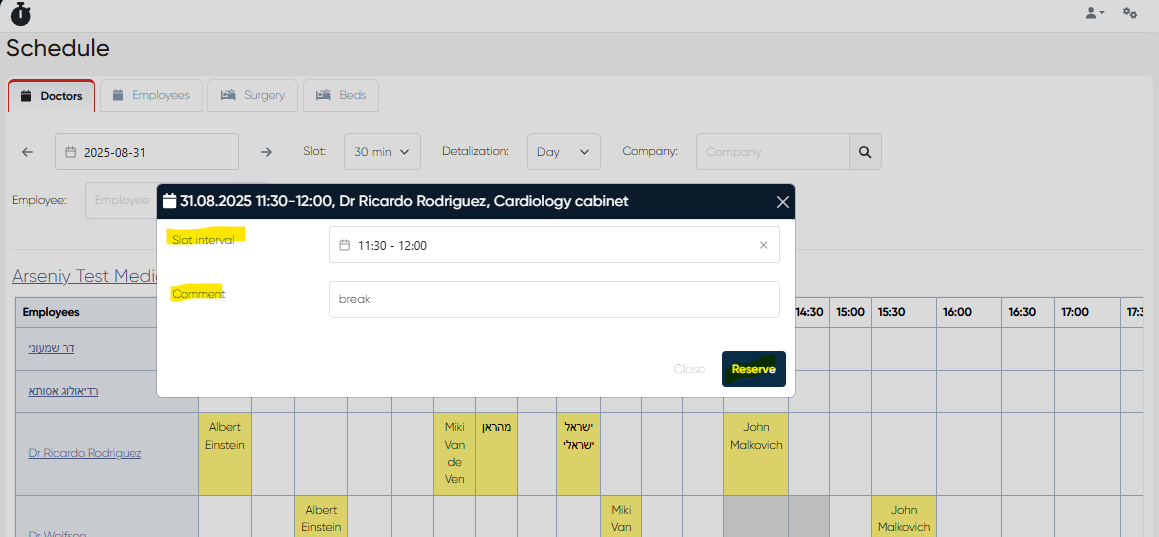
Navigation: Main Menu > Schedule
Administrators or support staff can manually reserve a break slot.
Select the required time slot in the doctor’s schedule.
Enter a comment explaining the reason for the reservation.
Reserved slots appear as unavailable in the doctor’s schedule.
3. Break Reasons Dictionary
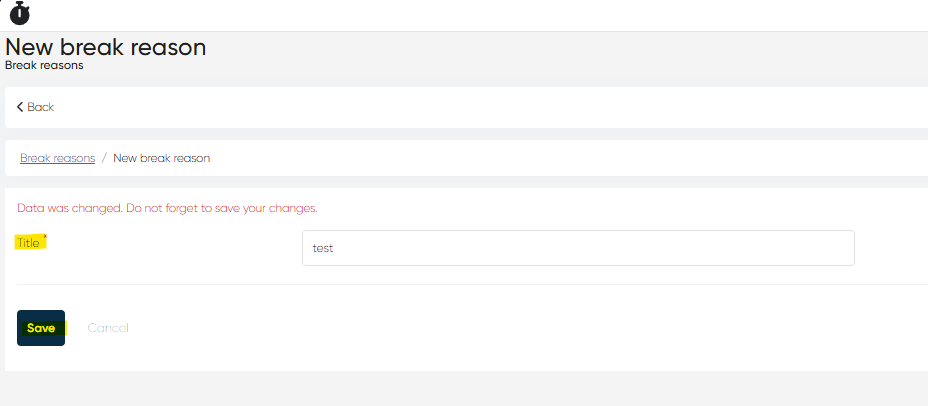
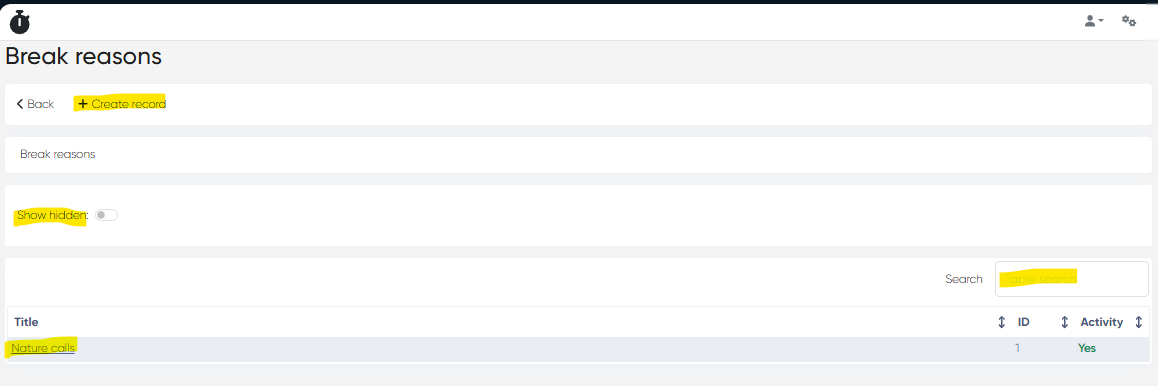
Navigation: Directories > Break Reasons
This section manages the predefined list of available break reasons:
Click +Create Record to add a new break reason. (Only a Title is required).
View all existing break reasons in the list.
Use the search bar for quick lookup.
Enable the Show Hidden toggle to display inactive reasons.
Having a consistent set of break reasons ensures standardized reporting.
4. Breaks Structured View (User Time Report)
Breaks are also reflected in the structured reporting system:
Navigation: Analytics > Users report
All registered breaks are included in Users Report for administrators and support staff.
Reports provide a structured overview of employee availability and break history.
For more details, see the User Time Tracking page of the Knowledge Base.