
User time tracking
User Time Tracking
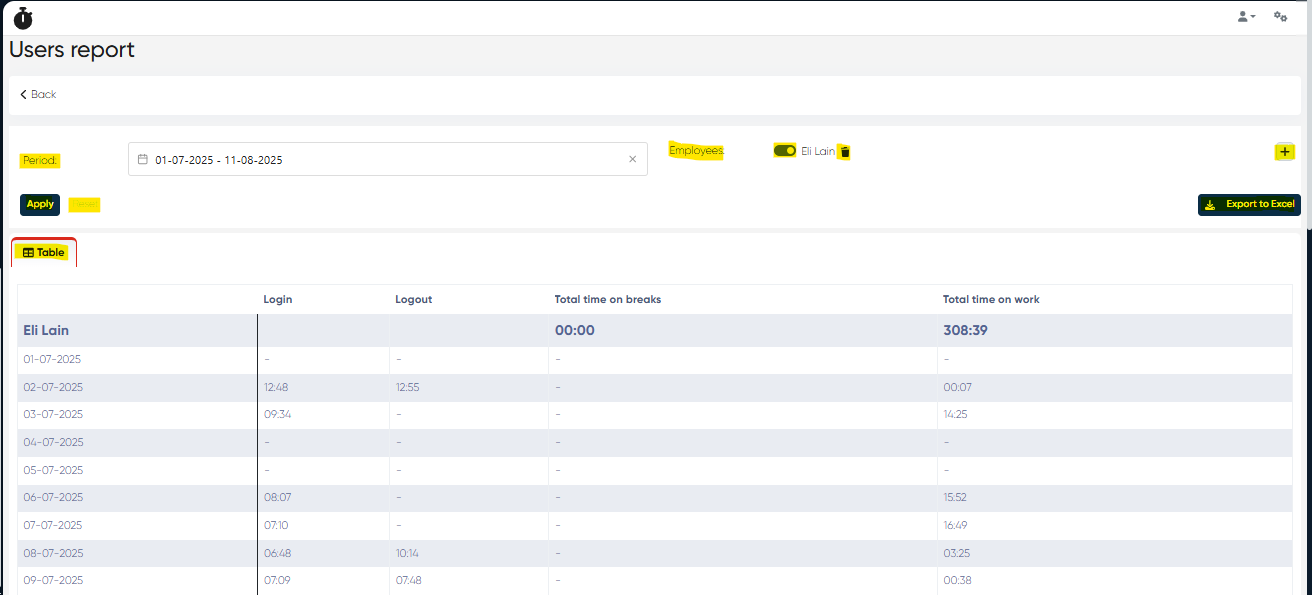
The User Time Tracking feature allows administrators to monitor and analyze the working hours and break times of system users (e.g., administrators, receptionists, managers). This functionality is part of the Users report and provides a clear overview of login/logout times and total work durations for any selected period.
Navigation
Main menu → Analyics→ Users report
How to Use User Time Tracking
Set the Report Period
At the top of the page, use the Period selector to define the date range for the report (e.g., a week, a month).
Select Employees
Employee toggle ON – Choose specific employees from the list to include in the report.
Employee toggle OFF – View the complete report for all registered administrators in the system.
Apply Filters
Once you set the period and employee filters, click Apply to generate the report.
Reset Filters
Click Reset to clear all applied filters and start over.
Export Report
Use the Export to Excel button to download the report for offline storage, processing, or archiving.
Report Table Structure
The generated report table displays:
Column | Description |
|---|---|
Login | Time when the employee logged into the system for the day. |
Logout | Time when the employee logged out of the system for the day. |
Total time on breaks | Sum of all break periods during the working day. |
Total time on work | Actual working time in the system, excluding breaks. |
Data Presentation
Daily Rows – Each row represents one day within the selected period for a specific employee.
Employee Summary Row – For each employee, the top row summarizes:
Total time on breaks for the selected period.
Total time on work for the selected period.
This layout provides both detailed daily data and aggregate totals, enabling managers to easily assess attendance, working efficiency, and time spent on breaks.