
Web checkout
Web Checkout – Reception Module
The Web Checkout feature allows clinics to send secure online payment links to patients, enabling them to complete transactions remotely via SMS or email. This functionality is ideal for remote services, follow-up visits, or prepaid bookings and ensures a smooth, paperless payment experience.
1. Enabling Web Checkout
To make the Web Checkout option available in the payment flow:
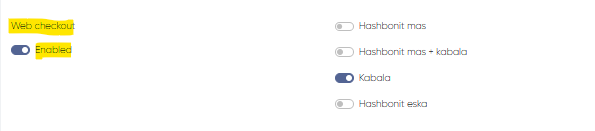
Go to Settings > Cashier Settings.
Under Payment Type, select a supported payment service (e.g., iCount Israel) that includes Web Checkout functionality.
Ensure the Web Checkout toggle is enabled within this payment service configuration.
Once activated, the Web Checkout option will appear during the Reception module's payment process.
2. Sending a Web Checkout Payment Link
To send a payment link to the patient via Web Checkout:
Open the Reception module and go to the Schedule tab.
Locate the relevant appointment and click the Pay button next to it.
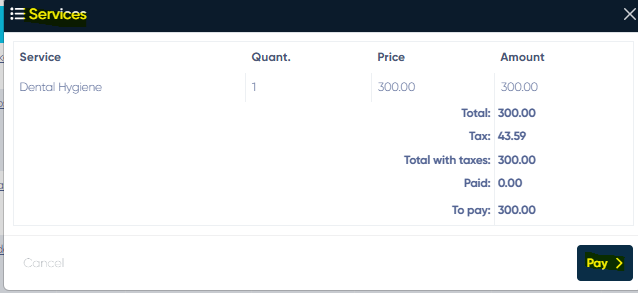
In the Service Summary window, review the services and prices, then click Pay to continue.
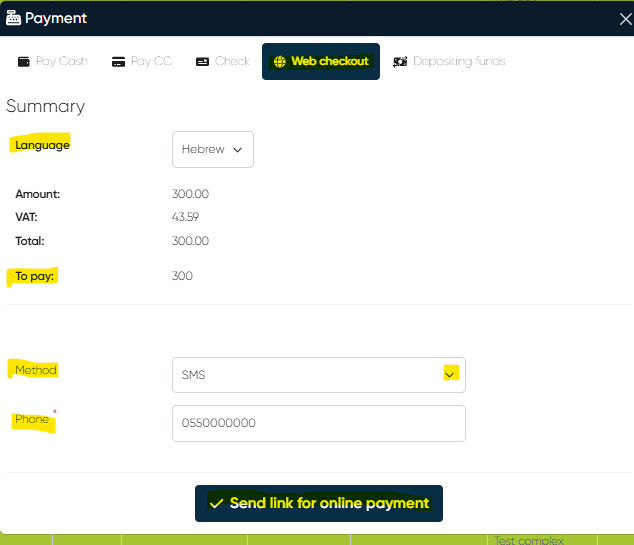
In the next Payment window, select Web Checkout from the list of available payment types.
The Web Checkout Settings panel includes the following fields:
Language Dropdown – Choose the language of the payment page (e.g., English, Hebrew).
Link Delivery Method – Select whether to send the payment link via SMS or Email.
Phone or Email Entry Field – Enter the contact details where the link will be sent.
Amount to Pay (incl. VAT) – Displayed automatically based on services selected.
Once all the required information is filled in, click the Send Link for Online Payment button. A unique payment URL will be generated and sent to the patient immediately.
3. Patient Payment via Web Checkout Link
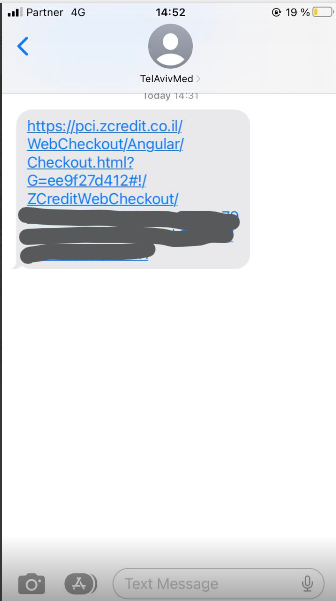
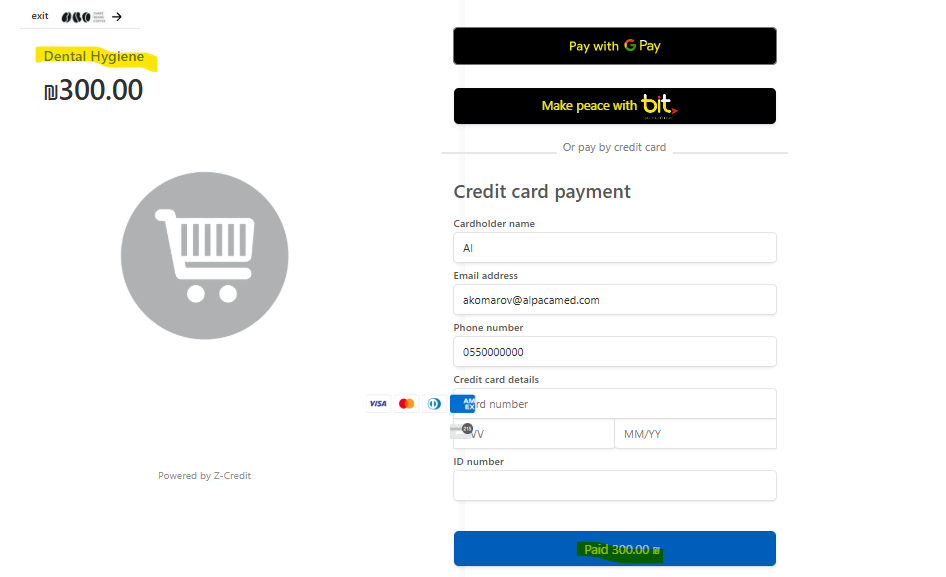
The patient completes the payment by clicking the link received via SMS or email. This link opens a secure Web Checkout Page where the following can be done:
Select Payment Method – Choose from available options like Standard Credit Card, Apple Pay, Google Pay, or other digital payment platforms (depending on the provider).
Enter Payment Details:
Cardholder Name
Email Address
Phone Number
Credit Card Information
ID Number (if required)
Review Details:
Payment Amount (including VAT)
Name(s) of the selected service(s)
Once the patient clicks Pay, the transaction is processed in real-time. Successful payments are reflected automatically in the system.
Additional Information
This feature supports multilingual interfaces and is optimized for mobile access.
A full transaction log is available within the patient’s appointment and financial records.
If the patient does not complete the payment, the system allows the link to be resent from the same payment window.