
Warehouse
Warehouse Module
The Warehouse module is designed to manage all materials, supplies, and equipment used in your medical center. It allows you to create dictionaries for materials, manage stock income and expenses, track transactions and expiration dates, and configure warehouse settings for accurate inventory control.
1. Creating Dictionaries for Warehouse
Before using the warehouse, you need to configure basic dictionaries that define manufacturers, cabinets, and materials.
a) Manufacturers
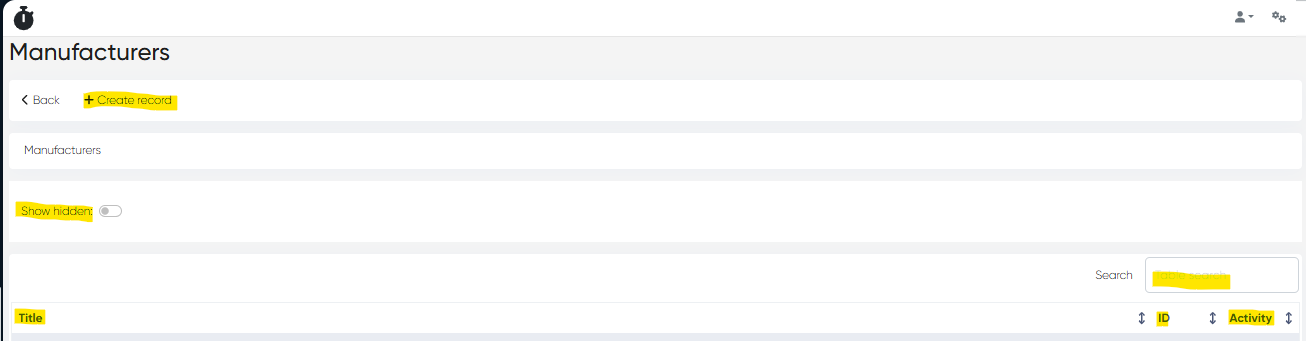
Navigation:Directories > Manufacturers
Purpose: Keep a record of all material manufacturers used in your clinic.
Features:
View the manufacturer list with columns: Title, ID, Activity.
Tools: Table search bar, Show hidden toggle.
+ Create Record: Enter only the Title (Mandatory) to add a new manufacturer.
Edit/Disable: Click the manufacturer name to open the card for editing or disabling.
b) Warehouse Cabinets
You can use existing medical cabinets as warehouse locations or create dedicated warehouse cabinets.
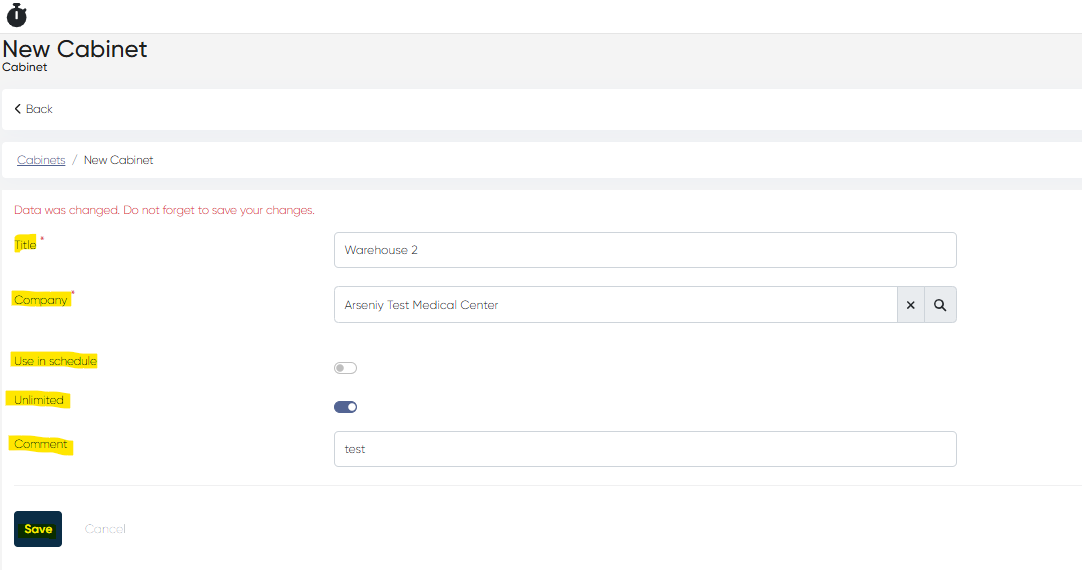
Navigation:Directories > Cabinets > + Create Record
Parameters to Set:
Title (Mandatory) – Name of the warehouse cabinet.
Company – Select the main medical center.
Use in Schedule Toggle – Recommended OFF for warehouse cabinets.
Unlimited Toggle
Comment – Optional notes about the cabinet.
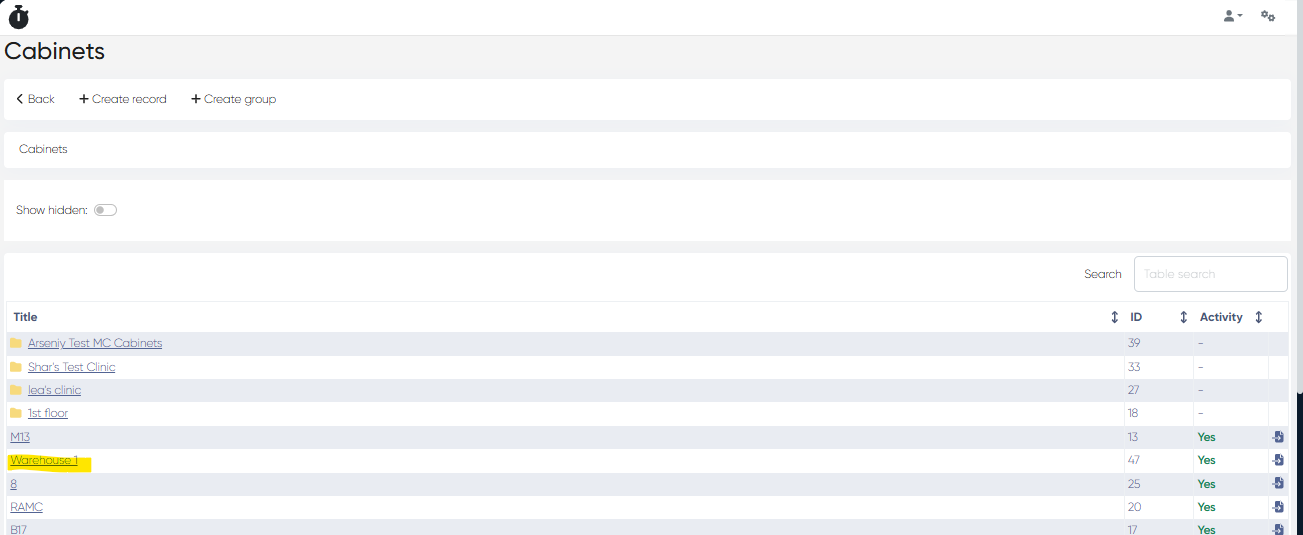
Created warehouse cabinets appear in the Cabinet List.
c) Materials
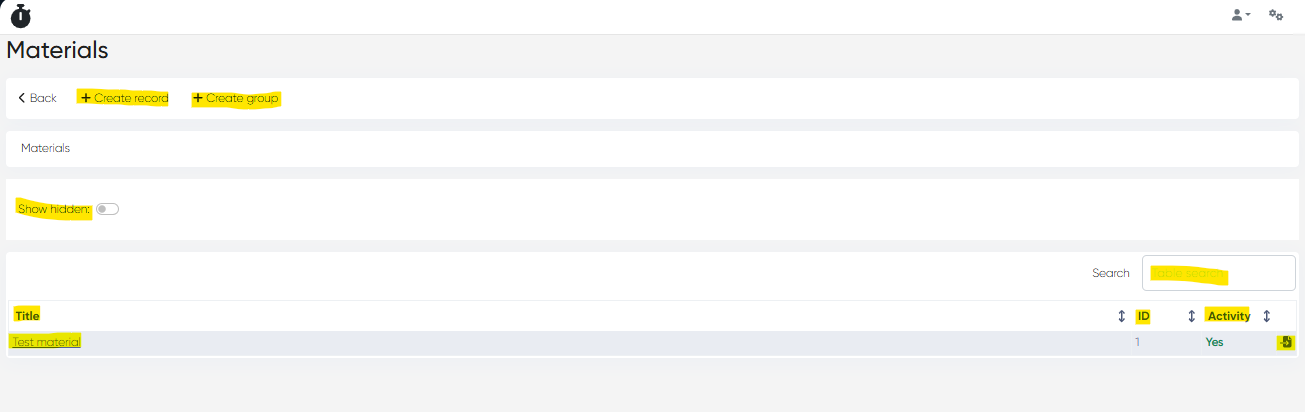
Navigation:Directories > Materials
Purpose: Create a list of all materials and supplies stored in the warehouse.
Features:
Columns: Title, ID, Activity, Move to Folder button.
Tools: Table search bar, Show hidden toggle.
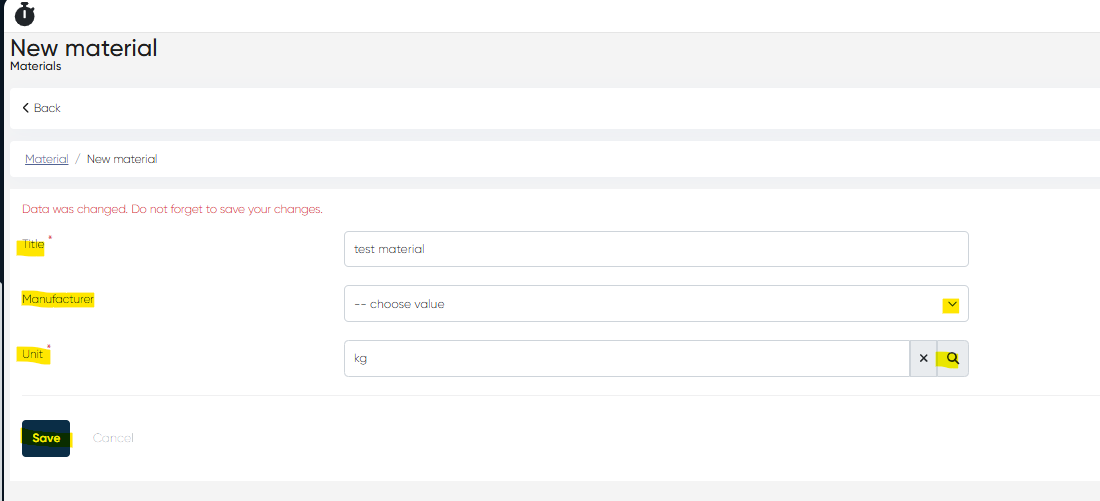
+ Create Record: Fill in:
Title (Mandatory)
Manufacturer (from list)
Unit (from Units dictionary)
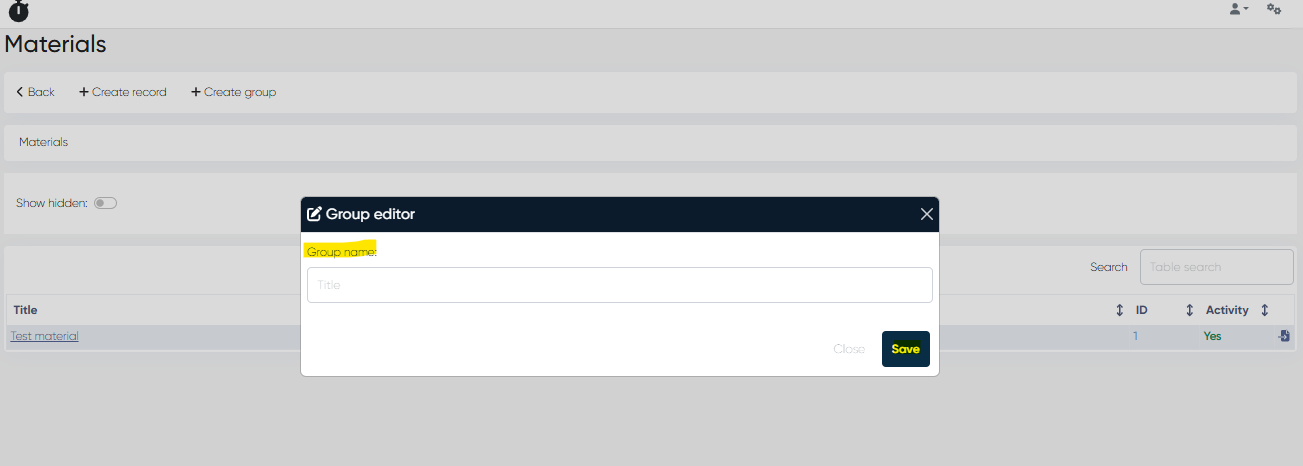
+ Create Folder: Name only required (used to group materials).
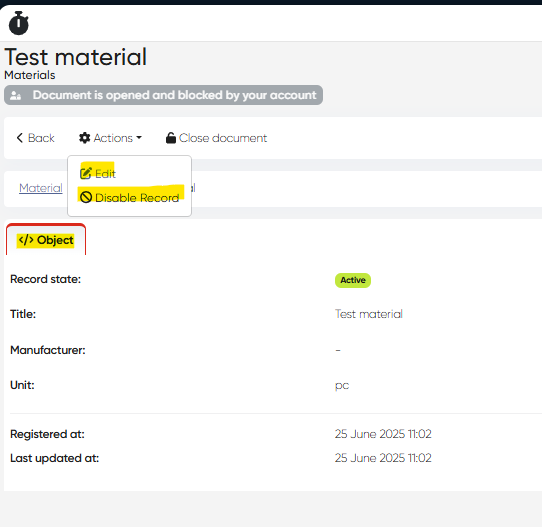
Material Card: Click the material title to view details.
Tabs: Object tab with entered info.
Actions: Edit or Disable record.
2. Warehouse Management
Navigation:Main Menu > Warehouse
The warehouse interface contains four tabs and a + Create Document button to manage material movements.
a) Income/Expense Tab
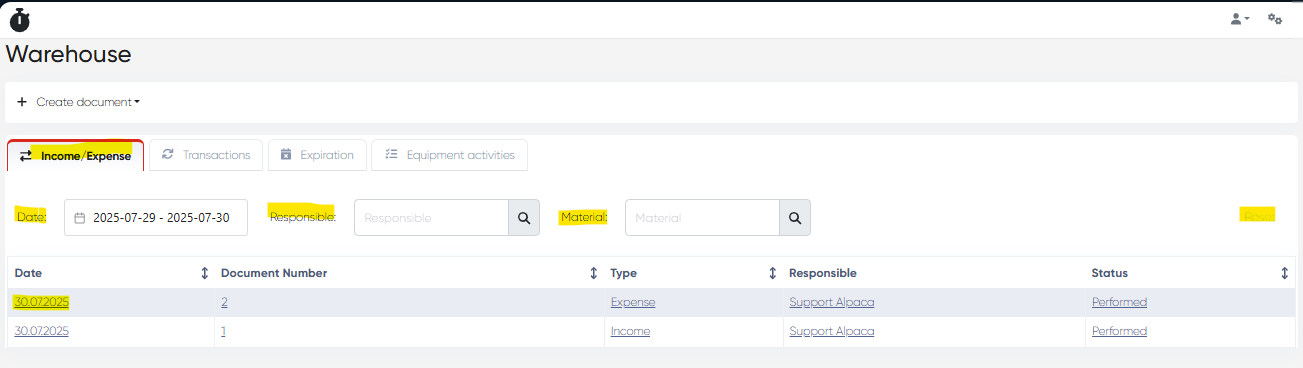
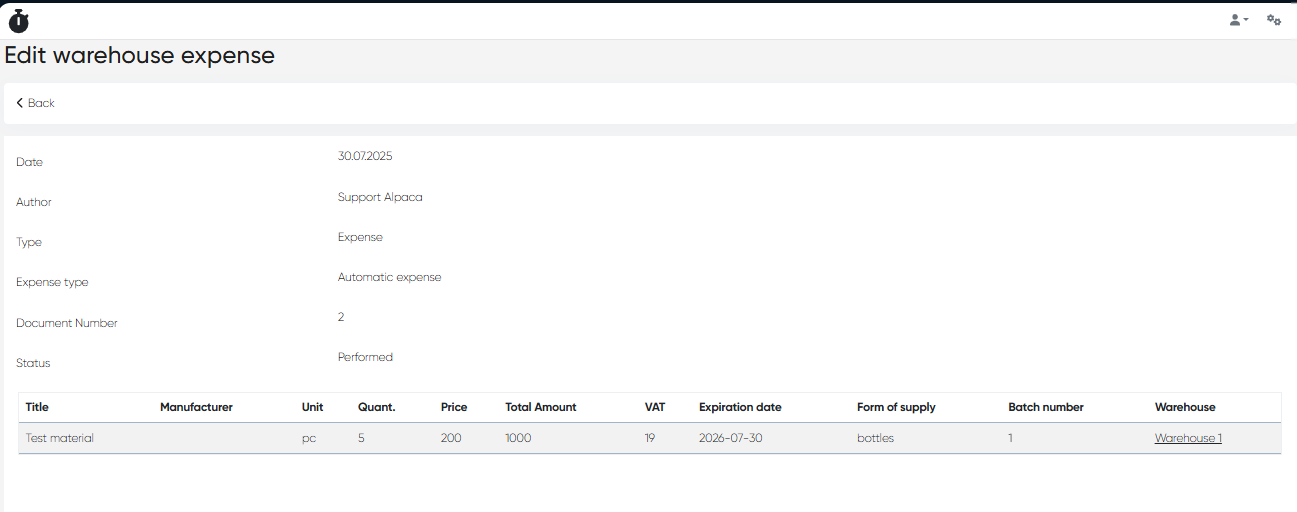
Displays all stock movement documents.
Columns: Date | Document Number | Type (Income/Expense) | Responsible | Status (Draft/Performed).
Filters: Date, Responsible, Material.
Reset Button: Clear filters.
Open Document: Click the date to view details.
b) Transactions Tab
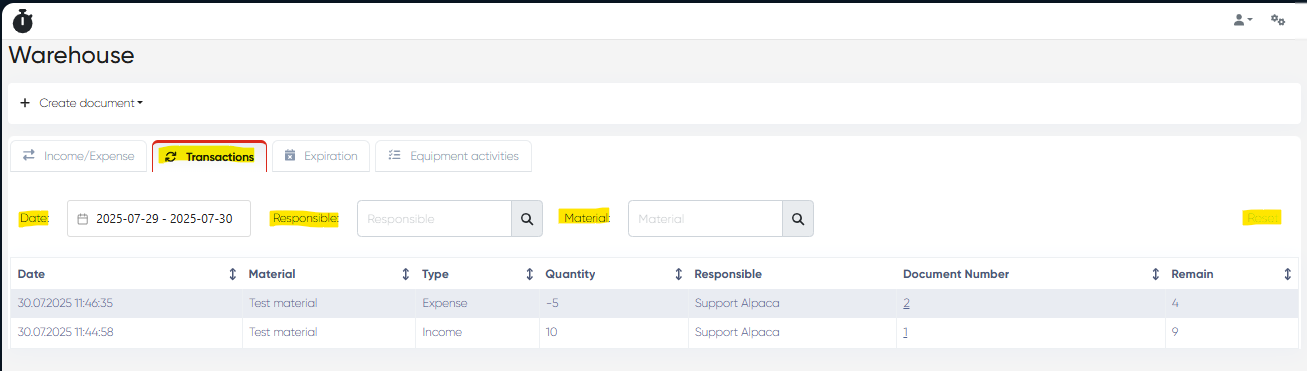
Shows all warehouse transactions in chronological order.
Columns: Date | Material | Type (Income/Expense) | Quantity (negative for expense) | Responsible | Document Number | Remain.
Filters: Same as Income/Expense tab.
c) Expiration Tab
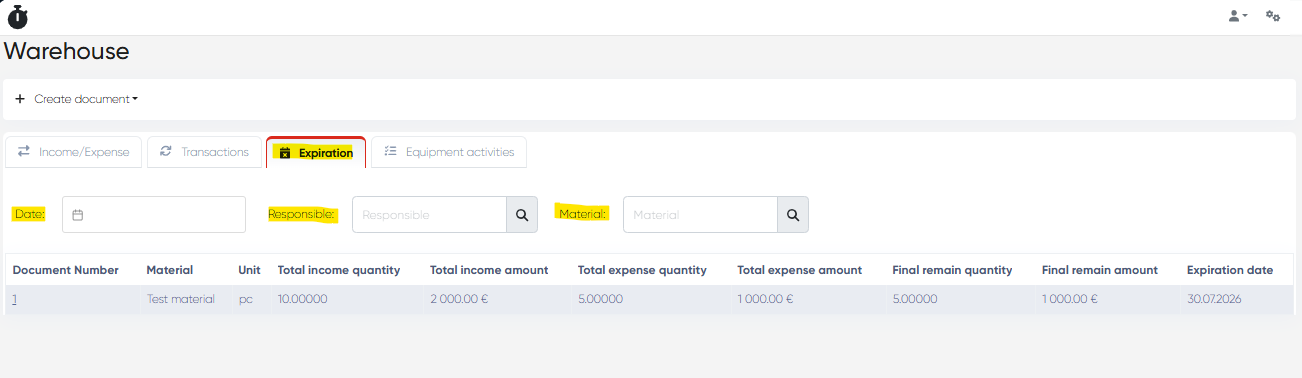
Lists all materials with their expiration information.
Columns: Document Number | Material | Unit | Total Income Quantity | Total Income Amount | Final Remain Quantity | Final Remain Amount | Expiration Date.
Filters: Date, Material, Document Number.
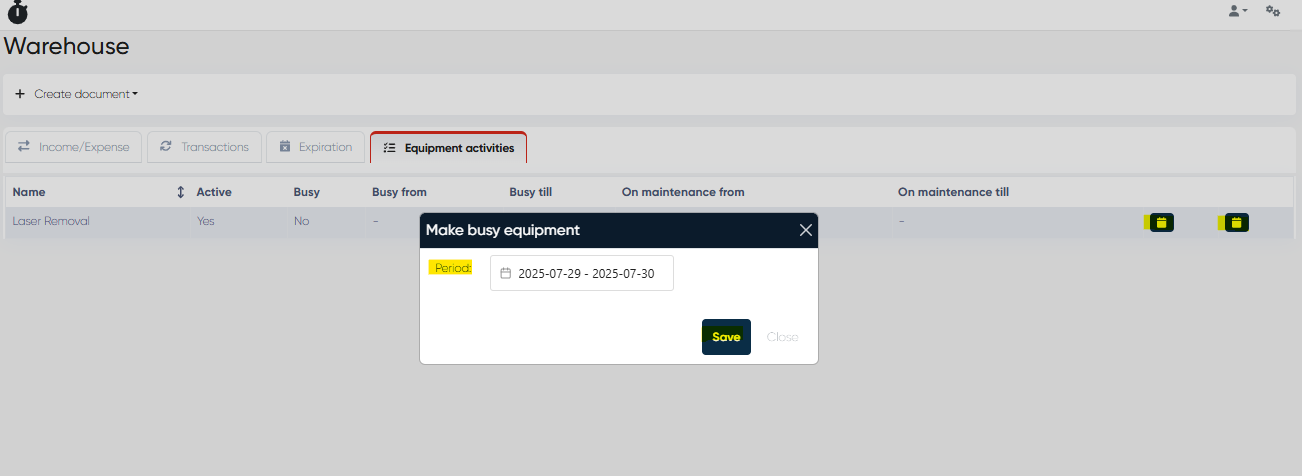
d) Equipment Activities Tab
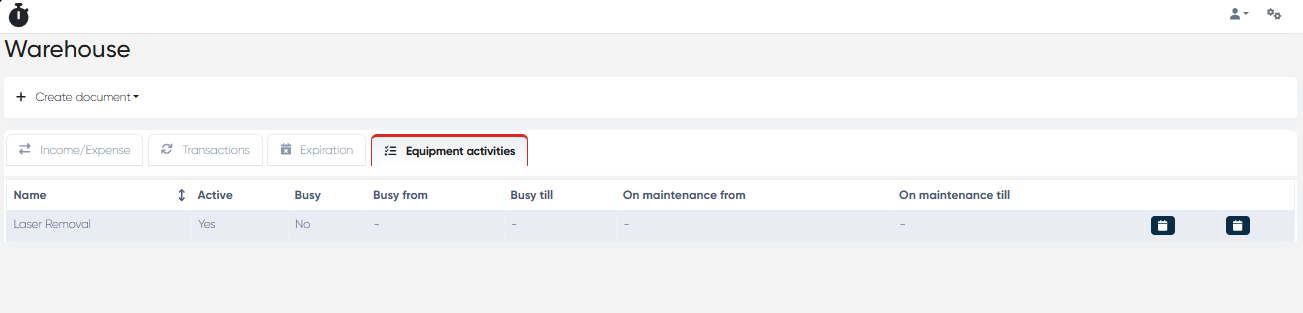
Displays a schedule-like view of equipment availability.
Columns: Name | Active (Yes/No) | Busy (Yes/No) | Busy From | Busy Till | Maintenance From | Maintenance Till.
Actions:
Reserve: Book a busy slot for equipment usage.
Maintenance: Set equipment on maintenance with a time period.
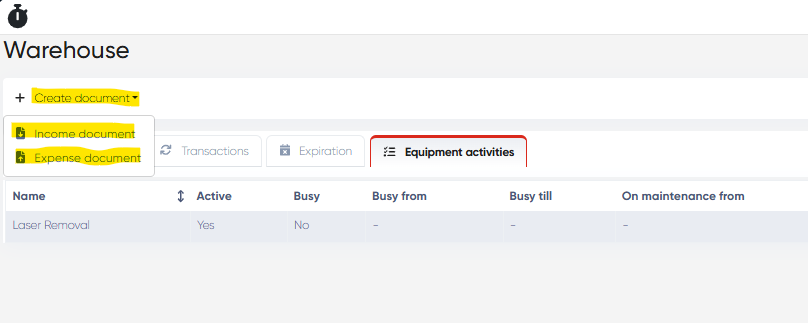
e) + Create Document Button
Used to add a new stock movement document:
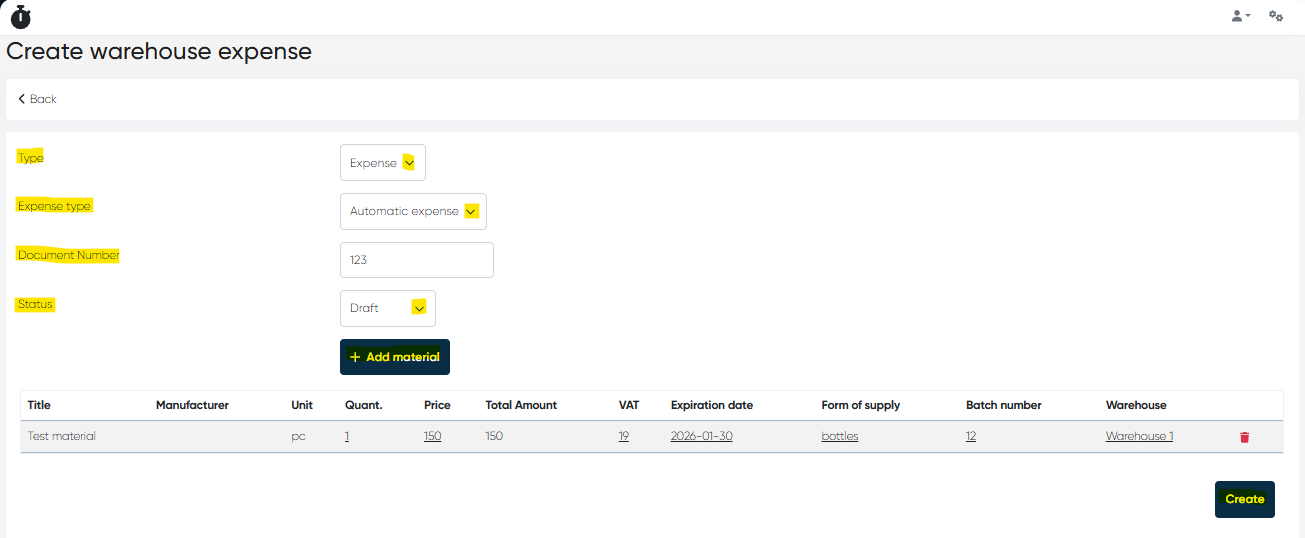
Select Type: Income or Expense.
Set:
Document Number
Status: Draft or Performed
Expense type: Automatic expense or Manual expense - only for the Expense type of document
+ Add Material: Choose one or multiple materials.
Fill in:
Title (View only)
Manufacturer (View only)
Unit (View only)
Quantity (Editable)
Price (Editable)
Total Amount (Editable)
VAT (Editable)
Expiration Date (Editable)
Form of Supply (Editable)
Batch Number (Editable)
Warehouse (Select)
Delete Button – Remove row from the document.
Click Create to finalize the document.
3. Warehouse Settings
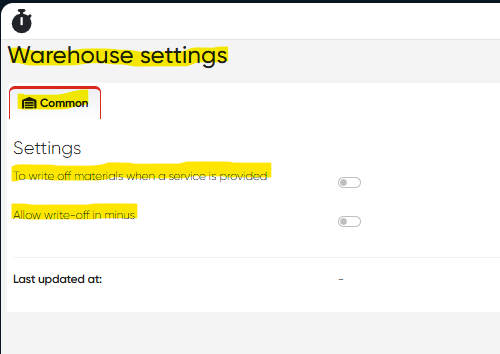
Navigation:Settings > Warehouse Settings
Available Toggles:
Write Off Materials When a Service is Provided:
Enable automatic deduction of materials whenever a service is performed.Allow Write-Off in Minus:
Enable negative stock balances.
(Recommended to keep disabled if warehouse accounting must stay precise.)
Summary Table
Functionality | Navigation |
|---|---|
Create Manufacturer | Directories > Manufacturers > + Create |
Create Warehouse Cabinet | Directories > Cabinets > + Create |
Create Materials | Directories > Materials > + Create |
Manage Income/Expense Docs | Main Menu > Warehouse > Income/Expense |
Track Transactions | Main Menu > Warehouse > Transactions |
Monitor Expiration Dates | Main Menu > Warehouse > Expiration |
Equipment Activity Control | Main Menu > Warehouse > Equipment Activities |
Configure Warehouse Rules | Settings > Warehouse Settings |