
Verification
Verification – LIS Module
The Verification section of the LIS module is used to validate laboratory test results before they are finalized and sent to the patient or medical staff. Verification ensures that only results reviewed by authorized personnel are marked as confirmed within the system.
1. Conditions for Lab Test Result Verification
Before a lab test result can be verified, the following preconditions must be met:
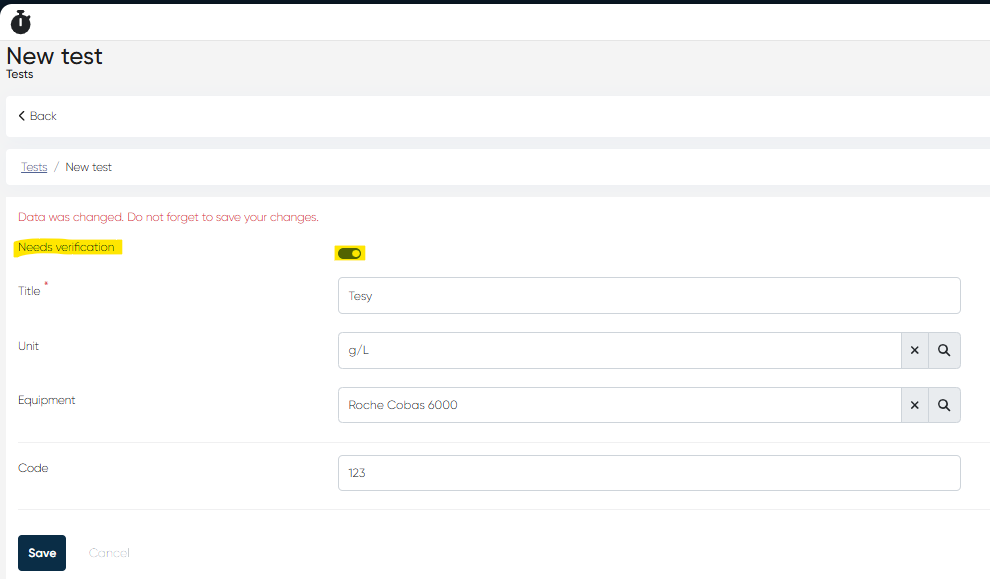
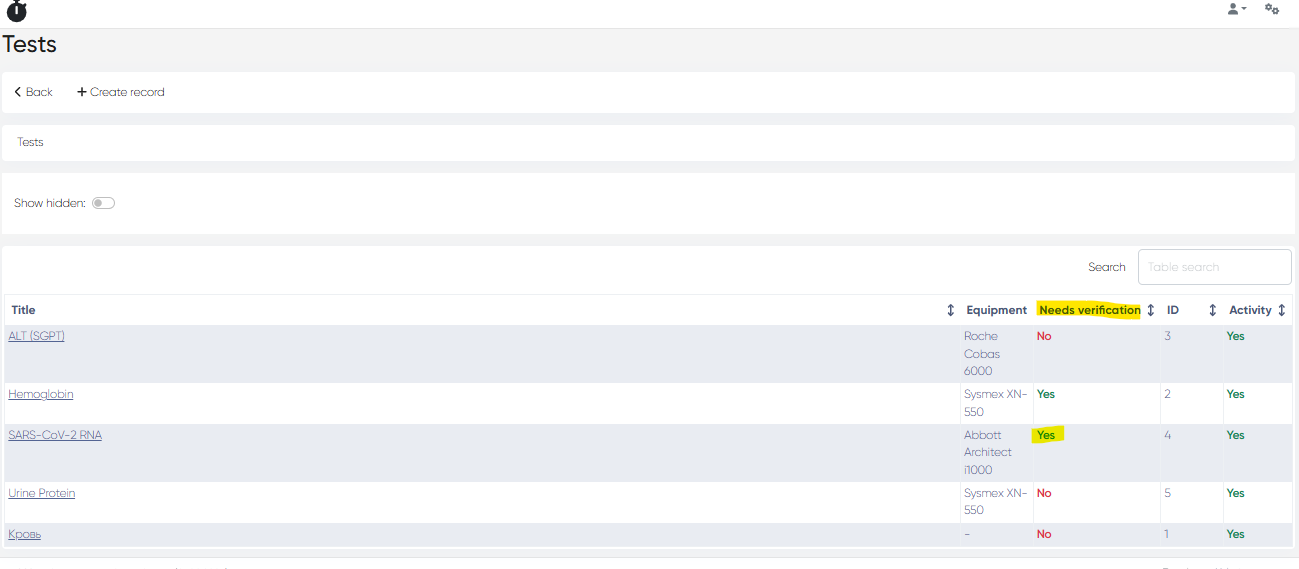
a) Test Must Have "Needs Verification" Flag Enabled
Navigation:
Directories > Laboratory Dictionaries > TestsDuring test creation, enable the Needs Verification toggle.
For already created tests, check this setting in the test’s card.
If this flag is not enabled, verification will not be available for this test.
b) Physical Test Must Be Linked to a Lab Test
Navigation:
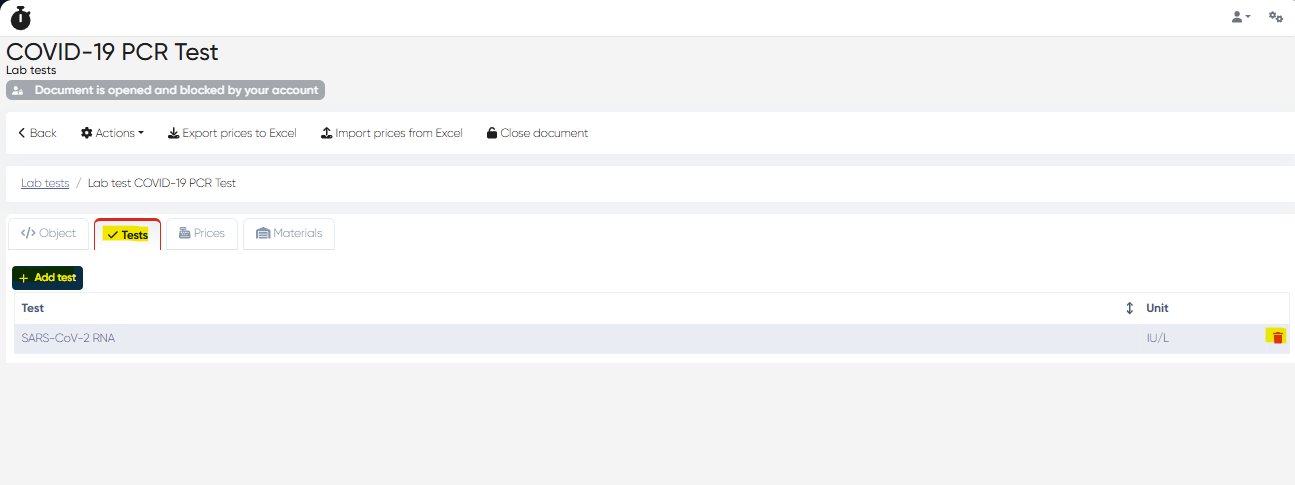
Directories > Laboratory Dictionaries > Lab Tests > Choose Lab Test > Tests TabUse the + Add Test button to select and connect the required physical test (with verification enabled).
After linking:
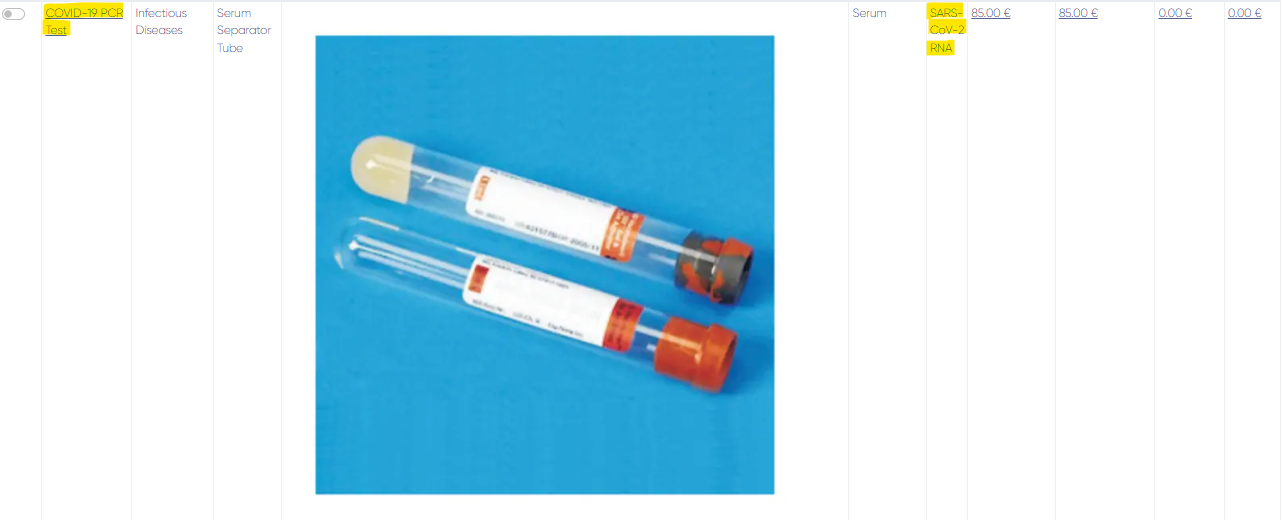
The test name will appear in the Tests column of the Lab Tests list.
The system will allow verification once results are entered.
2. Performing Verification of Lab Test Order Results
After a Lab Test Order has been created and test results have been recorded, you can proceed with verification.
Steps to Verify Results:
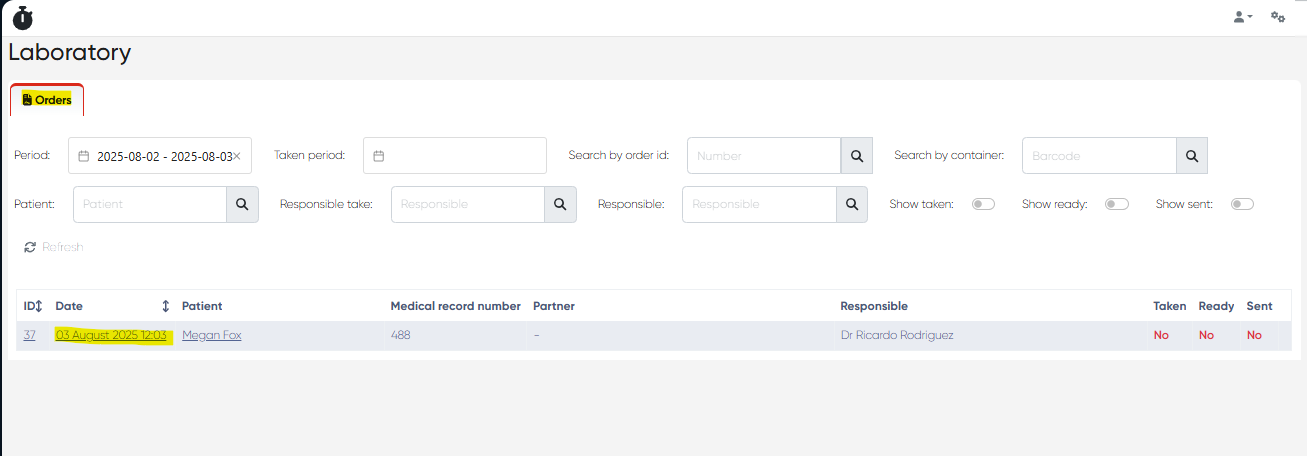
Open the Laboratory Orders Section:
Navigation:
Main Menu > Laboratory
Select the Lab Test Order:
Click the Order Date to open its Lab Test Order Card.
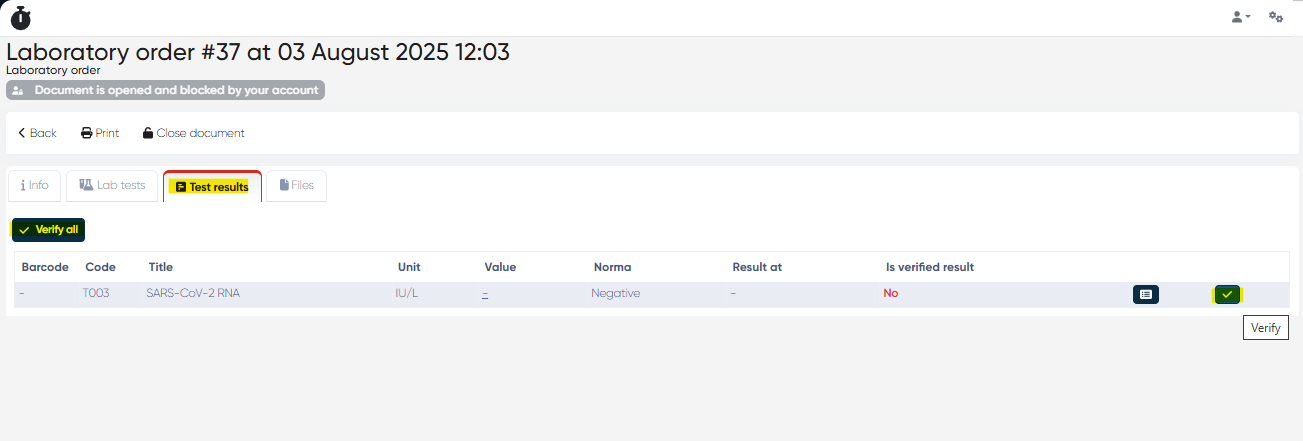
Go to Test Results Tab:
Here you will see a table listing all tests included in this order, with columns:
Code | Title | Unit | Value | Norma | Result At | Is Verified Result
Verify Individual Tests:
Click Verify next to the desired test result to mark it as reviewed.
Verify All Tests:
Use Verify All if multiple test results need to be confirmed at once.
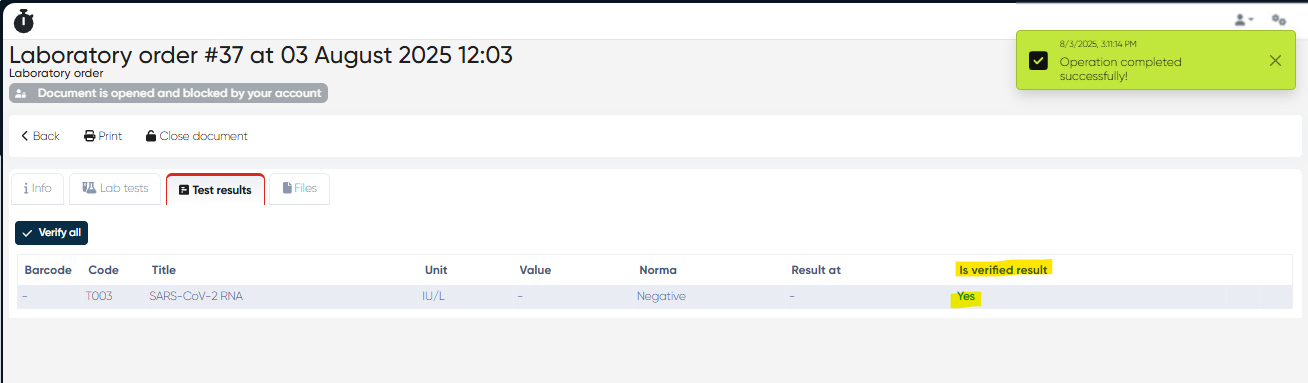
Confirmation:
After verification, the "Is Verified Result" column will show "Yes" for the confirmed test(s).
Verified results cannot be altered without administrative permissions (depending on your system configuration).
3. Verification Outcomes
Verified Results: Marked as Yes, ready for reporting and patient delivery.
Non-Verified Results: Remain unmarked; system may prevent result finalization or report printing until verification is completed (based on clinic policy).
Summary Table
Action | Navigation |
|---|---|
Enable verification for the test | Directories > Laboratory Dictionaries > Tests > Needs Verification |
Link the physical test to the lab test | Directories > Laboratory Dictionaries > Lab Tests > Tests Tab |
Verify results | Main Menu > Laboratory > Choose Order > Test Results Tab |
Verify all results in order | Test Results Tab > Verify All Button |