
Quotas Editing and Change History
Navigation:
Enable Feature:
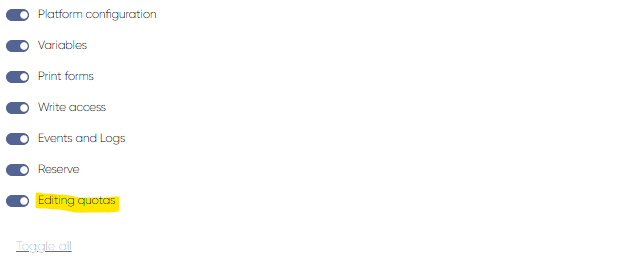
Settings → Administrators → Choose Admin → General Access Rights Tab → Editing Quotas ToggleEdit Quota:
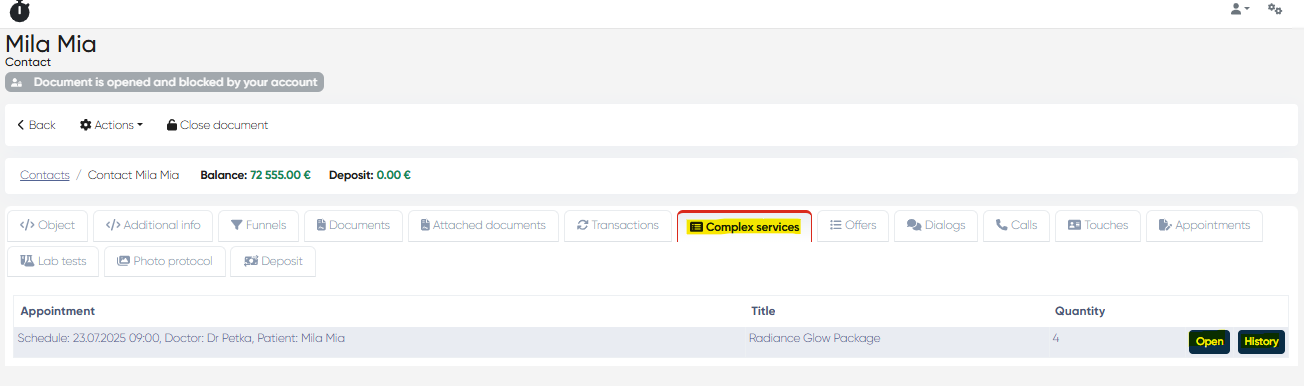
Directories → Contacts → Patient Card → Complex Services Tab → Open (Quota)
Overview
The Quotas Editing and Change History functionality introduces the ability to edit quotas for complex services and track all modifications made to them.
This feature enhances control over service allocations, allowing authorized users to adjust the number of services included in a quota while maintaining full traceability of every change.
Enabling Quota Editing
To grant quota-editing permissions:
Navigate to Settings → Administrators.
Select the relevant admin user.
Open the General Access Rights Tab.
Enable the Editing Quotas toggle.
Click Save.
Only administrators with this right enabled can modify quota data.
Editing a Quota
Go to Directories → Contacts.
Open the Patient Card.
Navigate to the Complex Services Tab.
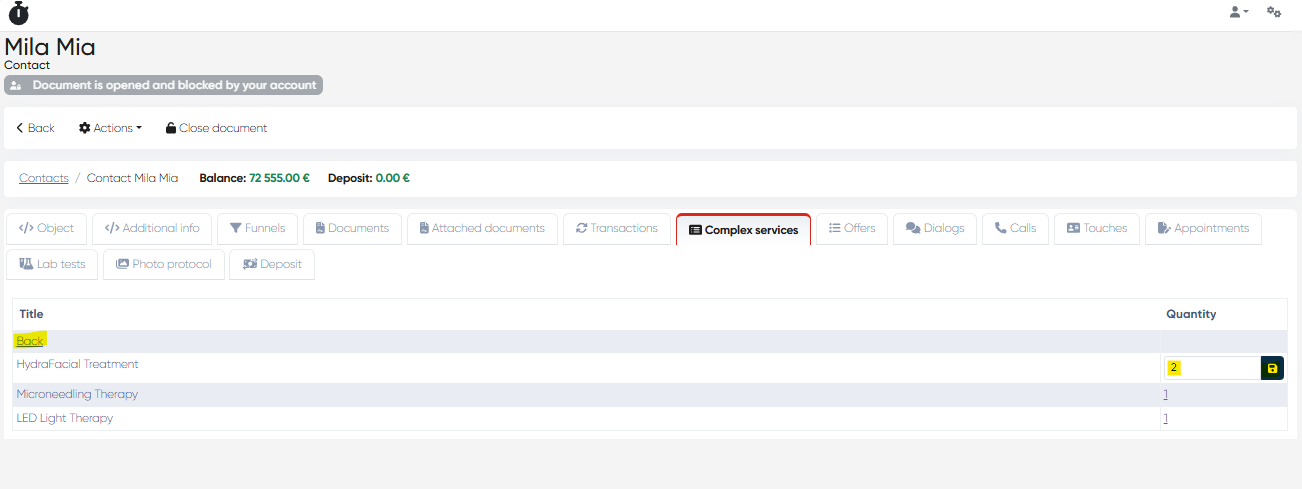
Select the quota to open its details.
Adjust the quantity or parameters of included services.
Click Save to confirm the update.
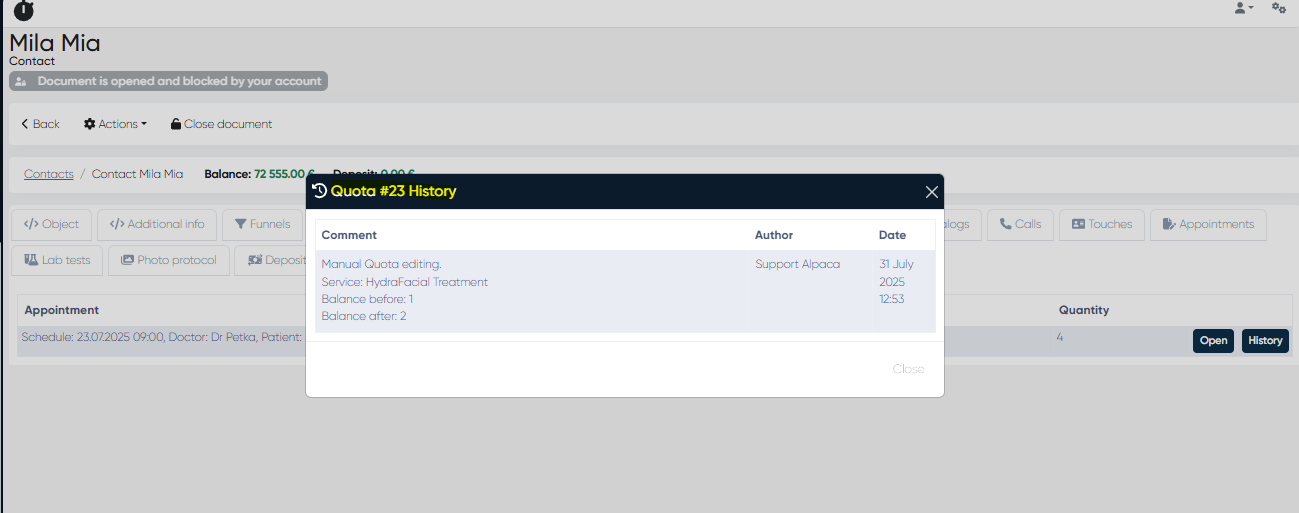
All edits are logged in the quota’s change history.
Viewing Quota Change History
To review previous modifications:
Inside the opened quota record, click the History button.
The system displays a chronological list of all changes, including:
Date and time of modification
User who made the change
Old value → New value comparison
This ensures complete transparency and accountability for all adjustments.
Benefits
Enhanced data accuracy — quotas remain up-to-date without losing historical context.
Full audit trail of all modifications.
Improved administrative control over complex-service management.
Supports accountability by recording user and timestamp data for each edit.
Notes
Only users with the Editing Quotas right can modify quota values.
Change history cannot be deleted or altered.
Quota edits immediately affect linked billing, scheduling, and analytics modules.