
Prescription
Prescription – EHR Module
The Prescription functionality in the EHR module allows medical professionals to generate, customize, and manage prescriptions efficiently from within a medical document. It supports standardized templates with flexible formatting and dynamic variables, and allows printing or sending prescriptions in multiple languages with full traceability.
1. Prescription Template Settings
To configure the prescription layout and content, access the system settings.
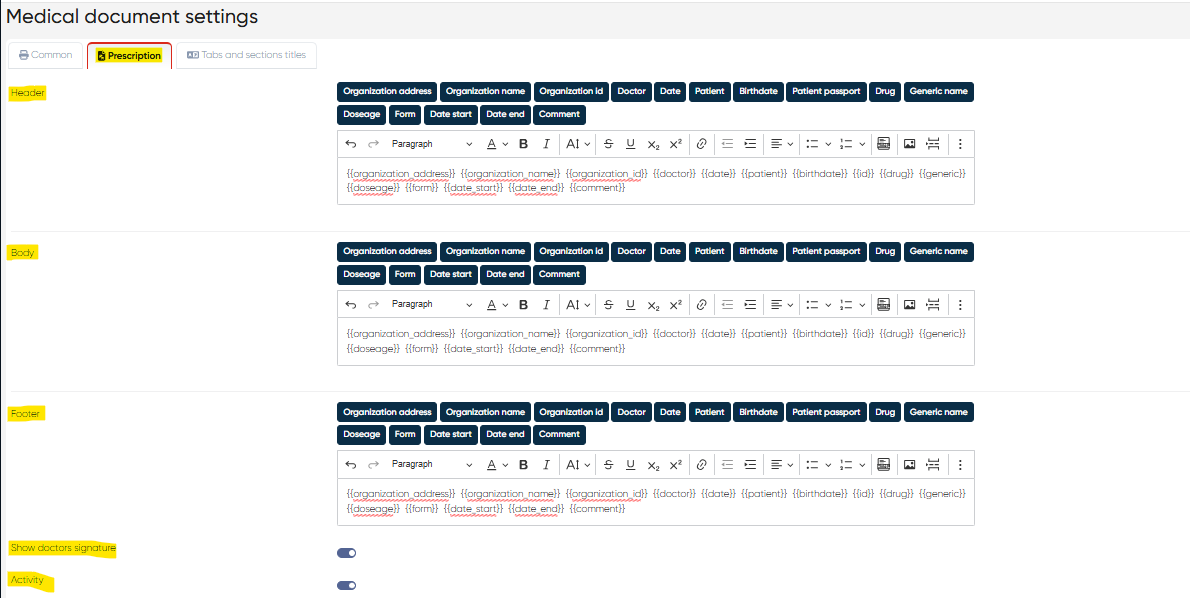
Navigation:Settings > Medical Document Settings > Prescription Tab
Template Configuration
This section contains three main blocks—Header, Body, and Footer—each with a standard formatting panel that supports:
Font and paragraph tools (bold, italic, alignment, font size, etc.)
Insertion of dynamic content using variable placeholders
Available Variable Buttons:
{{organization_address}}{{organization_name}}{{organization_id}}{{doctor}}{{date}}{{patient}}{{birthdate}}{{id}}(Patient ID){{drug}}(Drug name){{generic}}(Generic name){{doseage}}(Dosage instructions){{form}}(Form of the medication){{date_start}}/{{date_end}}(Start and end date for treatment){{comment}}(Prescribing doctor’s notes)
These fields auto-populate based on the medical record and allow you to standardize printed prescriptions while keeping them dynamic and personalized.
Additional Settings
Show Doctor’s Signature toggle
Enables printing of the prescribing doctor’s signature if configured.Activity Toggle
Defines whether the prescription module is active for use in medical documents.
🔹 2. Creating a Prescription from the Medical Document
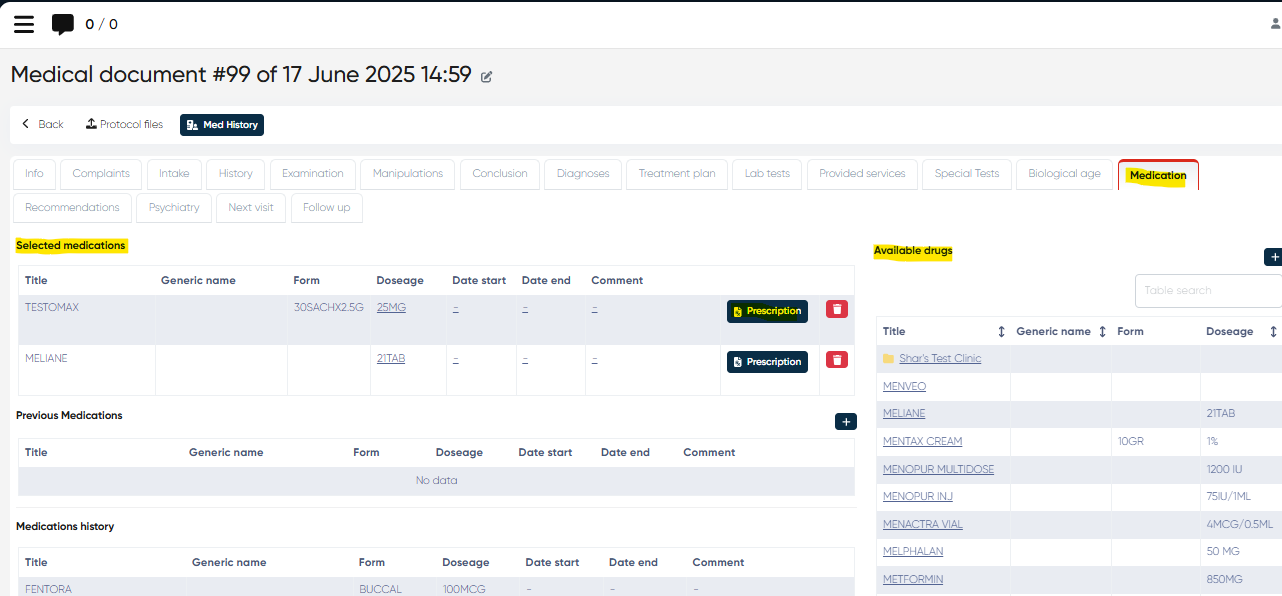
Prescriptions can be created quickly while documenting patient treatment in the Medication tab of a medical document.
Navigation:Directories > Employees > Choose Employee > Actions > Open Doctor’s Cabinet > Select Appointment (Check-In or Paid) > +Med Doc > Medication Tab
📝 Steps to Create a Prescription
Select the Required Drug
Add a drug from the Available Drugs list to the Selected Medications table.Click the Prescription Button
For any added drug, click the Prescription button to initiate the prescription generation process.Language Selection
A language selection window will appear—choose the preferred language for the patient or clinic documentation.Prescription Preview Window
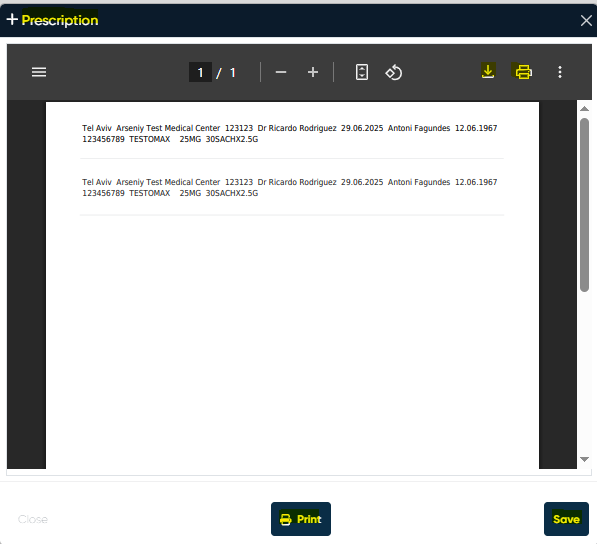
Once the language is chosen, the preview window opens:Review the auto-filled information
Adjust the formatting or content if necessary
Save, Download, or Print the final prescription
With built-in formatting tools and dynamic field automation, the Prescription module provides a fast, consistent, and compliant way to deliver clear medication instructions, reduce errors, and ensure documentation quality across all prescriptions issued from the EHR.