
Photos
The Photos section provides a simple yet powerful tool for uploading, storing, and comparing patient photos directly within the clinic management system. This functionality supports better visual documentation and tracking of patient progress over time.
Photos can be managed either via the Patient Profile>Med History>Files and Documents or within the Medicine>Choose Medical document>Attached Documents section, offering flexibility depending on the clinic’s workflow.
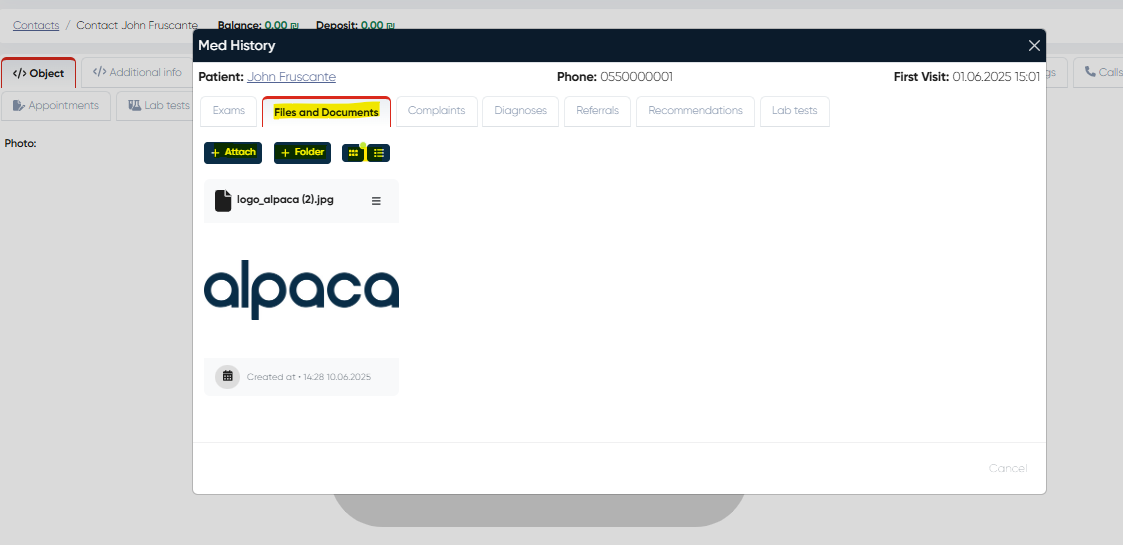
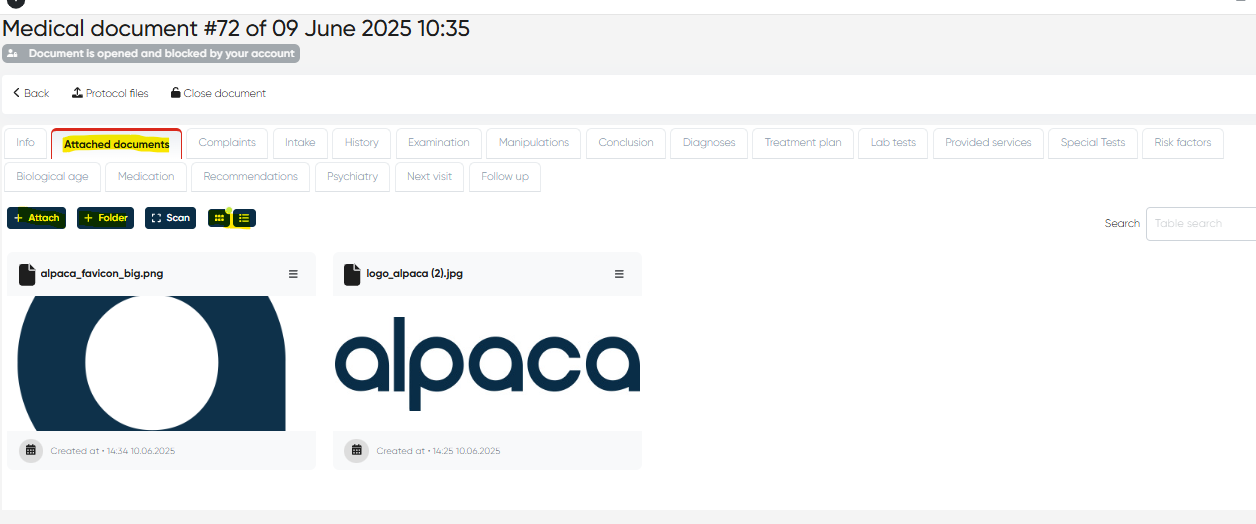
1. Uploading Photos
Navigate to the Patient Profile>Med History>Files and Documents, or open the Medicine>Choose Medical document>Attached Documents section for the selected patient.
Click the Attach button to add new images.
Select photos from your computer or device; multiple images can be uploaded at once.
After uploading, photos are saved in the patient’s record and tagged by date and time.
Photos can be organized and labeled for easy reference, folders can be created by clicking the Folder button
2. Managing and Comparing Photos
Access the photo gallery via the patient profile or via the tab in the medical document section to view all uploaded images.
Photos are displayed in chronological order to help track patient changes.
Use viewing, zoom if needed, to enhance photo visibility during comparison.
Add notes or comments to individual photos for detailed documentation.
3. Using Photos in Clinical Workflow
Photos can be linked directly to appointments, treatments, or medical documents for comprehensive records.
Staff can quickly access relevant photos during patient visits to support clinical decisions.
Photos stored in the system remain securely tied to the patient’s profile, ensuring privacy and compliance.
Summary
The Photos section in the Reception module enhances patient documentation by simplifying the upload and comparison of images. It supports visual tracking of treatments, clinical changes, and patient progress, all integrated smoothly into the clinic’s existing digital workflow.