
Photo protocol
Photo Protocol – EHR Module
The Photo Protocol section allows healthcare professionals to manage and compare medical photographs of a patient over time. This feature is handy in aesthetic, dermatological, or post-surgical cases where visual documentation supports treatment tracking and progress evaluation.
Navigation Path
To access a patient’s Photo Protocol:
Go to Directories > Employees
Select the desired Doctor
Click Actions > Open Doctor's Cabinet
In the Doctor’s Cabinet, select the appropriate Patient
Open the Medicine tab
Click on the History section
Navigate to the Photo Protocol tab
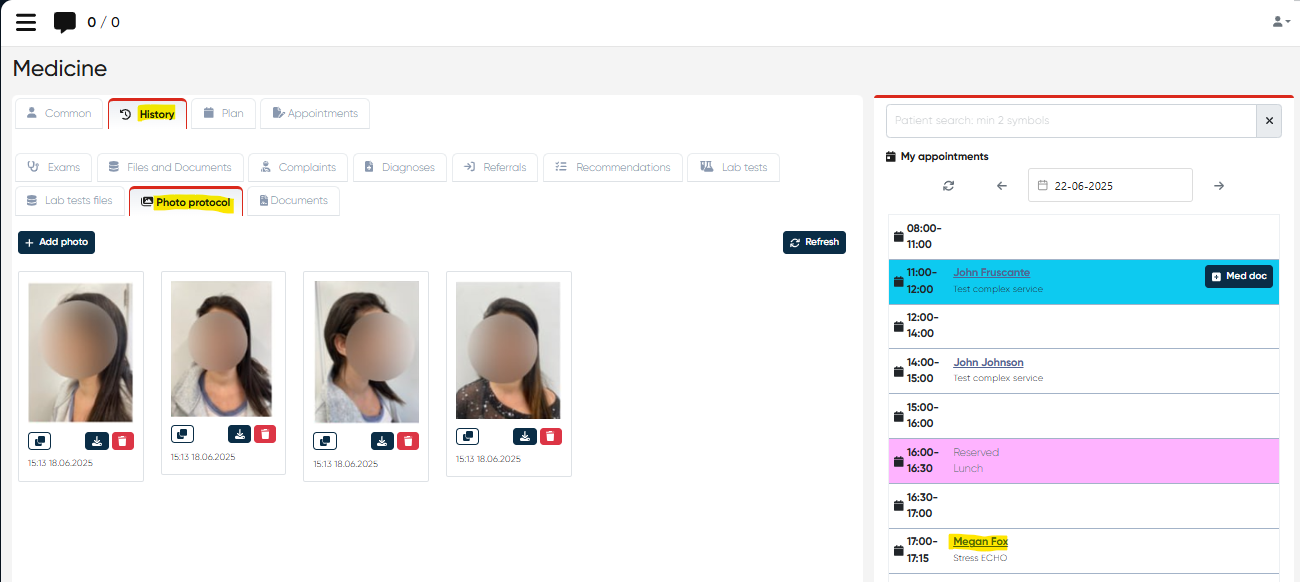
Section Overview
The Photo Protocol tab displays a visual library of all images associated with the selected patient. This section provides a structured environment for uploading, organizing, and reviewing photos.
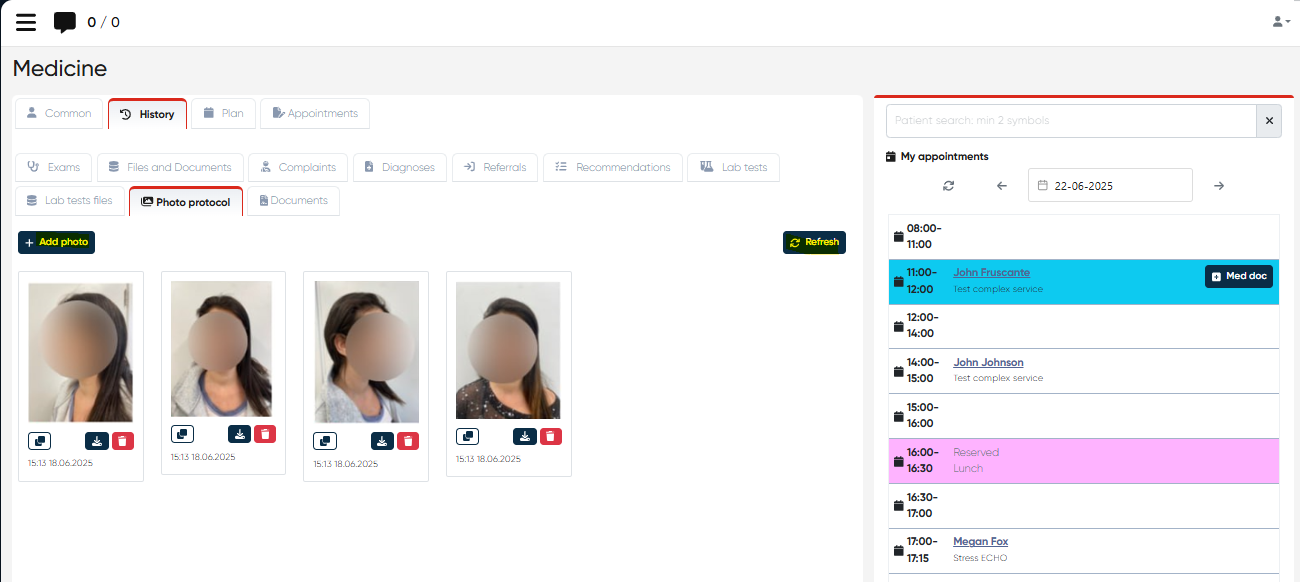
Key Functionalities
Add Photo
Click this button to upload new images for the patient.
Multiple file selection is supported, allowing bulk uploads.
Uploaded photos are automatically saved and linked to the patient's record.
Refresh
Refreshes the photo list to display newly added or modified entries.
Ensures you're always viewing the most current data.
Per-Photo Controls
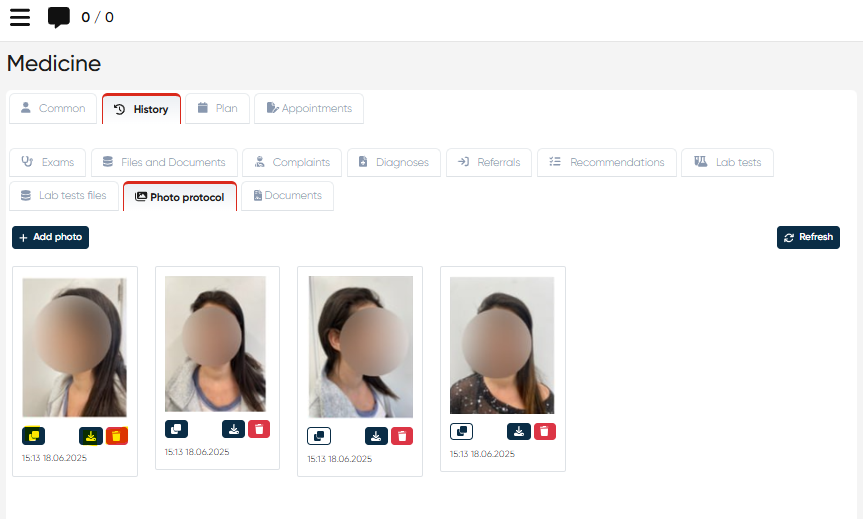
Each uploaded photo includes the following action buttons:
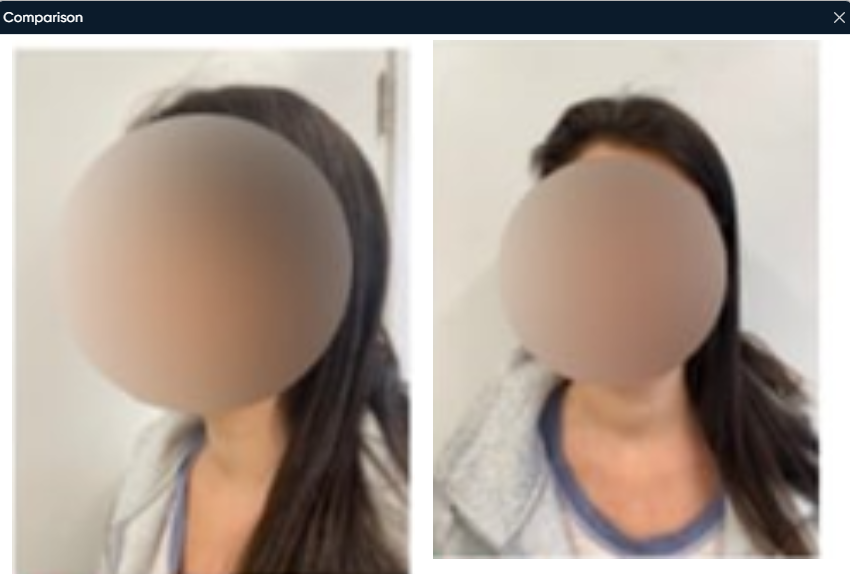
Comparison
Opens a side-by-side viewer to compare two selected images.
Useful for assessing changes between appointments or treatments.
Download
Saves the selected photo to your local device.
Delete
Permanently removes the selected image from the system.
Use Cases
Aesthetic Medicine – Track pre- and post-treatment visuals.
Dermatology – Monitor lesion changes over time.
Post-Surgical Follow-up – Visual recovery tracking.
Documentation – Support diagnoses and medical reporting with visual proof.