
Packages
The Packages section in the Reception Module enables staff to offer, price, and manage the purchase of service bundles tailored to client needs. It supports both standardized and customized packages, making it easy to promote bundled care options while maintaining pricing flexibility.
Package Purchase Workflow:
Package Selection and client assignment: Staff selects a patient who needs a service/package of services and selects a predefined or custom package from the list or via the search bar.
Navigation: Main menu>New touch>Select patient>Complex form>Services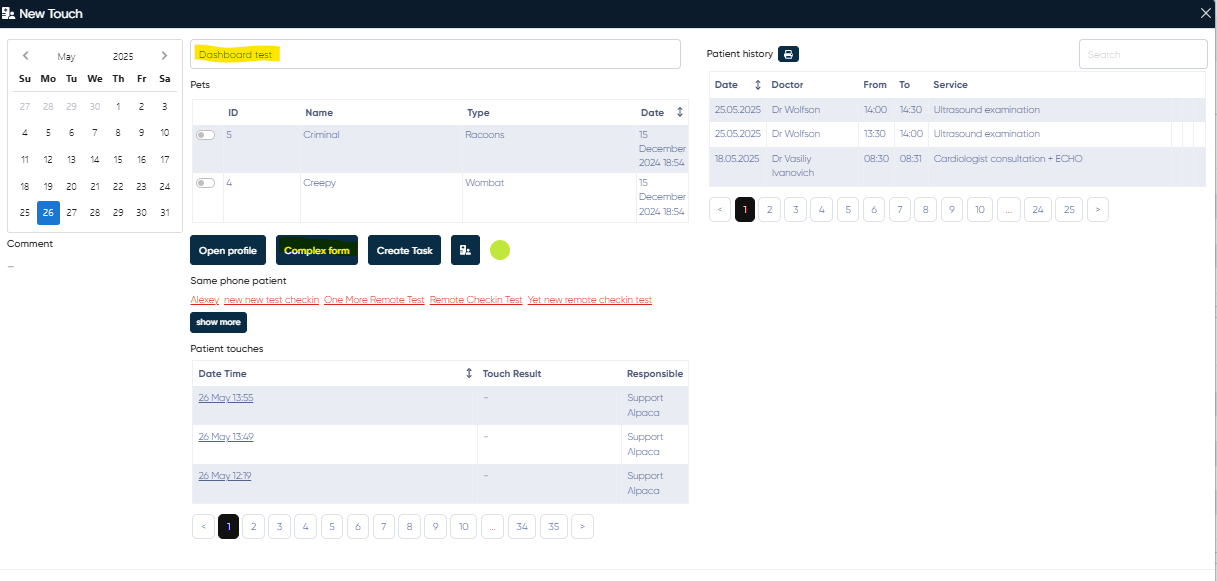
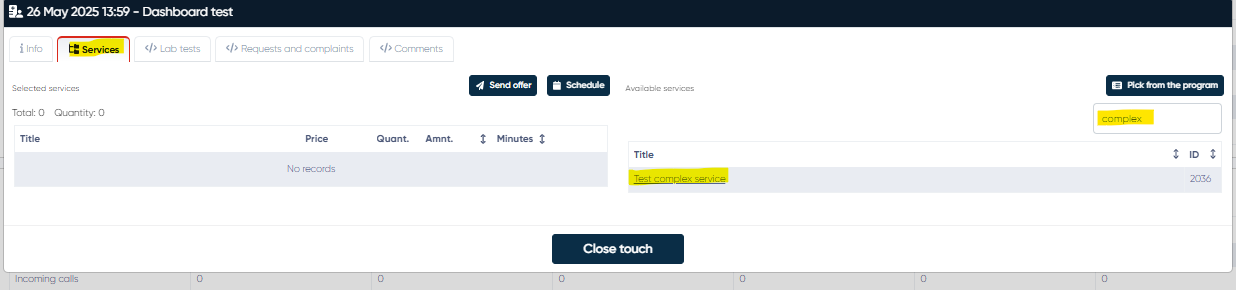
Customization: After selecting the package, you can change the quantity for each service and confirm it by clicking
 on the right of the quantity.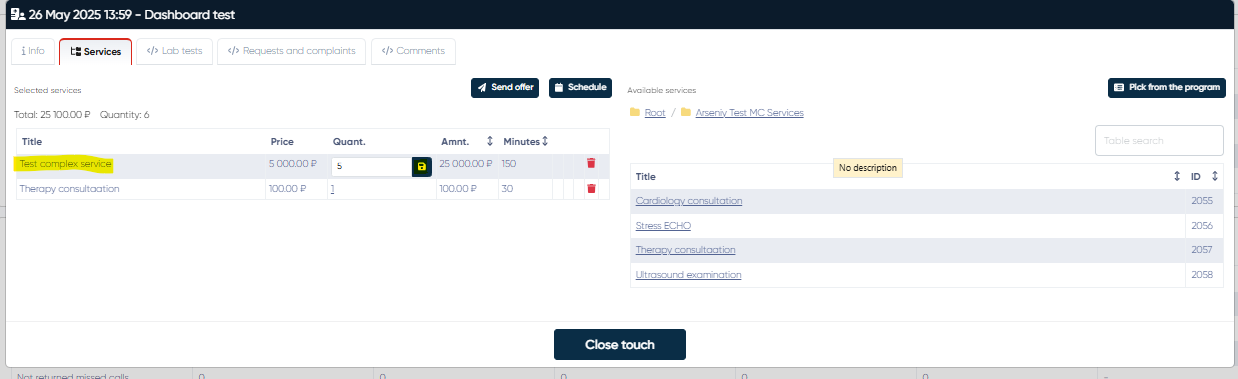
Price offer: Next, you can generate, preview, and send the price offer for selected packages to the client by clicking the Send offer button.
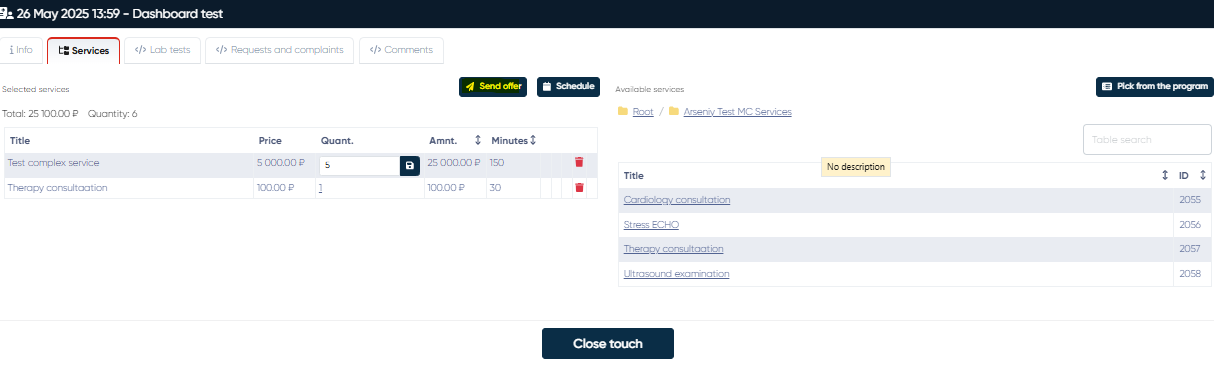
After that, in the Offer window, you need to set the price offer language and your organisation. Also, you can set the discount for the whole price offer here in % or currency, and view the price offer cost with/without the discount.
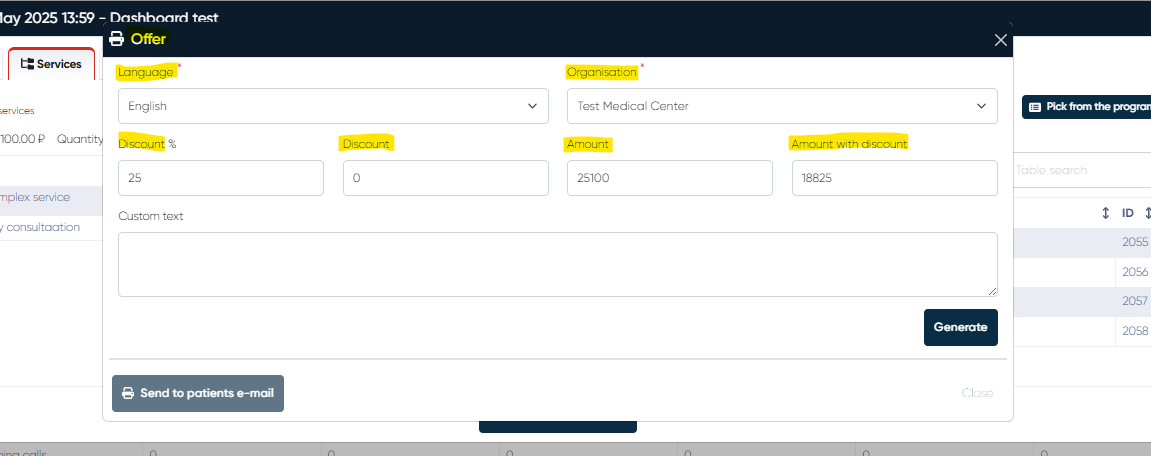
Also, you can add the custom text if needed and generate a preview of the price offer by clicking Generate. After that you can download or print the price offer or send it to the client’s e-mail by clicking Send to patients e-mail button.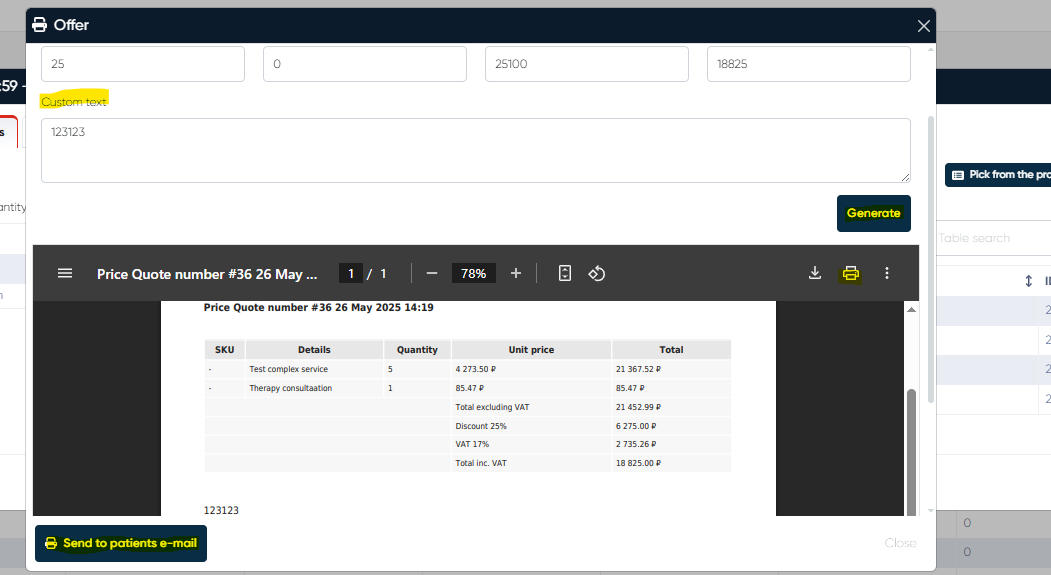
Re-ordering service packages:
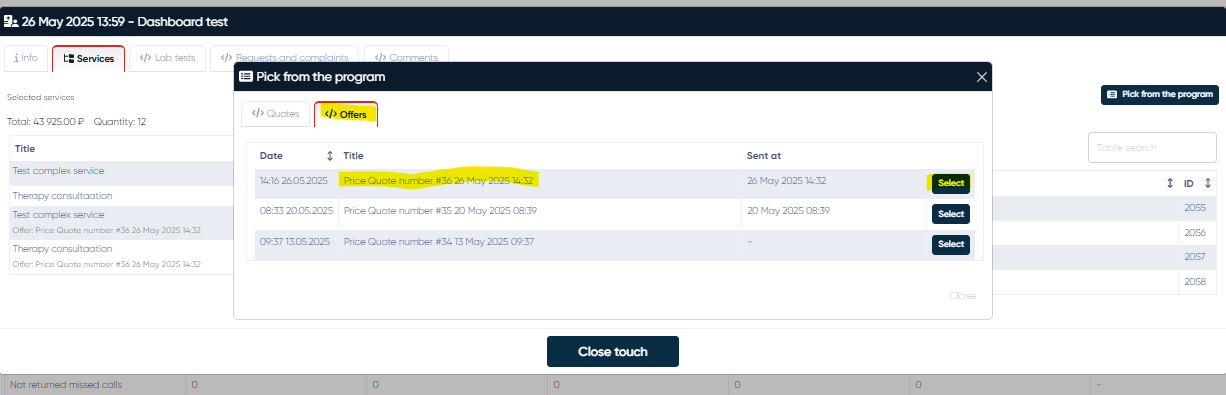
The service packages for which the price offer was created previously can be re-ordered simply by Pick from the program button in the Complex form window. After that, just select the needed price offer in the Offers tab.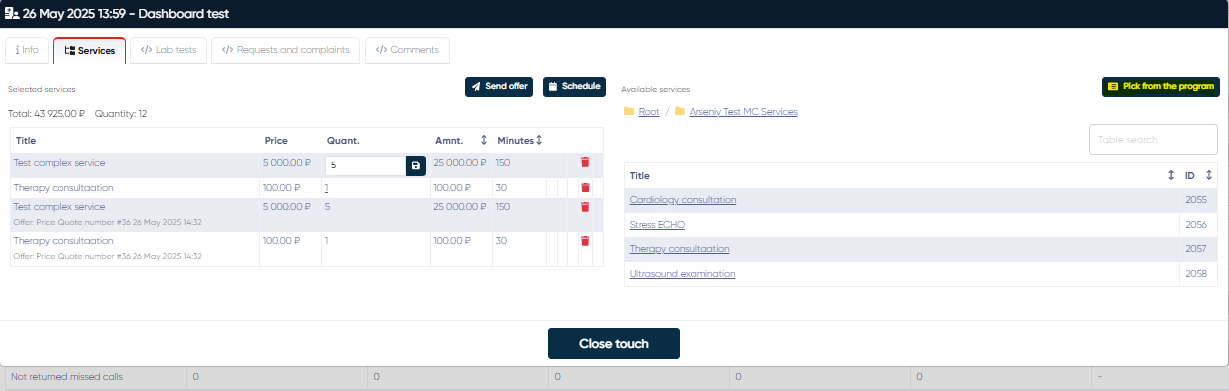
Scheduling for the service packages and customization:
To open the schedule for the selected service packages, click Schedule on the Complex form window.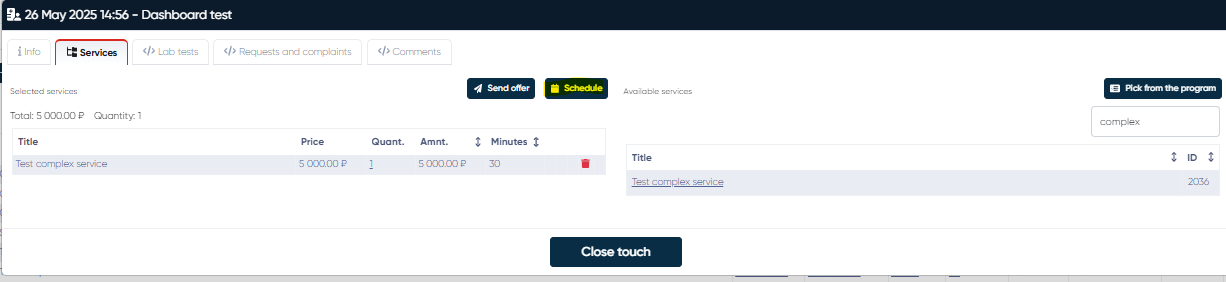
After that, select the service package by clicking the button on the left of its name, set the discount for the package in % or in money, and select the desired time slot in the doctor’s schedule.
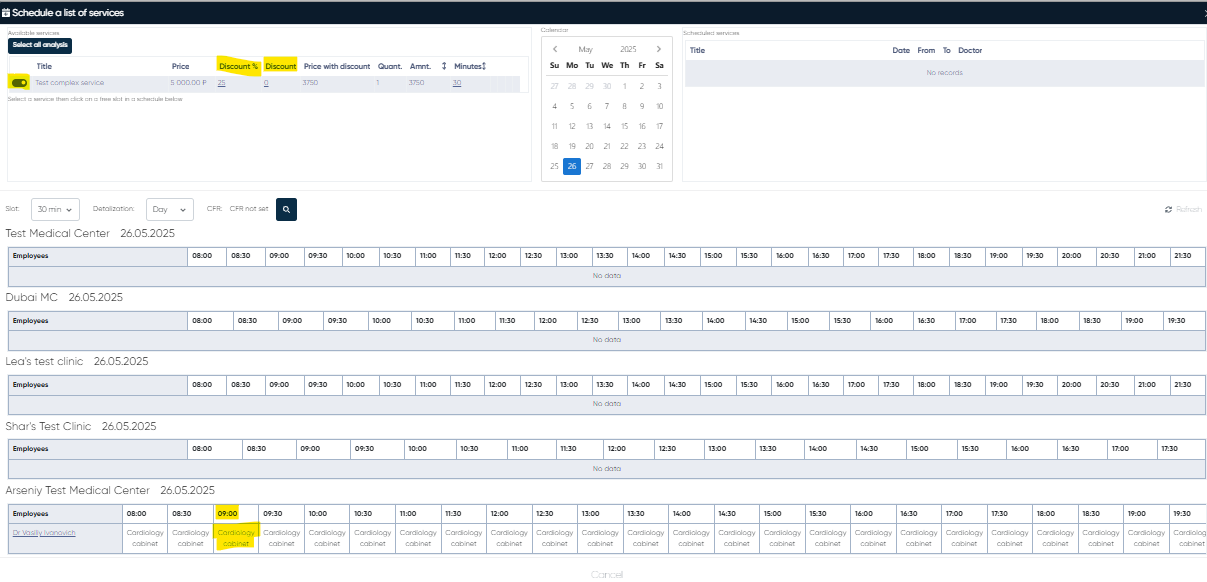
When all the customization is finished, the desired slot selected, you can view an appointment summary and click Yes to schedule the appointment with selected service package.
This feature ensures transparent pricing, smooth purchase flow, and improved service delivery tracking for both clinic staff and clients.