
My patients tracking
My Patients Tracking – EHR Module
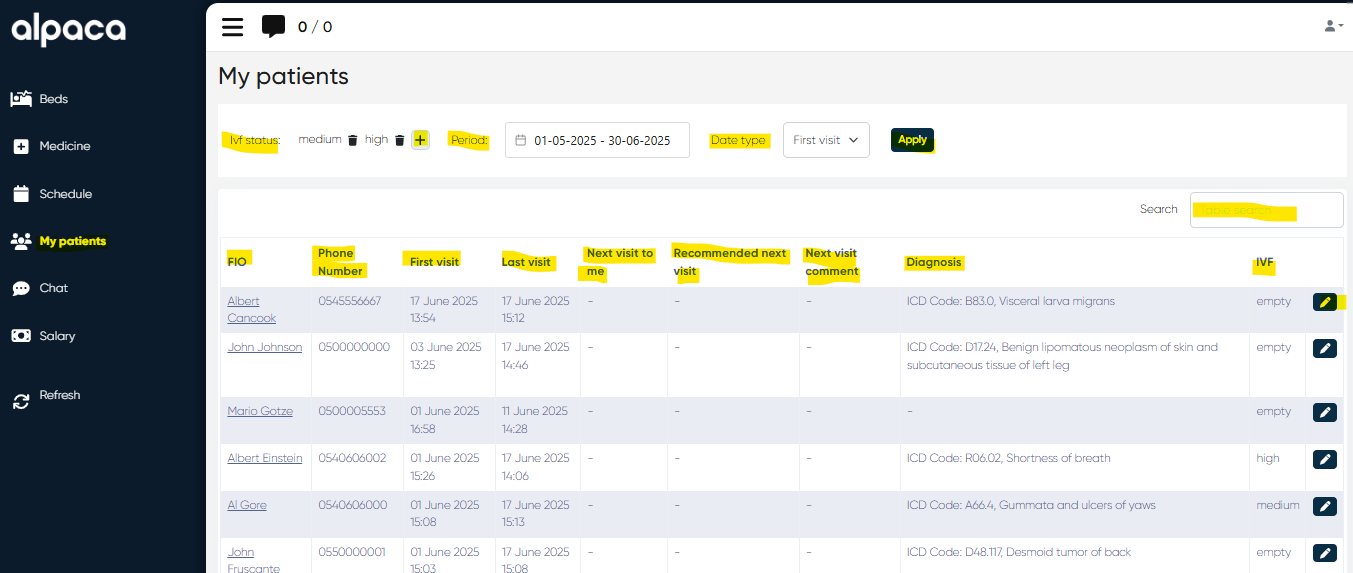
The My Patients tab within the Doctor's Cabinet is designed to help doctors monitor their own patient base with a focus on visit history, continuity of care, and IVF-related patient segmentation. This feature enhances long-term patient tracking, supports follow-up planning, and enables status-based filtering.
Accessing the Section
Navigation:
Directories > Employees > Choose Employee > Actions > Open Doctor's Cabinet > My Patients Tab
Filtering & Controls
The top panel of the My Patients tab provides filtering and configuration tools to refine the patient list:
IVF Status Filter
Allows the doctor to assign or filter patients based on their IVF status.
What is IVF Status?
IVF status (e.g., Low, Medium, High) is used to categorize patients undergoing in-vitro fertilization (IVF) or other fertility-related care. It helps clinicians prioritize follow-ups, manage treatment cycles, and track patient progression through fertility programs.
IVF status values can be customized to match the clinic's internal grading or triage system.
Period Selector
A calendar-based control to define the reporting period for patient visits.
Date Type Selection
Choose which visit date to filter by:
First Visit
Last Visit
Useful for analyzing new vs. returning patients over a set period.
Apply Button
Click to apply all selected filters and refresh the patient list accordingly.
Patients Visit Summary Table
This table provides a structured overview of all patients associated with the doctor, based on selected filters.
Features:
Search Bar – Instantly locate specific patients by name or phone number
Editable IVF Status – Quick adjustments to IVF categorization from within the table
Table Columns:
Column | Description |
|---|---|
Patient Name | Full name of the patient |
Phone Number | Contact number for communication |
First Visit | Date of patient’s initial appointment |
Last Visit | Most recent visit date |
Next Visit to Me | Scheduled an upcoming appointment with this doctor |
Recommended Next Visit | Suggested timeframe for follow-up |
Next Visit Comment | Any additional notes regarding next steps or patient needs |
Diagnosis | Displays the patient's latest diagnosis name along with the corresponding ICD code (International Classification of Diseases) |
IVF Status | Categorization of IVF relevance/priority |
Edit IVF Status | Quick-access button to modify IVF status |
Use Case Highlights
Track continuity of care across your patient base
Plan follow-ups and patient recalls based on real-time visit data
Segment patients by IVF treatment phase or risk level
Support preventive care efforts through consistent visibility of next visit recommendations
View All Patients in Doctor’s Cabinet
Navigation:Directories → Employees → Choose Doctor → Actions → Open Doctor’s Cabinet / Account → Medicine → Patient Search Bar
Overview
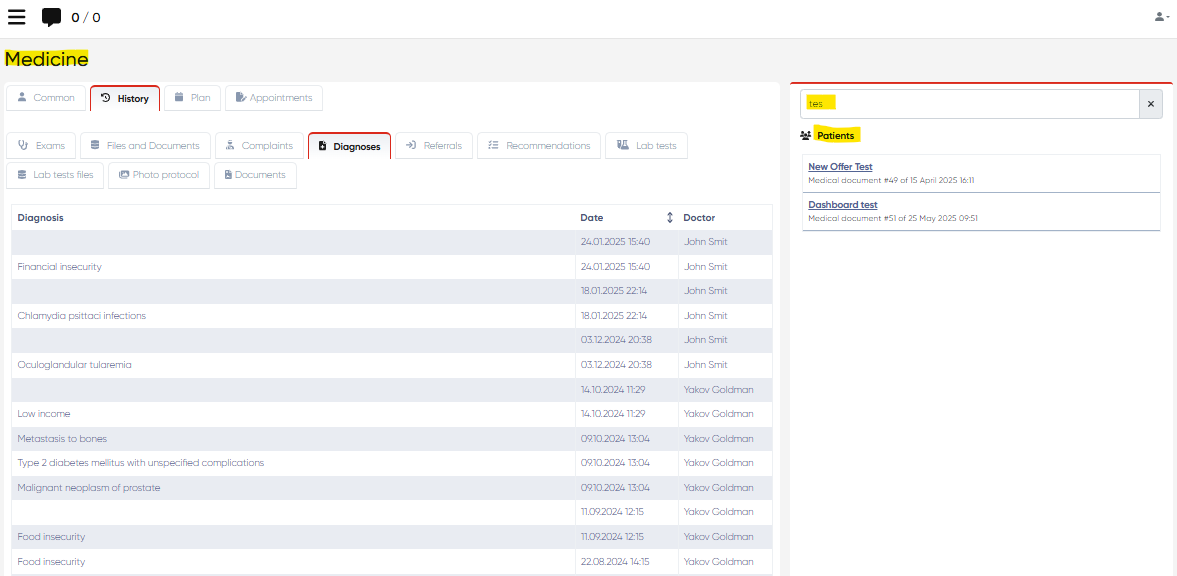
The View All Patients feature allows doctors and authorized employees to access and manage all of their patients directly within the Doctor’s Cabinet, without needing to switch between modules.
This enhancement streamlines daily workflows by providing immediate visibility into assigned patient lists and facilitating quick access to patient records, appointments, and documentation.
Functionality
Upon entering the Doctor’s Cabinet, users can utilize the Patient Search Bar under the Medicine tab to browse and access all patients associated with the selected doctor or employee account.
The search function supports filtering by patient name, ID, or other configured identifiers, enabling fast retrieval of the desired record.
How to Use
Navigate to Directories → Employees.
Select the relevant doctor or employee.
Click Actions → Open Doctor’s Cabinet / Account.
Go to the Medicine tab.
Use the Patient Search Bar to view all patients linked to this user.
Click on a patient’s name to open their medical record or history.
Benefits
Faster navigation between patient records.
Eliminates module switching, improving efficiency for clinicians.
Supports better case management by consolidating access to all assigned patients in one interface.
Notes
The visibility of patients depends on user permissions and assigned doctor-patient relationships.
Only patients linked to the selected doctor or employee are displayed.
The search field supports incremental search, showing results as you type.