
Lab tests
Lab Tests – LIS Module
The Lab Tests section in the LIS (Laboratory Information System) module allows users to create, manage, and organize laboratory tests, as well as generate lab orders and complex tests. It includes tools for pricing, materials management, and lab workflow automation.
1. Creating and Viewing Lab Tests
Navigation:
Directories > Laboratory Dictionaries > Lab Tests
Features Available:
+ Create Record (New Lab Test)
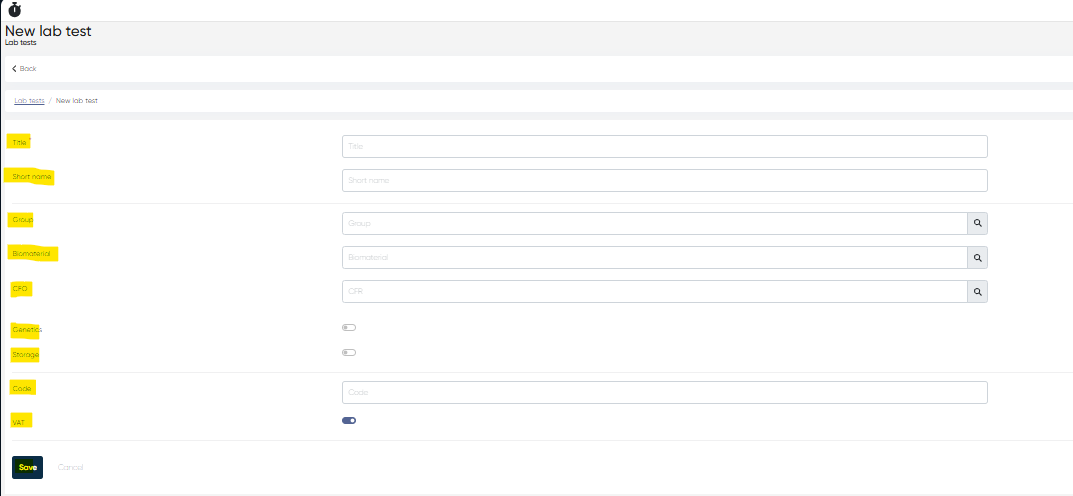
To create a new lab test, click + Create record and fill in the following parameters:Title (Mandatory) – Full name of the lab test
Short Name – Optional abbreviated name
Group – Select from pre-created list (e.g., Hematology, Biochemistry)
Biomaterial – Select from pre-created list (e.g., Whole blood, Serum)
CFO – Select from predefined options
Genetics – Toggle ON if applicable
Storage – Toggle ON if sample storage is required
Code – Internal or external code
VAT – Toggle ON if VAT applies to the test price
Once created, the lab test will appear in the Lab Tests List.
Lab Tests List Features
Navigation:
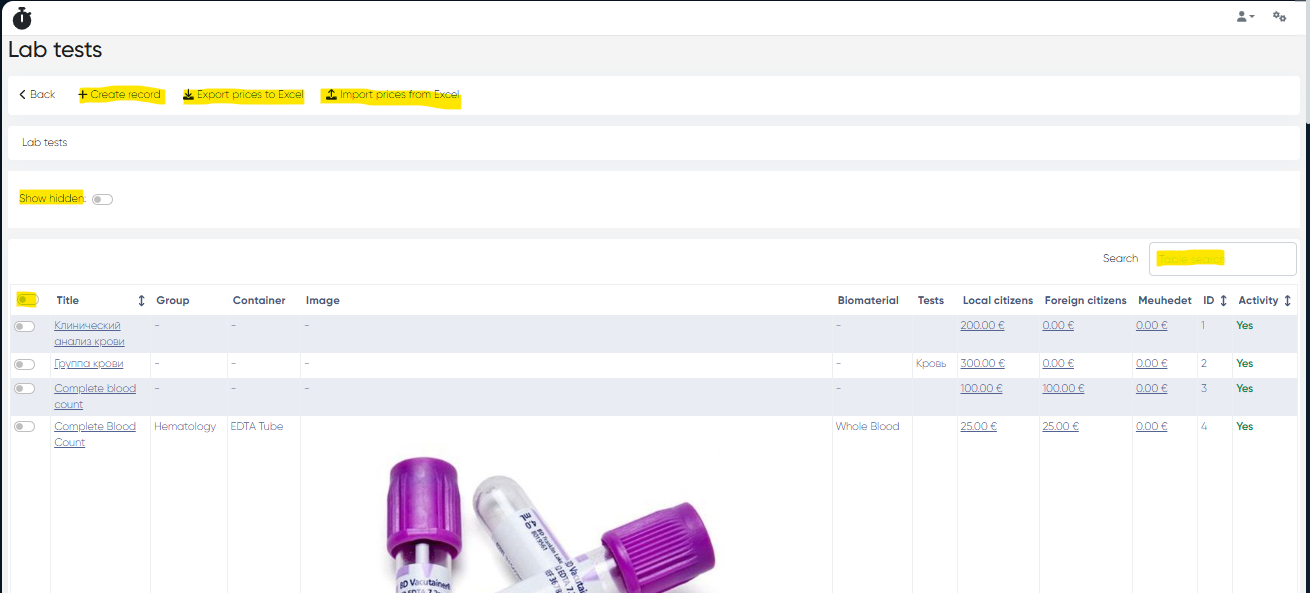
Directories > Laboratory Dictionaries > Lab TestsAvailable Tools:
Show Hidden Toggle – Display inactive or hidden tests
Table Search Bar – Quickly find tests by keyword
Set CFR Button – Assign CFR (Cost Factor Rate) from the list
Export / Import Prices – Export lab test prices to Excel or import updated prices
Columns in List:
Selection Toggle
Title
Group (e.g., Hematology, Biochemistry)
Container (e.g., EDTA tube)
Image
Biomaterial (e.g., Whole blood, Serum)
Tests (linked physical tests)
Price by price type (e.g., Local citizens, Foreign citizens)
ID
Activity (Active/Disabled)

Lab Test Card
Click the Lab Test Title in the list to open the card. Tabs include:
Object Tab: Displays core details entered during creation
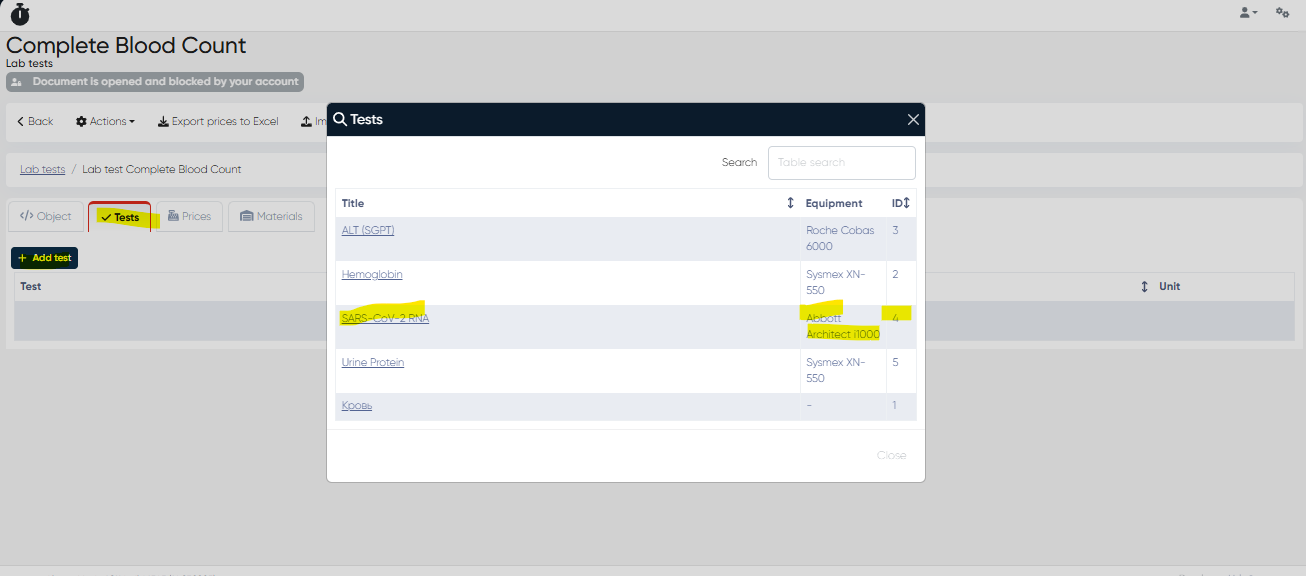
Tests Tab:
+ Add Physical Tests (e.g., SARS-CoV-2 RNA test via Abbott Architect i1000)
Displays added tests with columns: Test | Unit
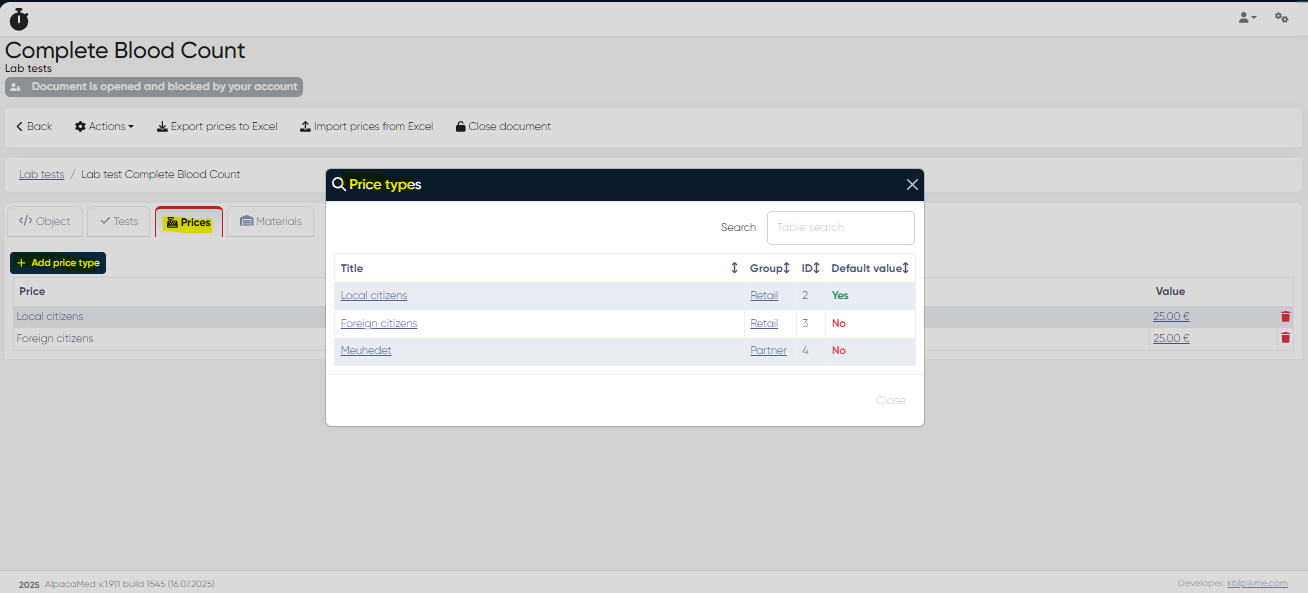
Prices Tab:
+ Add Price Type – Assign from predefined list
View current price types in a table with Price | Value | Delete
Materials Tab:
Shows linked materials with columns: Title | Manufacturer | Unit | ID | Activity
Allows adding new materials from the materials dictionary
2. Creating Complex Lab Tests & Lab Orders via Meddoc
Navigation:
Directories > Employees > Choose Employee > Actions > Open Doctor’s Cabinet > Schedule tab > + Meddoc > Lab Tests tab
Features:
Available Lab Tests:
Searchable list
Clicking a test adds it to Selected Lab Tests
Add to Favorites button for each Lab test
Favorites Section:
View favorite lab tests
Option to remove from favorites
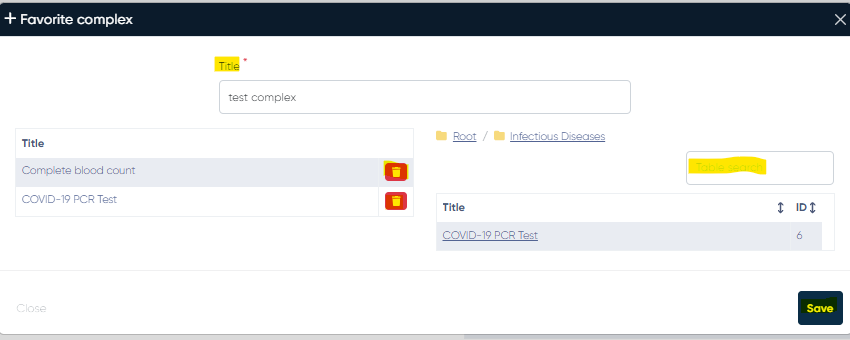
+ Create Complex Button:
Opens Favorite Complex Window
Set Title (Mandatory) and select the lab tests to include in a complex
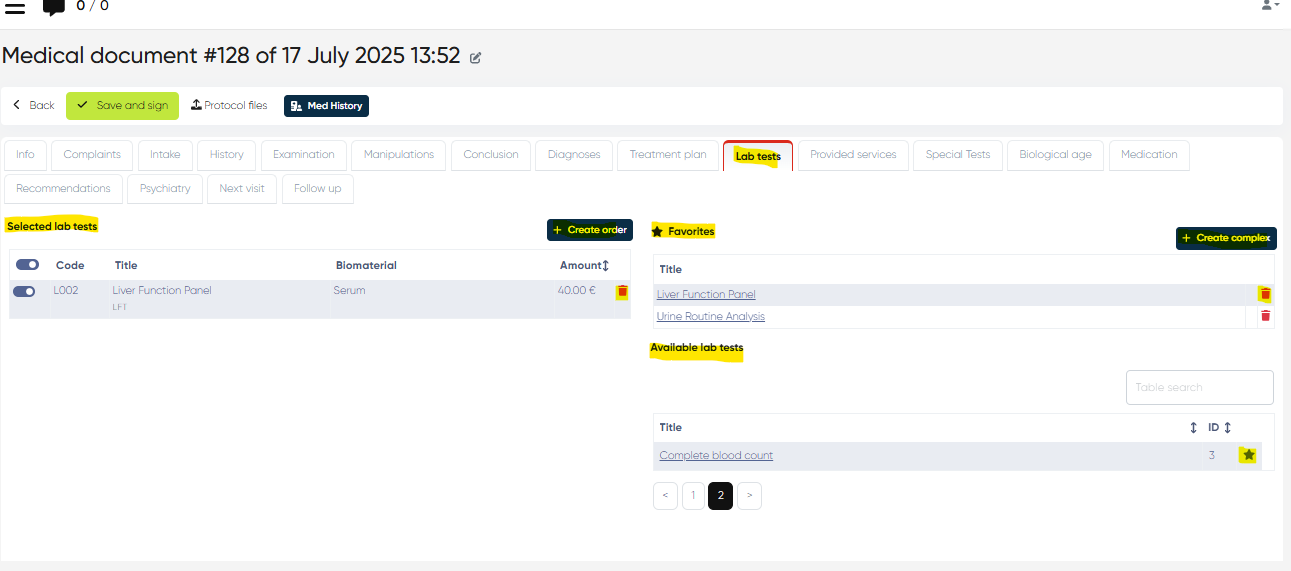
Selected Lab Tests Section:
Displays chosen tests with columns:
Selection Toggle | Code | Title | Biomaterial | Price | Amount | Delete
+ Create Order Button:
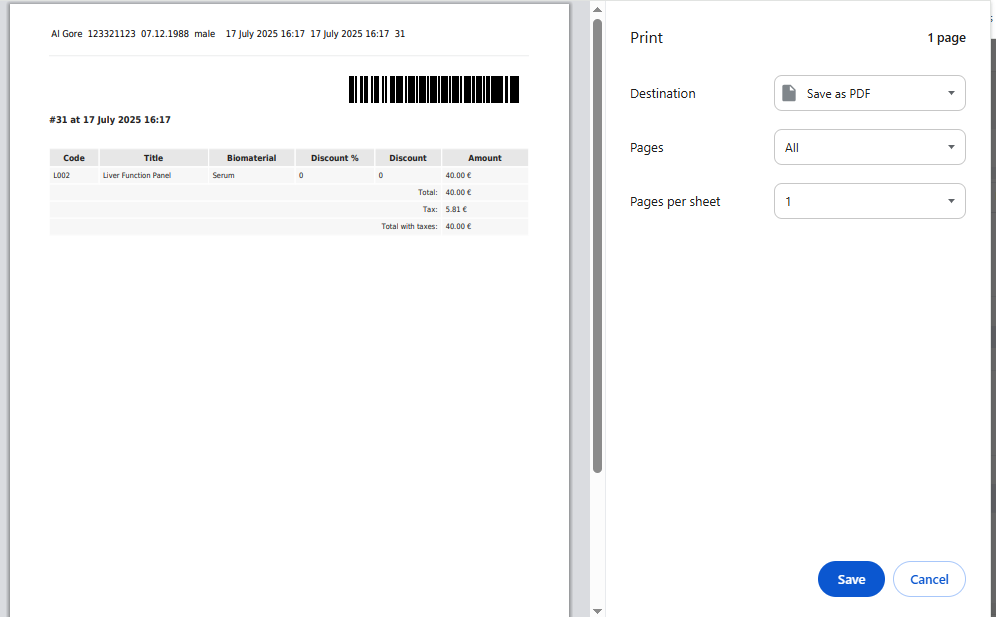
After selecting tests, click to generate an order
Approve to view a printable or downloadable PDF with:
List of tests
Generated barcode
3. Viewing Lab Test Orders
Navigation:
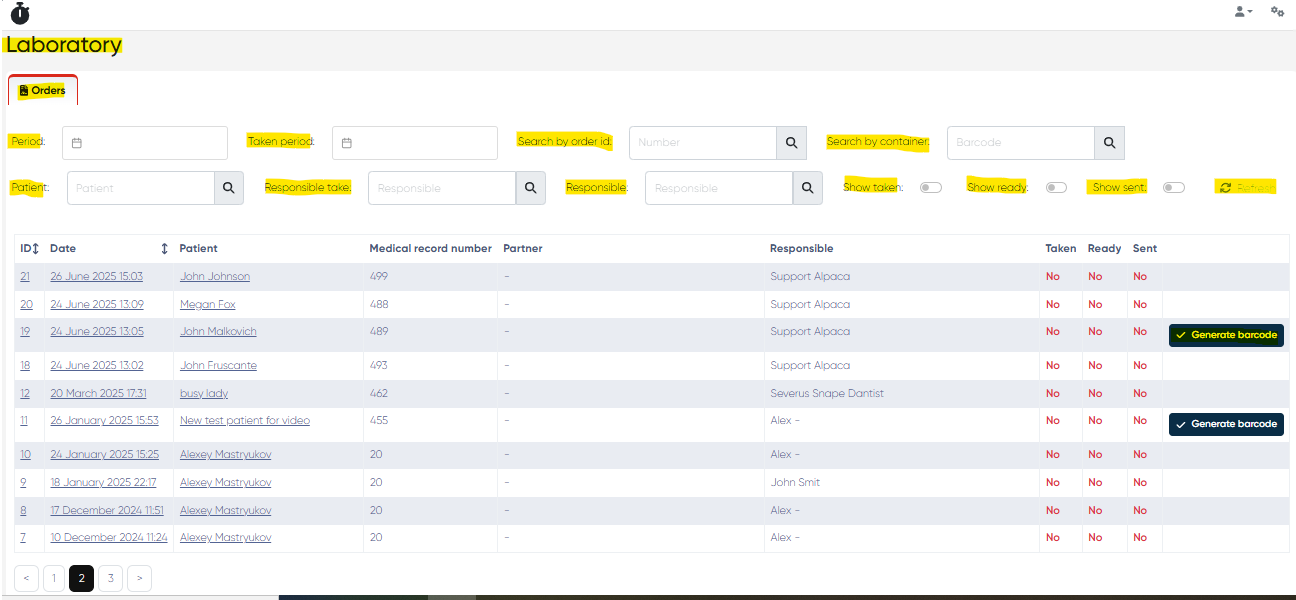
Main Menu > Laboratory
Orders List Columns:
ID
Date
Patient
Medical Record Number
Partner
Responsible
Taken (Yes/No)
Ready (Yes/No)
Sent (Yes/No)
Generate Barcode Button (if applicable)
Available Filters & Actions:
Period Selector
Taken Period Filter
Search by Order ID or Container
Patient Filter
Responsible Filters
Show Taken / Ready / Sent Toggles
Refresh / Reset Buttons
4. Laboratory Order Card (Detailed View)
Opens when you click on the order date in the Lab Orders List
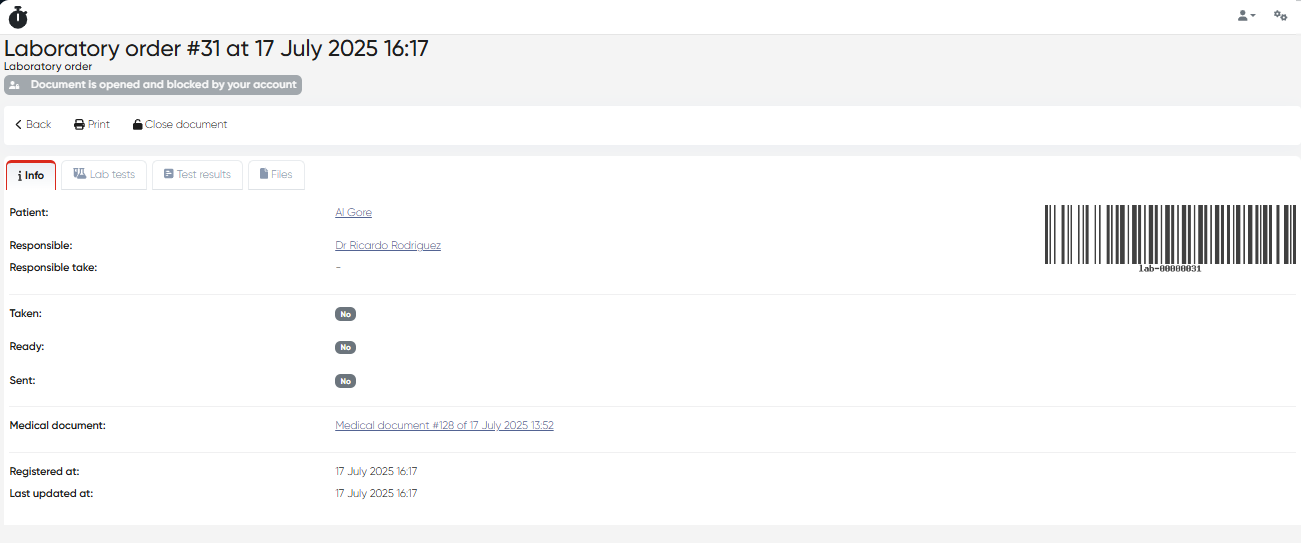
The Laboratory Order Card has five key elements:
a) Info tab
Displays the full details of the lab test order:
ID
Date
Patient
Responsible
Status (Taken / Ready / Sent)
Linked Touch / Appointment info
Barcode (if applicable)
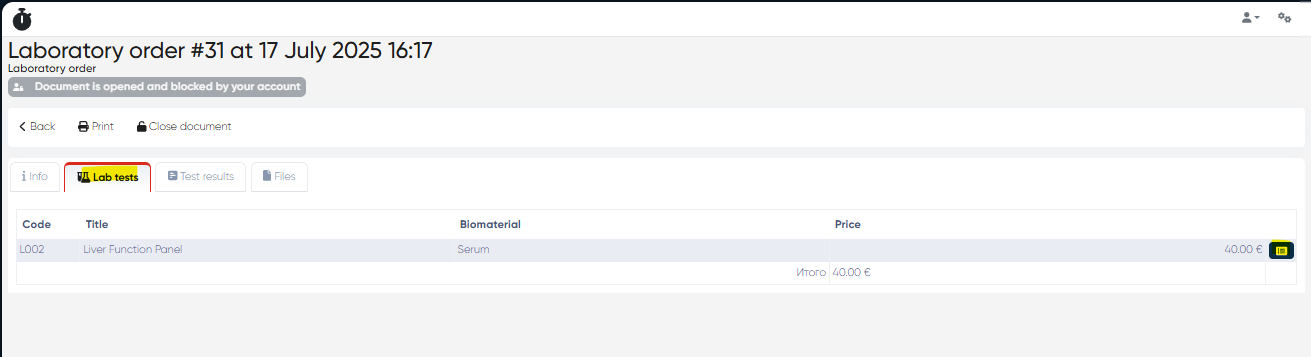
b) Lab Tests tab
Shows all lab tests included in this order.
For each test:
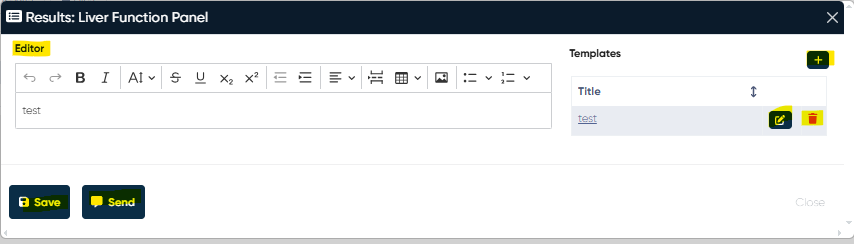
Open Results Editor:
Full text editor for entering results.
Insert Template:
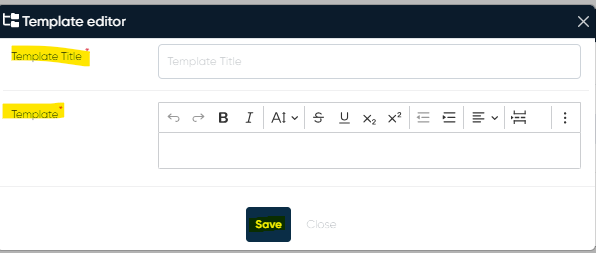
Click + to open Template Editor:
Set Title
Define Template Body (standard formatting tools)
Edit/Delete templates as needed
Apply the template by clicking its name
Buttons:
Save
Send (delivers results to the patient via the preferred channel)
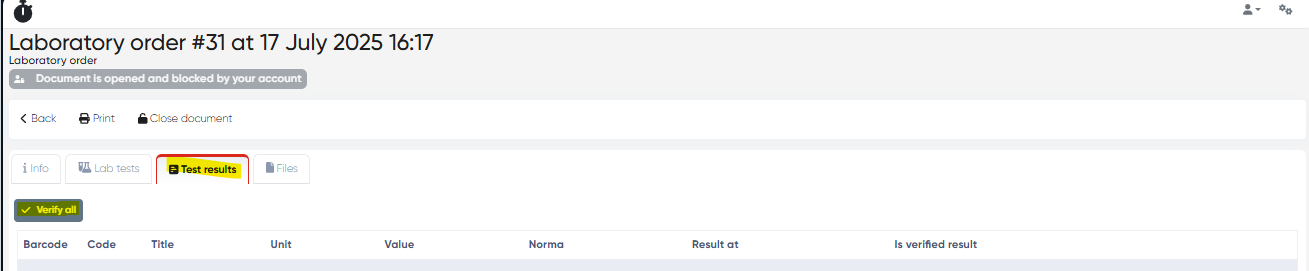
c) Test Results tab
Displays test result values in a structured table:
Columns:
Code | Title | Unit | Value | Norma | Result At | Is Verified
Verify All Button – Marks all results as verified.
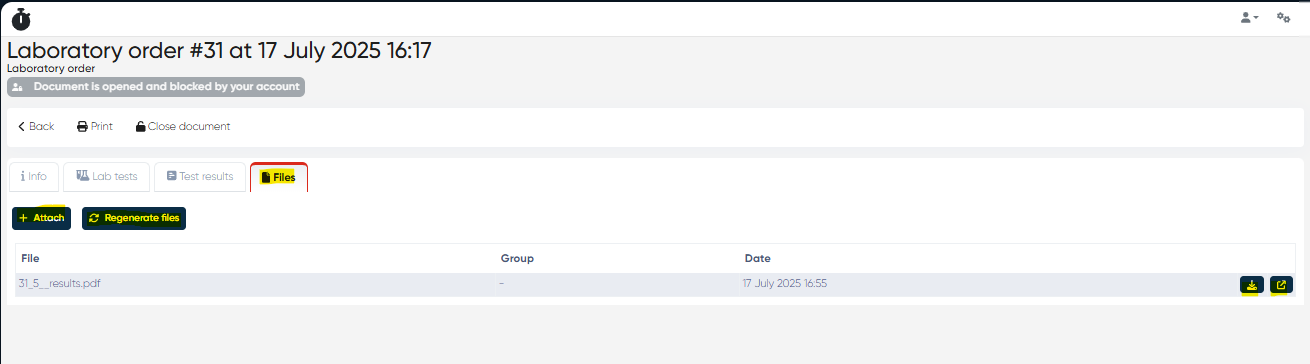
d) Files tab
Manage files linked to the lab order:
Columns:
File Name | Group | Date
Actions:
Download | Open
Buttons:
+ Attach File
Regenerate Files (sends notification to the patient after confirmation)
e) Print & Close buttons
Print – Generate a printable version of the lab order or save as PDF.
Close Document – Finalize and exit the order.
Summary Table
Action | Navigation |
|---|---|
Create Lab Test | Directories > Laboratory Dictionaries > Lab Tests > + Create |
View/Edit Lab Test | Directories > Laboratory Dictionaries > Lab Tests > Click Title |
Create Complex Test | Meddoc > Lab Tests tab > + Create Complex |
Create Lab Order | Meddoc > Lab Tests tab > + Create Order |
View Orders List | Main Menu > Laboratory |
Manage Results & Files | Click Order Date > Lab Order Card Tabs |