
Helpdesk Introduction
Helpdesk Portal – your central hub for submitting support requests, tracking issues, and getting assistance with the clinic management system.
Our Helpdesk is designed to provide fast, organized, and trackable support to ensure smooth operations across your clinic. Whether you're facing a technical issue, need clarification about a feature, or want to request a change, this is the place to start.
How to Get Started
Step 1: Register an Account
To begin using the Helpdesk, you’ll first need to create an account:
Visit the Helpdesk Portal URL (https://hd.service.alpacamed.com/).
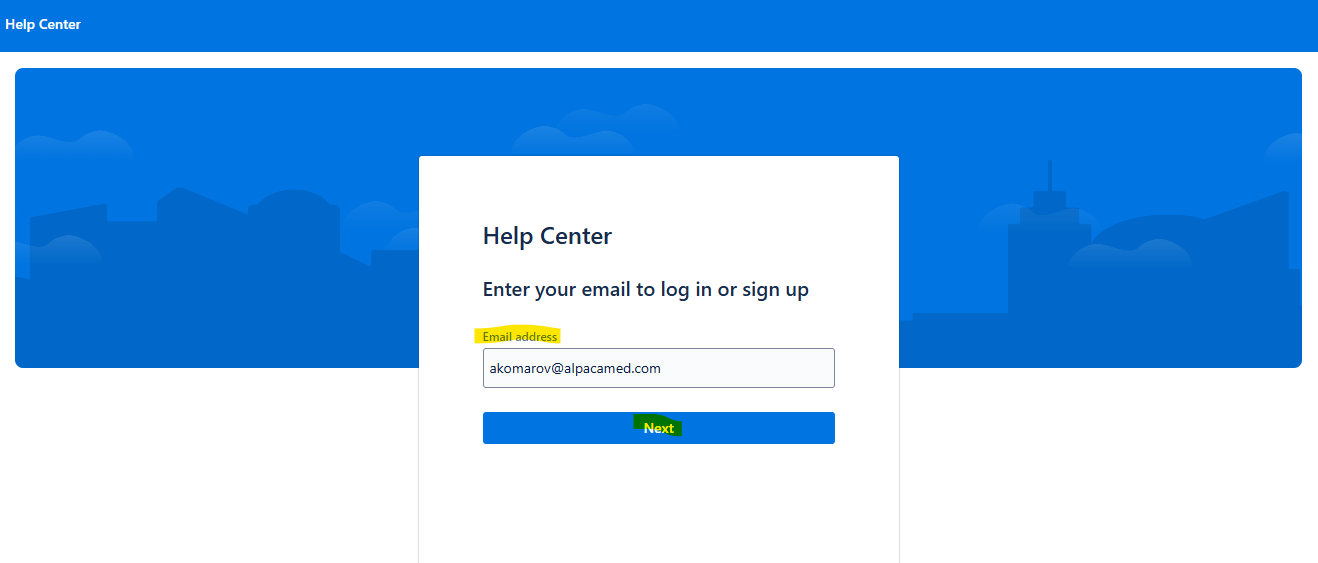
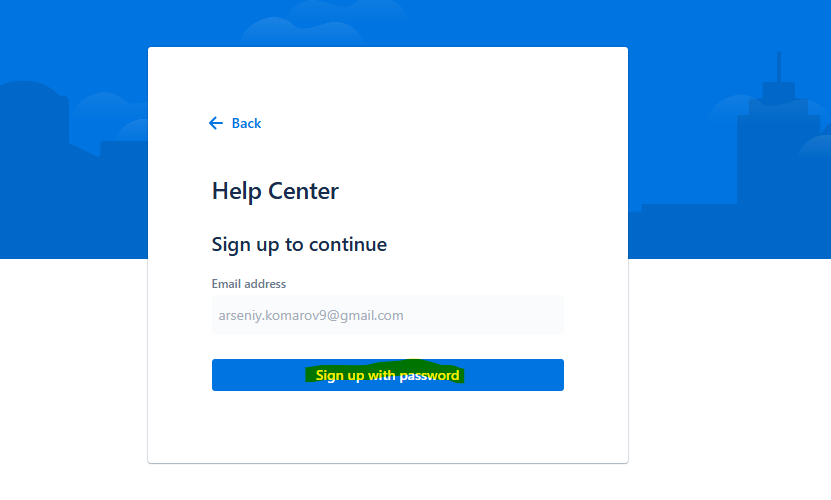
Enter your e-mail address and click Next. On the next screen, click Sign up with password.
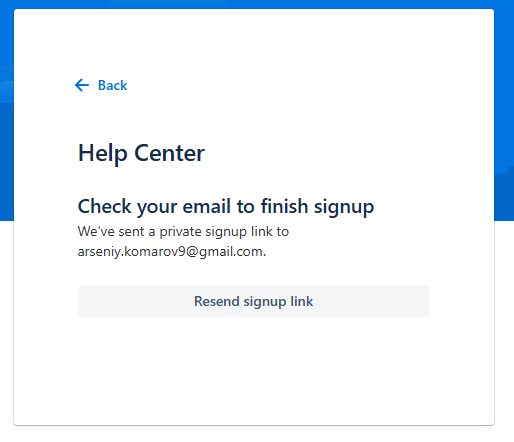
Check your e-mail and follow the signup link to finish the registration. If you don’t receive the signup link, you can resend it by using the 'Resend signup link' button on the helpdesk page.
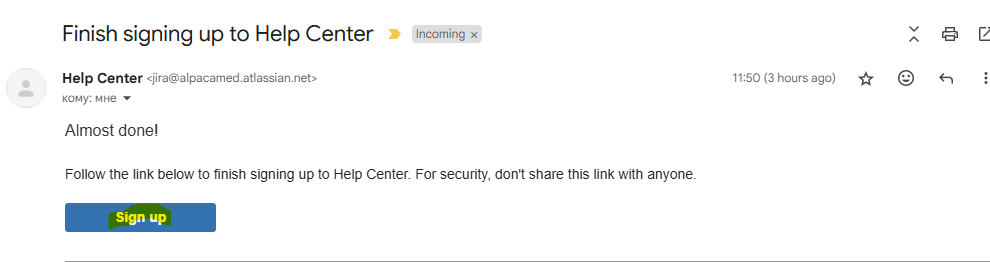
Fill in your name, and create a password.
Note: Use your official clinic email for faster verification and tracking.
Step 2: Raise a Ticket
Once registered and logged in:
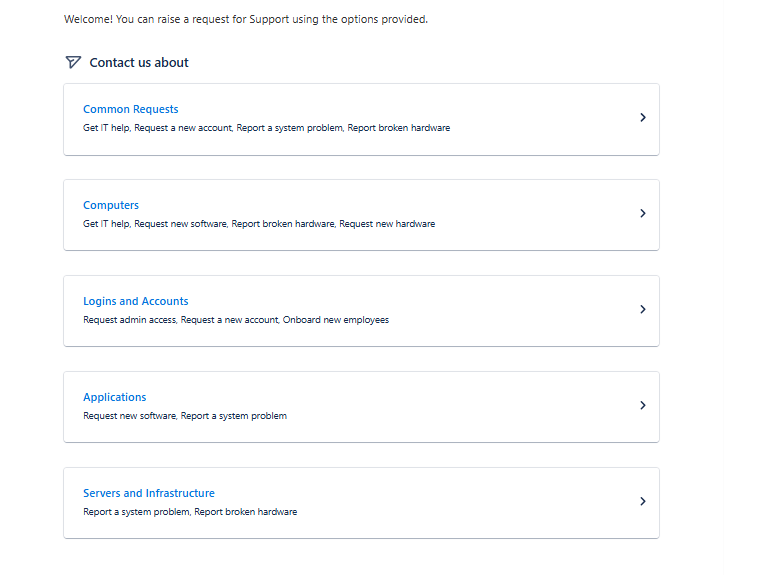
Select the necessary ticket category on the main screen of the Help center (e.g., Common requests, Infrastructure, etc. ) and then select the ticket type (e.g, Get IT help, Report a system problem, etc.).
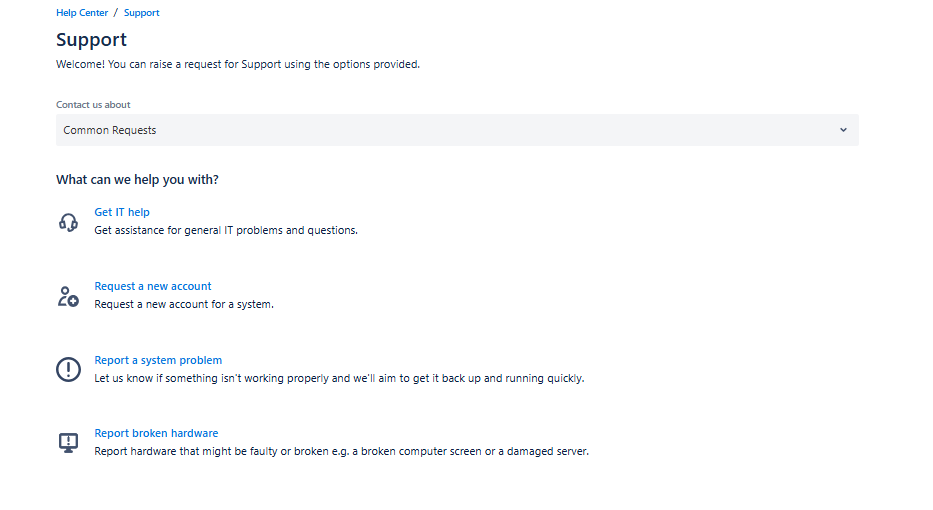
Fill in the Summarize the problem field, Describe what happened and how it occurred field, and optionally attach screenshots or files, choose the ticket priority (Medium, High, etc.) in How urgently does this need to be fixed? field and choose the problem impact on your work in How big of an impact is the problem to you or the organization? field.
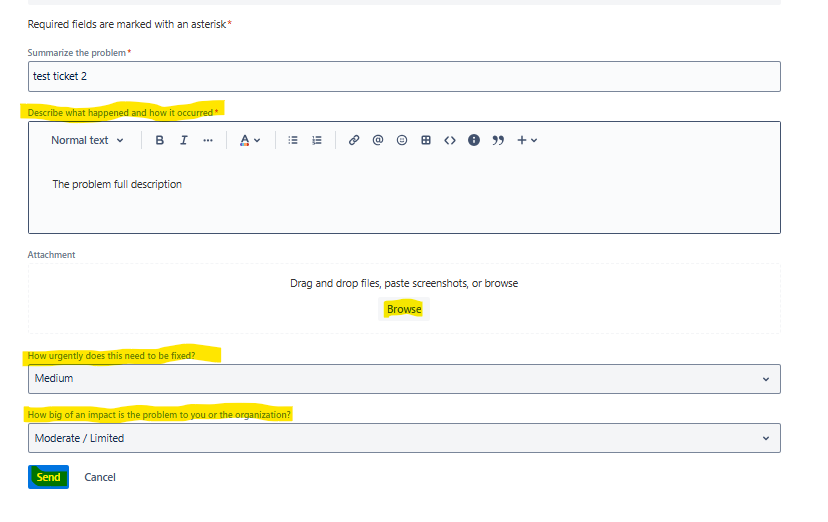
Click “Send” to create your ticket.
When the process is successfully finished, you will see your ticket summary.
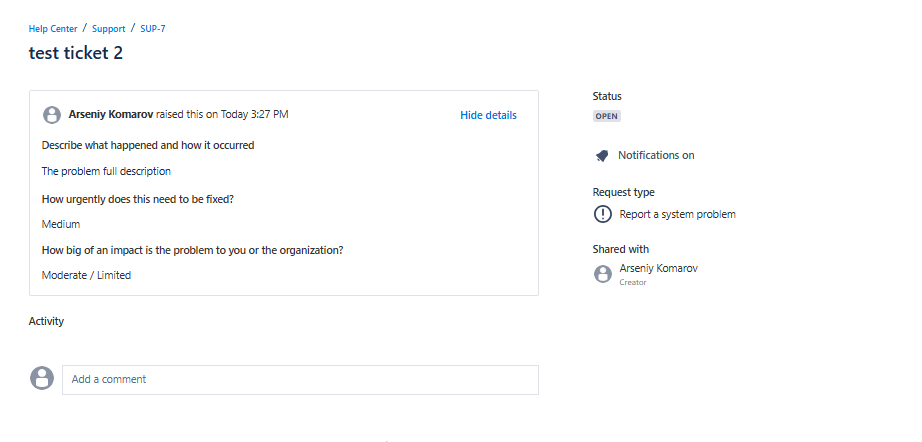
You’ll receive a confirmation email and can track the status of your request from your Helpdesk dashboard.
Track & Respond
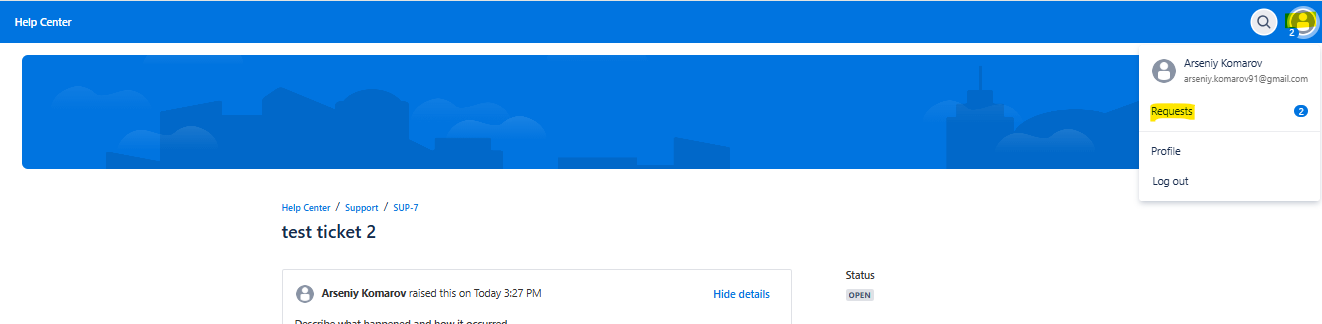
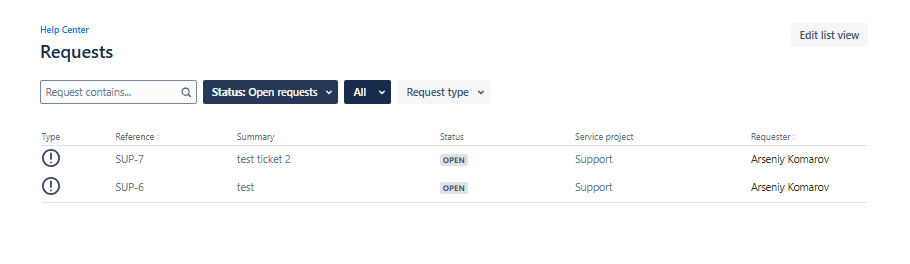
View all your submitted tickets and their statuses under “Requests”. You can also set different filters for the ticket list (e.g., by type or current status).
Receive updates via email when support staff respond.
You can reply or provide additional information directly from the ticket thread.
Need urgent help? Mark your ticket as High Priority, and our team will get to it as soon as possible.