
Funnels
Funnels Section (CRM Module)
The Funnels section in the CRM module is designed to visually organize and manage potential or existing patients as they move through different stages of your clinic's sales or communication process. Each funnel consists of customizable stages that reflect your unique patient journey — from lead capture to treatment decisions.
1. Creating a New Funnel
Navigation:
Directories > Funnels > Create Record
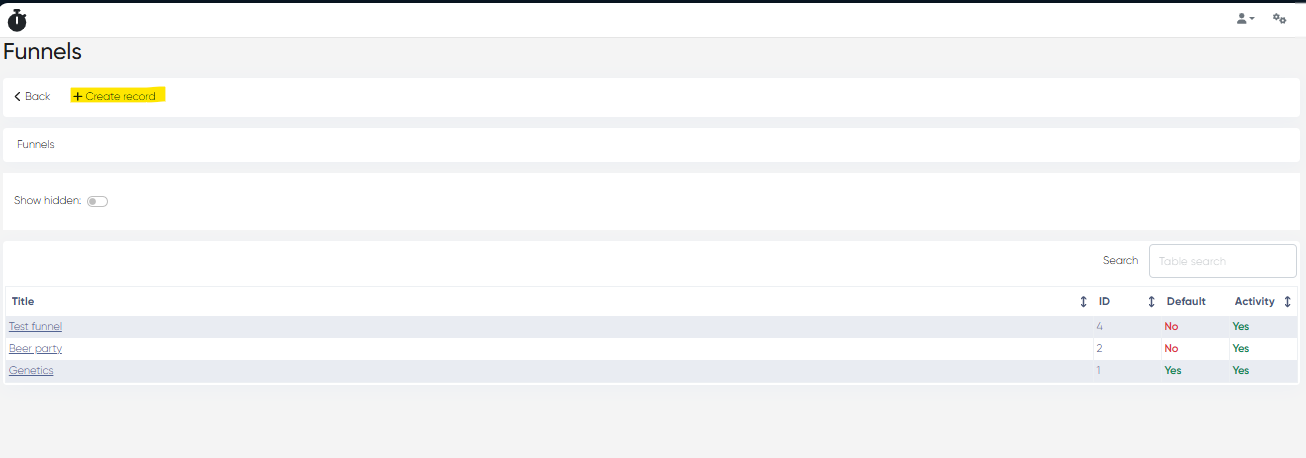
Steps to Create:
Click Create Record.
Enter the Funnel Title (e.g., “IVF Consultation Funnel”) and click Save.
In the list of funnels, click the title of the newly created funnel to open its configuration card.
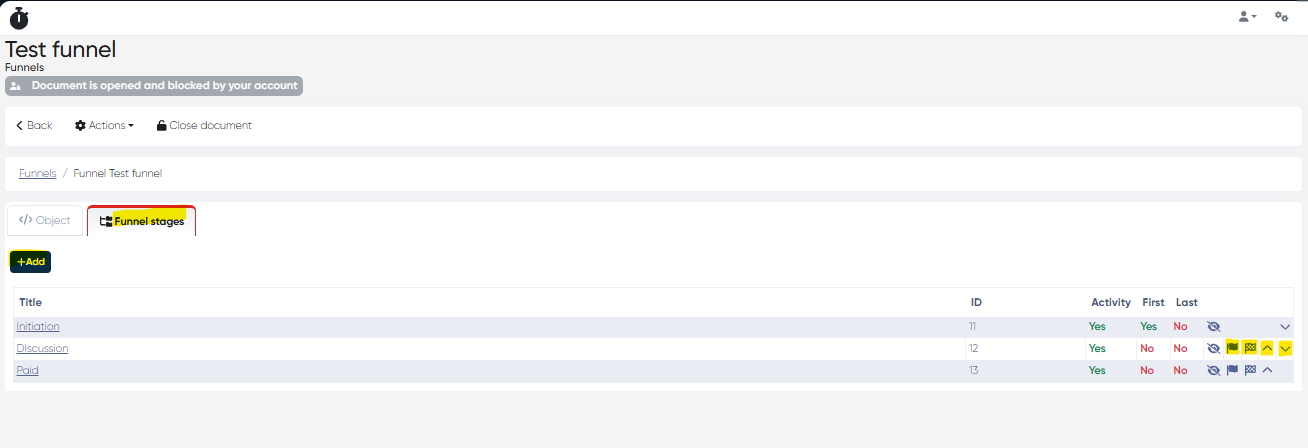
Go to the Funnel Stages tab and click + Add.
Enter a Stage Name (e.g., "Initial Call", "Free Consult", "Booked Appointment") and click Save.
Repeat Step 4 for each funnel stage.
Funnel stages must be added one by one.
After creation, you can rearrange the stages using the action buttons:
Move Up / Down
Make First
Make Last
This allows you to fully customize the stage order to reflect your sales or communication flow.
2. Editing Existing Funnels
Navigation:
Directories > Funnels
From the list of funnels:
Click on any funnel title to open its settings.
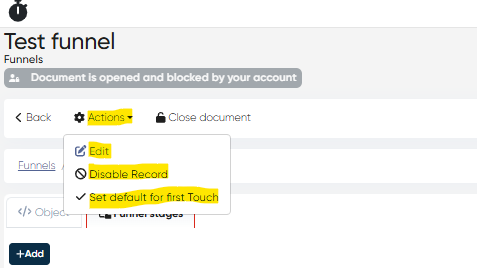
Use the Actions menu to:
Edit – Change the funnel’s title.
Disable Record – Temporarily hide the funnel from the Main menu > Sales Funnels (useful for seasonal or experimental funnels).
Set Default for First Touch – Designate this funnel to be automatically used when creating the first CRM interaction with a new contact.
📝 Disabled funnels are not deleted — they remain in the system and can be reactivated anytime.
3. Working with Funnels (Viewing & Managing Patients)
Navigation:
Main Menu > Sales Funnels
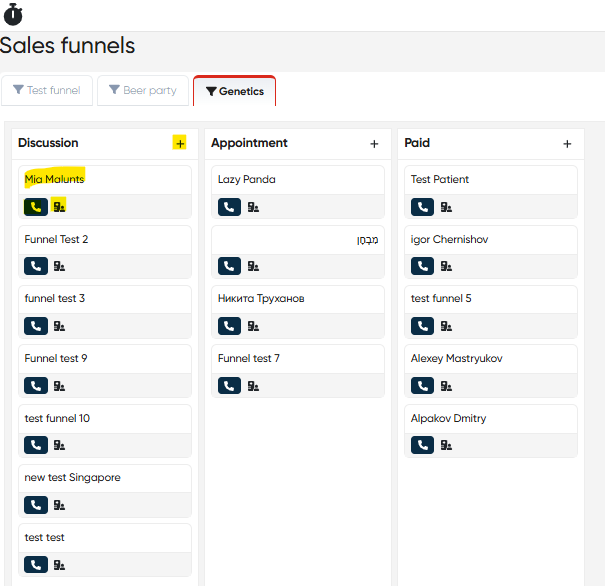
This interface provides a visual board with each funnel displayed in its own tab. Within each funnel tab, stages appear as columns (boxes).
Funnel Stage View Includes:
Element | Description |
|---|---|
+ Button | Add a new patient to this stage from the system’s contact list |
Patient Contact Card | Displays the patient’s name and status |
Call Button | Instantly initiate a phone call via connected PBX or VoIP |
New Touch Button | Log a new CRM interaction or communication step (email, call, visit, etc.) |
You can manually drag and drop patient cards from one stage to another, allowing flexible management of each contact's position in the funnel process.
4. Notification Management for Funnel Stages
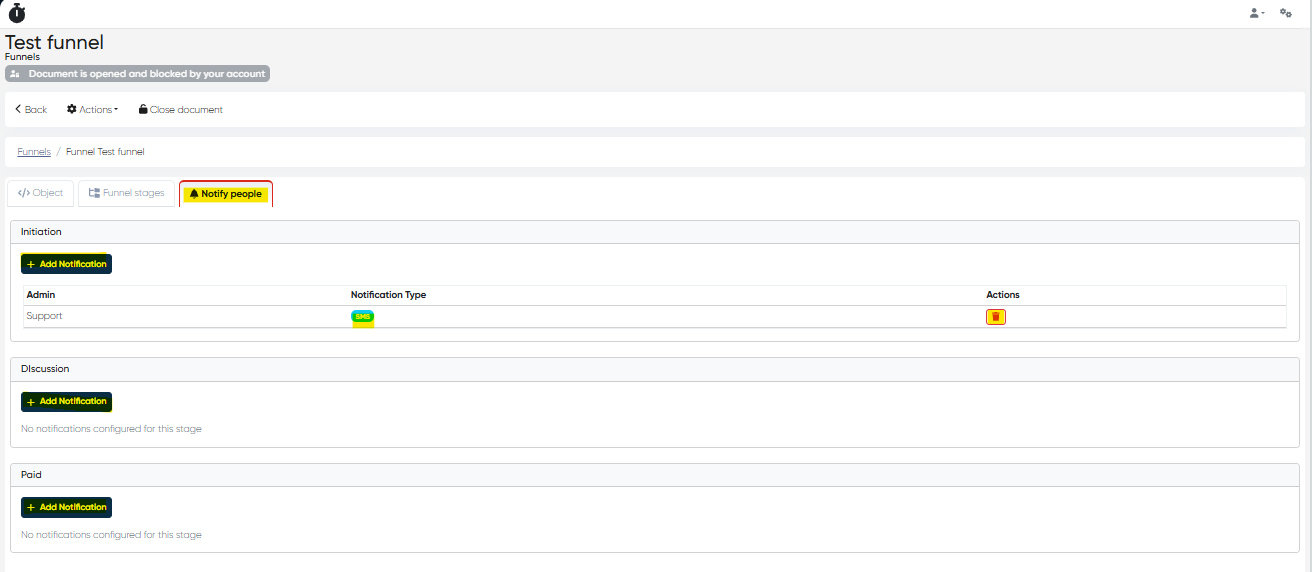
Navigation:Directories → Funnels → Choose Funnel → Funnel Card → Notify People Tab
Overview
The Notification Management for Funnel Stages feature allows administrators and managers to set up automated alerts for specific steps within a funnel.
This ensures that responsible staff members are promptly informed whenever a card (lead or patient) is added or moved to a particular funnel stage.
Functionality
Each funnel stage now includes a dedicated Notify People tab where notification rules can be configured.
Users can define which administrators should receive alerts and how those alerts are delivered.
How to Configure Notifications
Navigate to Directories → Funnels.
Select the desired funnel from the list.
Open the Funnel Card and go to the Notify People tab.
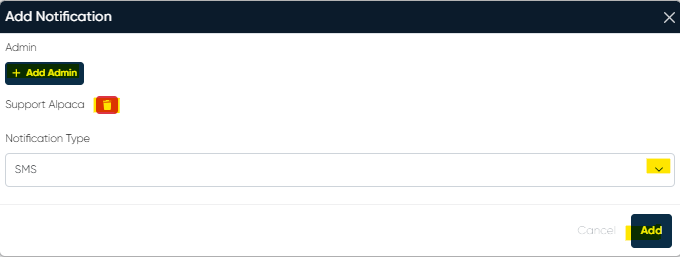
Click + Add Notification.
Choose one or more Admins to receive alerts.
Select the notification method — SMS or Email.
Save the configuration.
Notifications will now be automatically triggered when a card is:
Added to the selected stage.
Moved into that stage from another one.
Message Content
Each notification includes key details for quick context:
Patient Name
Funnel Name
Stage Information
Summary of Key Features
Feature | Description |
|---|---|
Custom Funnels | Build unlimited funnels tailored to services or lead types |
Flexible Stage Management | Add, edit, reorder, or disable funnel stages |
Visual Contact Movement | Move patients between stages manually to reflect the real-time status |
First Touch Default Assignment | Automatically link a funnel when starting contact with new leads |
Integration Ready | Contact cards can include call actions and touch logs |
Notification Management for Funnel Stages | Feature allows administrators and managers to set up automated alerts for specific steps within a funnel |