
Error control (schedule)
Error Control (Schedule) – Reception Module
The Error Control (Schedule) section provides advanced configuration options to relax scheduling restrictions under specific scenarios such as group sessions, shared cabinets, or remote consultations. These settings help reception and administrative staff manage appointments flexibly while maintaining control over scheduling rules.
Accessing Error Control Settings
To configure error control settings:
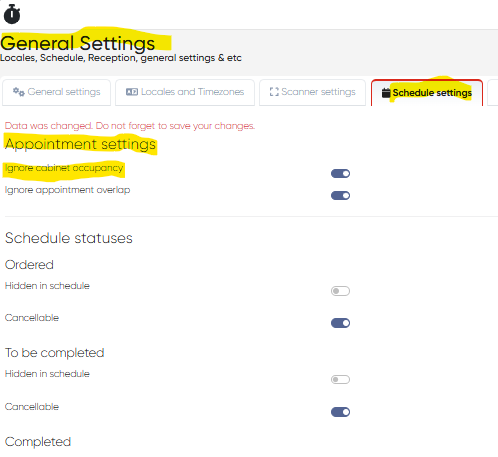
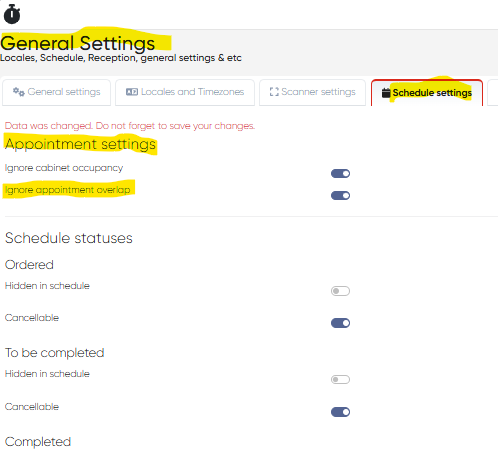
Navigation:Settings > General Settings > Schedule Settings > Appointment Settings
Here, you will find two important toggles:
Ignore Cabinet Occupancy
Setting Name: Ignore cabinet occupancy
Applies To: ERP, Doctor's Cabinet
Description:
This setting allows the system to bypass the check for physical cabinet availability when creating or editing an appointment. When enabled, the system does not prevent double-booking a cabinet, making it ideal for:
Shared offices or examination rooms
Virtual appointments (e.g., telemedicine)
Multi-doctor use of a single space
Use Case Example:
A therapist working remotely wants to book back-to-back virtual sessions in the same time slot that another doctor is using a physical office — with this setting enabled, both appointments can be booked without conflict.
Ignore Appointment Overlap
Setting Name: Ignore appointment overlap
Applies To: ERP, Doctor's Cabinet
Description:
When this setting is activated, the system allows overlapping appointments to be scheduled within the same time frame for the same doctor. It is especially useful for:
Group therapy or group consultations
Training sessions involving multiple patients
Intentional overbooking due to expected no-shows or brief consults
Use Case Example:
A physiotherapist runs group rehabilitation sessions for 4–5 patients at the same time. Enabling this setting allows all those patients to be booked in the same time slot without triggering errors.
Important Notes
These settings are global, meaning they affect all users and time slots once activated.
Make sure to communicate internally if enabling these options to avoid unintended overlaps or resource conflicts.
Both options can be enabled or disabled independently based on clinic workflows.