
Equipment integration
Equipment Integration – LIS Module
The Equipment Integration section in the LIS module allows you to configure drivers and connections for laboratory equipment, enabling automated data exchange between analyzers, test machines, and the system. This setup ensures that test results can be transferred directly from equipment to the LIS without manual data entry.
1. Equipment Drivers
Navigation:
Directories > Laboratory Dictionaries > Drivers
This area manages drivers that define the communication protocol or interface between the LIS and laboratory equipment.
Features:
Drivers List:
Columns: Title | Guid Driver | ID | Activity
Tools: Show Hidden toggle, Table Search Bar for quick filtering.
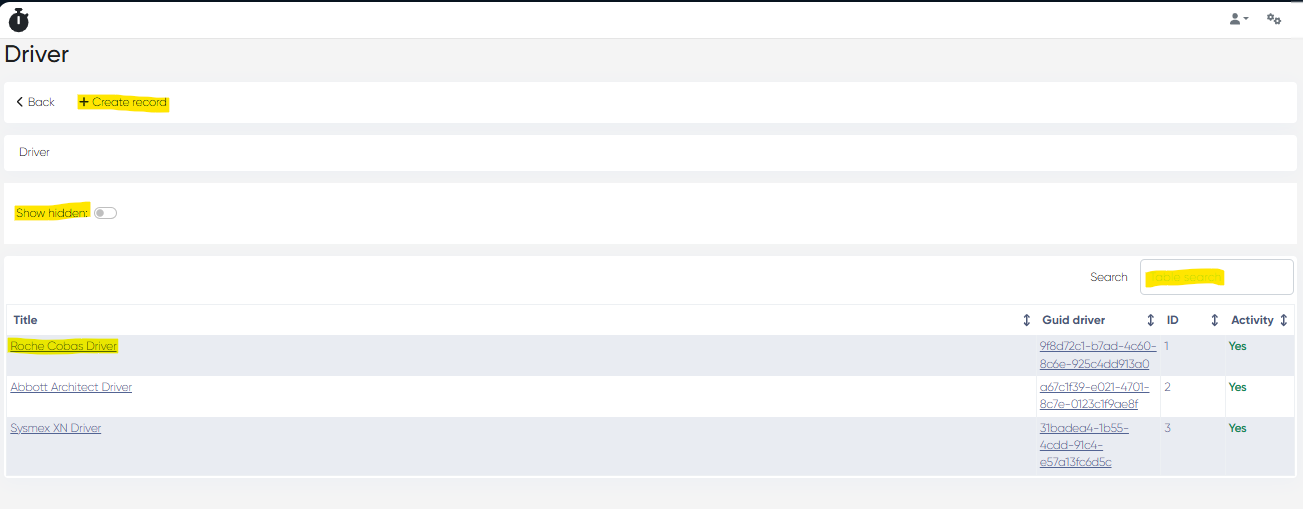
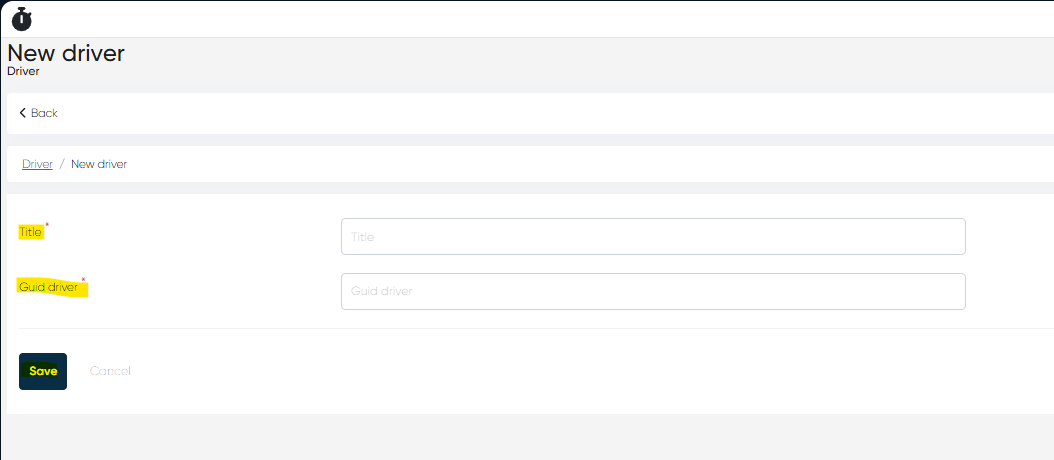
Creating a New Driver:
Click + Create Record.
Fill in mandatory parameters:
Title – Driver name (e.g., "Abbott Architect i1000 Driver").
Guid Driver – Unique identifier provided by the equipment vendor or integration module.
Click Save.
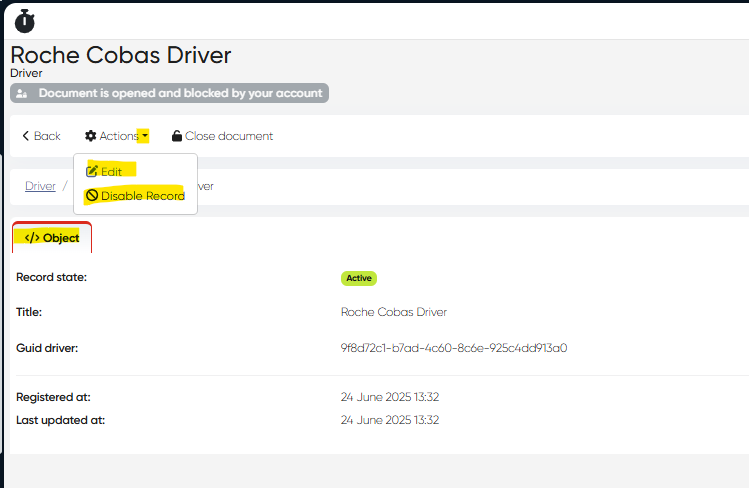
Driver Card:
Opens by clicking the driver title in the list.
Contains all data entered during creation.
Actions:
Edit – Modify driver details.
Disable record – Deactivate driver without deletion.
2. Equipment
Navigation:
Directories > Laboratory Dictionaries > Equipment
This area manages the physical devices used for laboratory analysis.
Features:
Equipment List:
Columns: Title | Password | Host | ID | Activity
Tools: Show Hidden toggle, Table Search Bar for quick lookup.
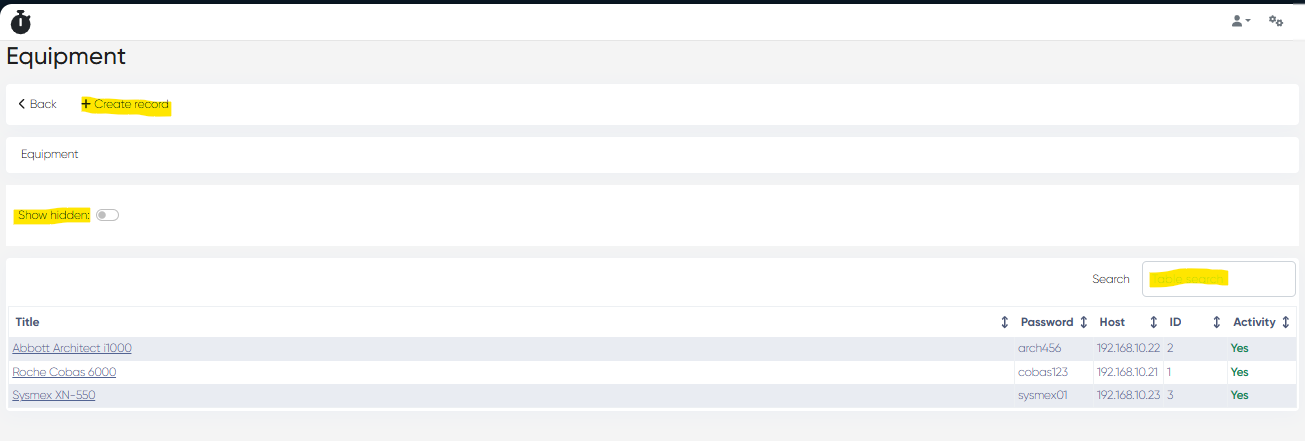
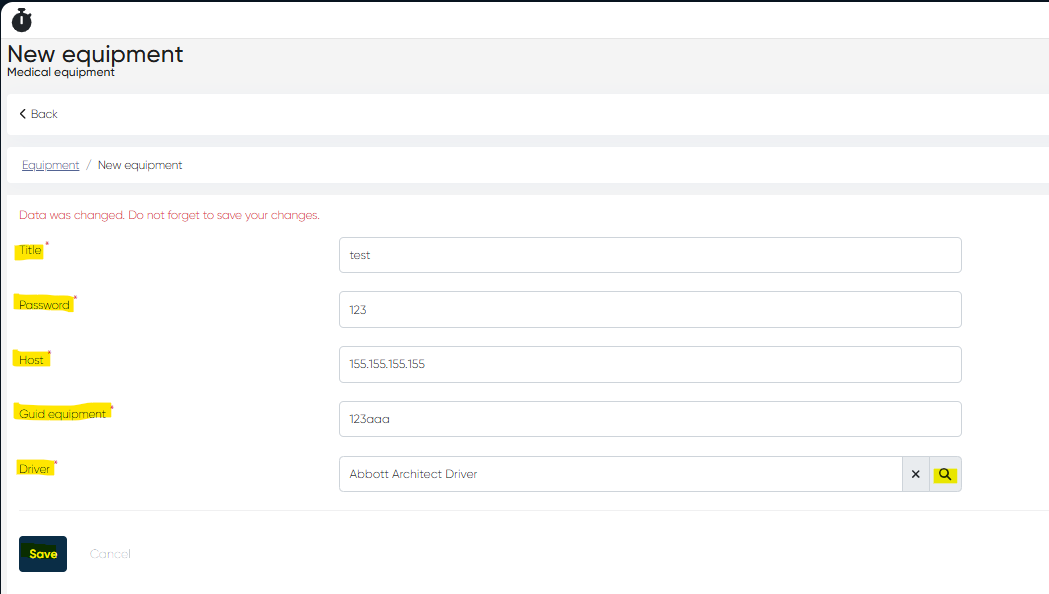
Creating a New Equipment Record:
Click + Create Record.
Fill in mandatory parameters:
Title – Name of the device (e.g., "Abbott Architect i1000").
Password – Access credential for the device (if applicable).
Host – Device host address or IP for network connection.
Guid Equipment – Unique identifier for this device.
Driver – Select from the list of pre-created drivers.
Click Save.
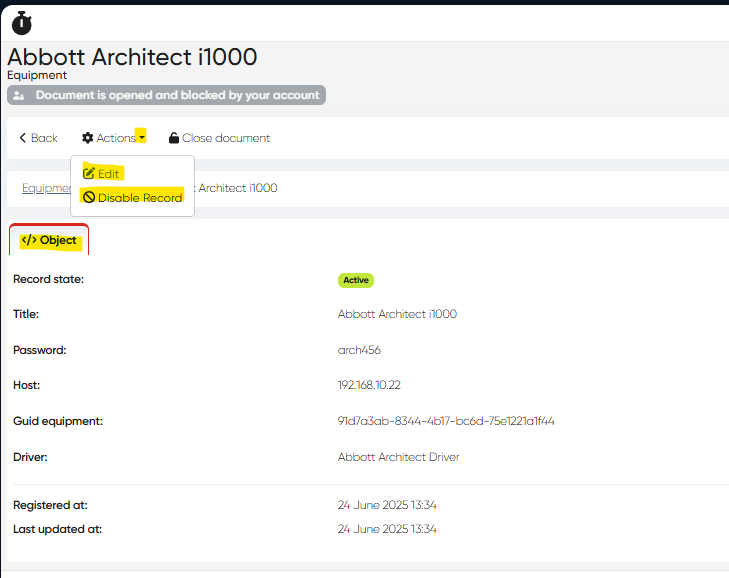
Equipment Card:
Opens by clicking the equipment title in the list.
Displays all entered details.
Actions:
Edit – Update connection parameters.
Disable record – Deactivate the equipment record.
3. Using Equipment in Other Lab Dictionaries
Tests (Physical Tests)
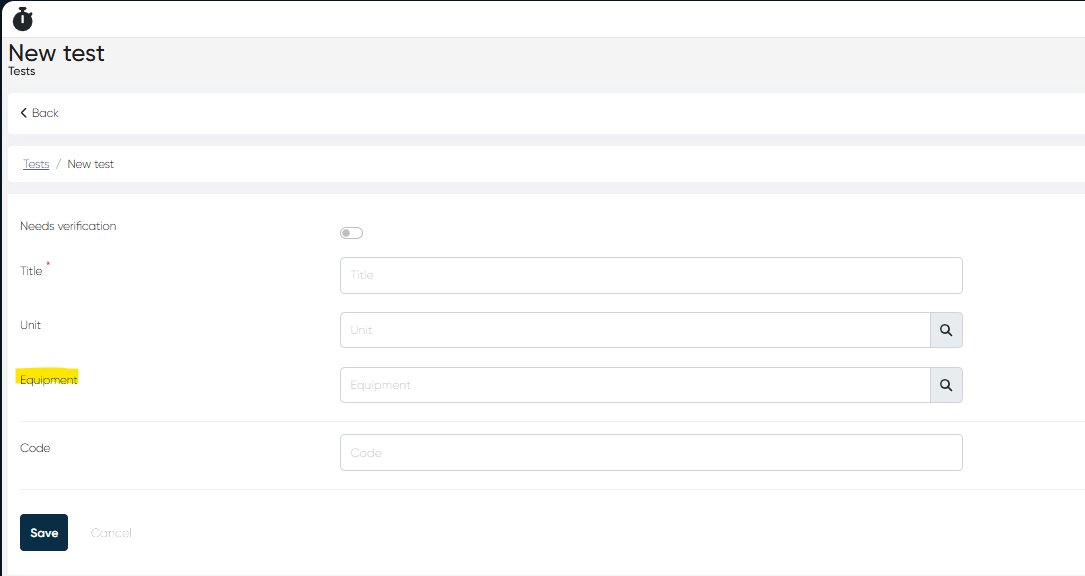
Equipment can be linked to physical tests to specify which device performs the test.
Navigation:Directories > Laboratory Dictionaries > Tests > Create/Edit Test
Equipment Field: Select a device from the list.
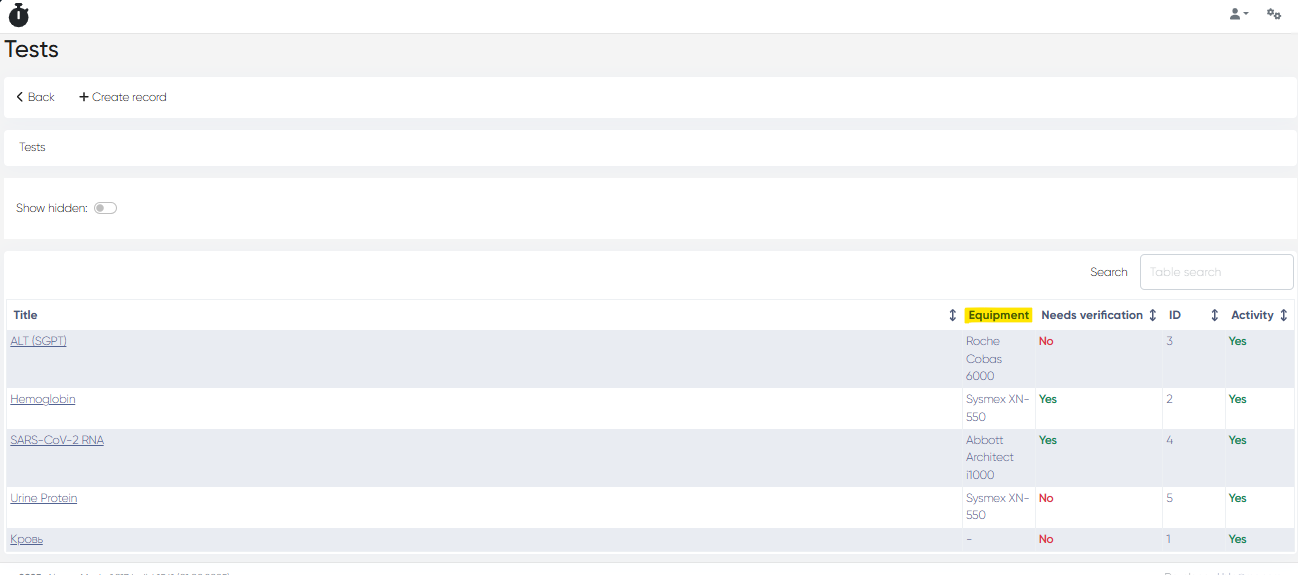
Visibility: Linked equipment appears:
In the Equipment column of the tests list.
Inside the Test Card, showing the associated device.
Summary Table
Functionality | Navigation |
|---|---|
Create/Edit Driver | Directories > Laboratory Dictionaries > Drivers |
Create/Edit Equipment | Directories > Laboratory Dictionaries > Equipment |
Assign Equipment to Tests | Directories > Laboratory Dictionaries > Tests > Create/Edit |