
Dialogs
Dialogs Section
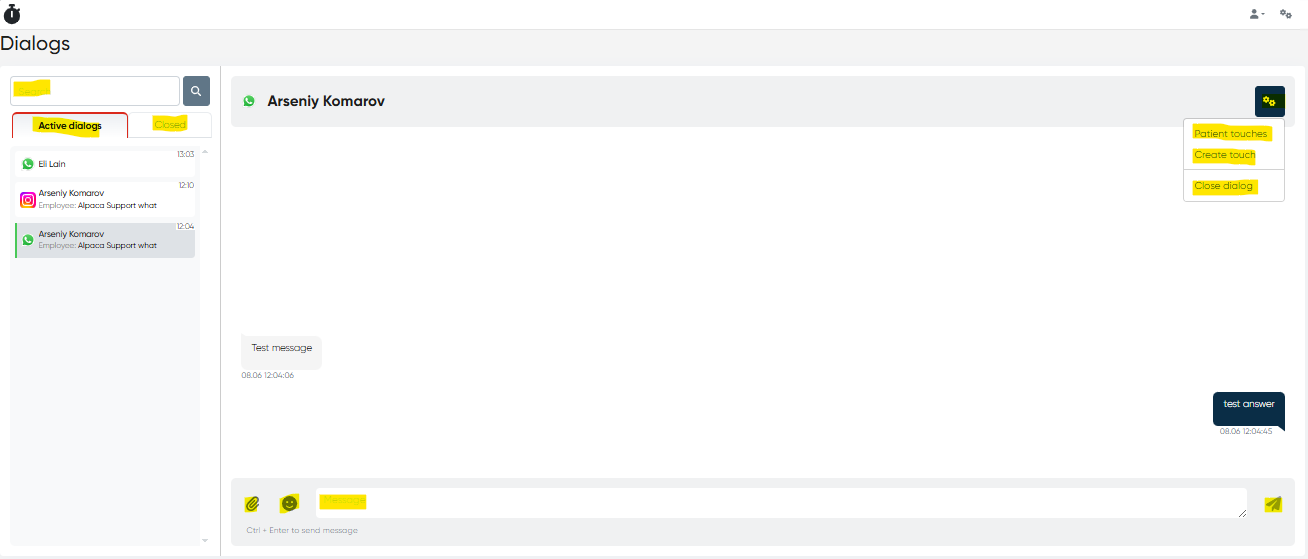
The Dialogs section of the clinical management system allows clinic staff to manage real-time communication with patients across multiple messaging platforms. It consolidates chats from WhatsApp and Instagram into a single interface for efficient response handling.
Main Interface Features
Tabs for Chat Status:
Two main tabs — Active Chats and Closed Chats — help users quickly switch between ongoing conversations and completed ones.Search Bar:
A search function at the top of the window enables users to find chats by patient name or keywords.Chat Window Functions:
Each chat includes:Message Input Field: Type and send text messages.
File Attachment: Upload and send files.
Emojis: Enhance communication with emoji support.
Settings Menu (Gear Icon):
View Patient Touches: View historical interactions.
Create New Touch: Log a new point of contact or update.
Close Dialog: Archive the conversation and move it to the Closed Chats tab.
Messaging Platform Integrations
WhatsApp Integration via Twilio
The system integrates with WhatsApp through Twilio, allowing automatic syncing of messages between patients and the clinic’s WhatsApp number.
Setup Requirements:
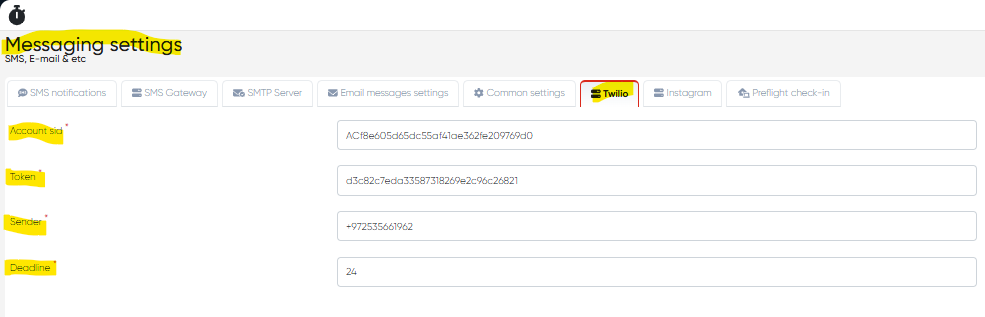
Twilio Account SID: Your unique account identifier.
Auth Token: Used to authenticate API requests.
Sender Number: The Twilio phone number used to send and receive WhatsApp messages.
Integration Deadline: Ensure credentials and number are set before the specified activation deadline to enable uninterrupted communication.
Configuration is typically done in the system’s admin settings panel under Settings>Messaging settings>Twilio.
Instagram Messaging Integration
The system also supports patient communication via Instagram. Messages are fetched and sent using an integration similar to the Twilio API model.
Setup Requirements:
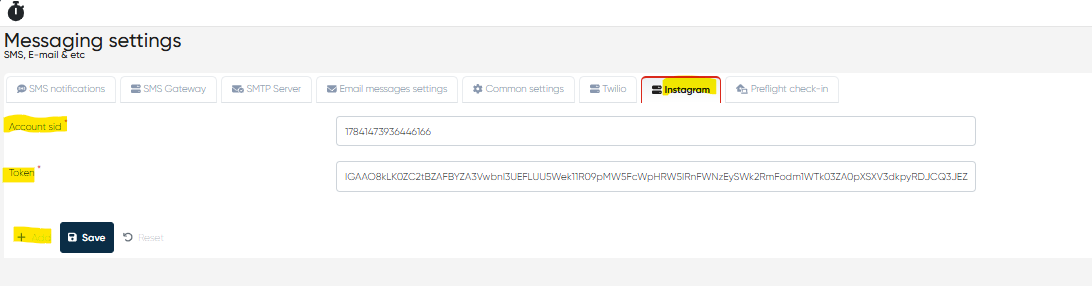
Instagram Account SID: Provided upon registration for API access.
Auth Token: Used for authorization.
Configuration is available in Settings>Messaging settings>Instagram, where you can enter the required credentials to enable the feature. You can also add multiple Instagram accounts just by clicking Add in the Instagram tab.
Support for Multiple Instagram Accounts in Dialogs
Navigation:Main Menu → Dialogs
Overview
The Multiple Instagram Accounts enhancement allows organizations that manage several Instagram profiles to receive and respond to all incoming messages within a single Dialogs interface.
This feature simplifies communication management across multiple social media profiles and ensures that all patient or lead inquiries from Instagram are handled efficiently from one centralized workspace.
Functionality
With this update, the system’s Dialogs module can now connect to and synchronize messages from multiple Instagram business accounts linked via your active integrations.
All conversations — regardless of which Instagram account they originate from — are displayed in the same unified inbox, maintaining message order and sender information.
Users can easily identify which account a message was received from through visual indicators or account tags in the message header.
How to Use
Navigate to Main Menu → Dialogs.
Ensure that multiple Instagram accounts are connected in your system settings.
Incoming messages from all connected Instagram profiles will appear automatically in the Dialogs list.
Select any conversation to view or respond — the system will automatically reply from the correct Instagram account.
Benefits
Centralized communication — manage all Instagram messages from a single screen.
Improved responsiveness — no need to switch accounts or interfaces.
Multi-brand support — ideal for clinics, departments, or franchise networks with separate Instagram profiles.
Consistent interaction history — all communications are logged and stored under the relevant patient or lead record.
Notes
Only connected business accounts are supported; personal Instagram accounts cannot be linked.
Each connected account retains its own access credentials and message history.
Administrators can manage Instagram integrations via Settings → Integrations → Instagram.
Replies are automatically routed through the originating account for compliance with Instagram’s messaging policies.