
Containers
Containers – LIS Module
The Containers section in the LIS module is designed to manage all container types used for collecting biomaterials in laboratory tests. These containers (e.g., EDTA tubes, Urine cups, Serum tubes) are essential for proper sample handling and identification. Containers created here are linked to Biomaterials and Lab Tests across the system.
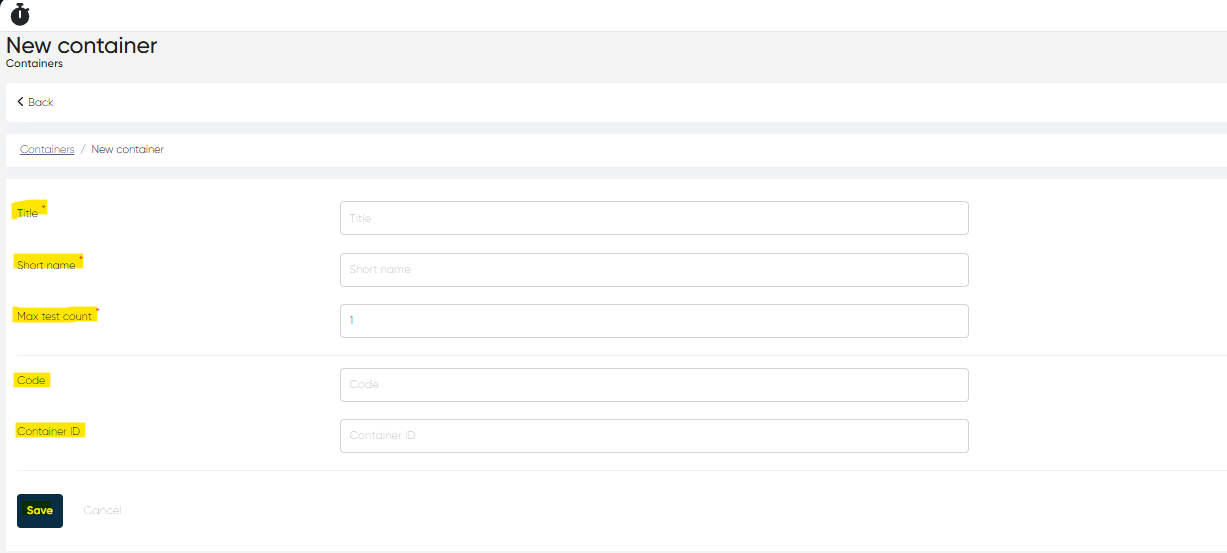
1. Creating Containers
Navigation:
Directories > Laboratory Dictionaries > Containers > + Create Record
Steps to Create a Container:
Click + Create Record.
Fill in the following parameters:
Title (Mandatory):
Full container name (e.g., EDTA Tube, Urine Cup).Short Name (Mandatory):
Abbreviated name for quick reference (e.g., EDTA, U-Cup).Max Test Count (Mandatory):
Maximum number of tests that can use the same container.Code:
Internal or external code for the container.Container ID:
Unique identifier if required for integration or traceability.
Click Save to add the container to the system.
2. Viewing the Containers List and Container Card
Navigation:
Directories > Laboratory Dictionaries > Containers
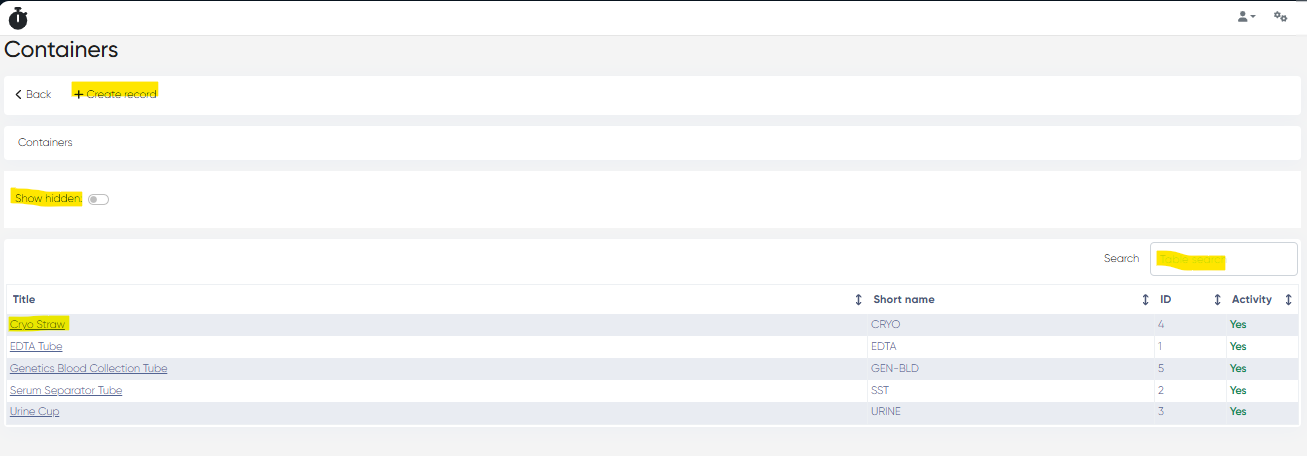
Containers List Features:
Displays all created containers with columns:
Title
Short Name
Tools Available:
Show Hidden Toggle: View disabled containers.
Table Search Bar: Quickly find containers by name or code.
Container Card
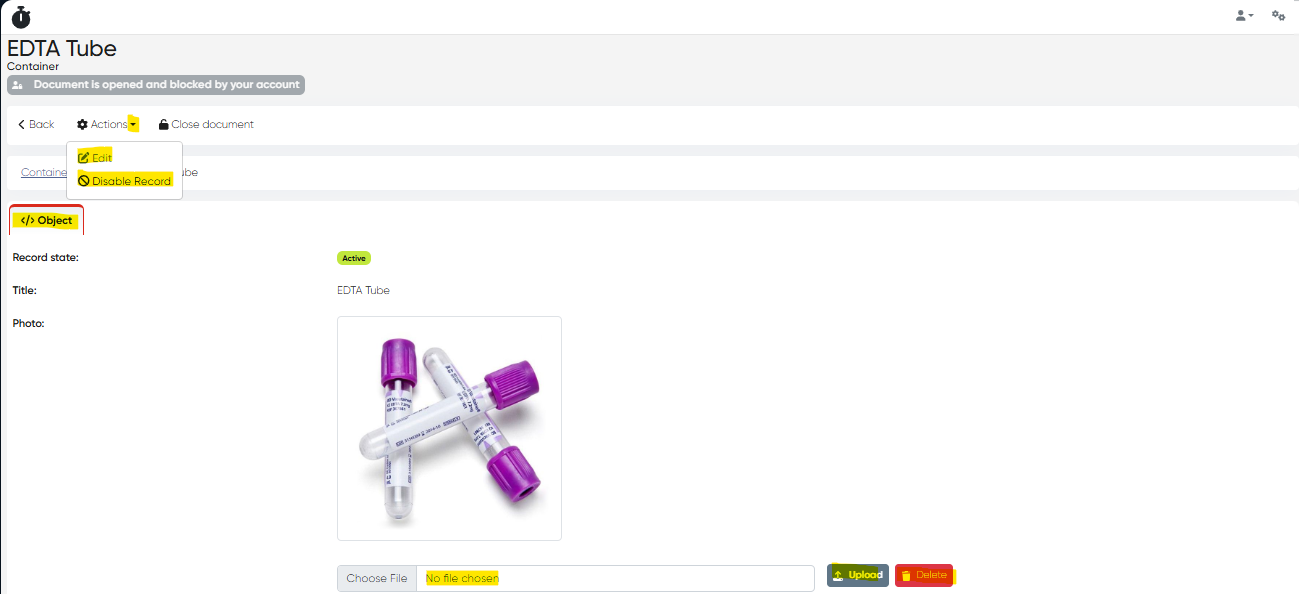
Click on the Title of a container to open its detailed card.
Tabs & Features:
Object Tab: Displays all details entered during creation.
Image Upload: Attach an image for the container (for visual reference in the lab test list).
Actions Available:
Edit: Modify details or replace the image.
Disable: Deactivate the container (does not delete it).
3. Using Containers in Other Lab Dictionaries
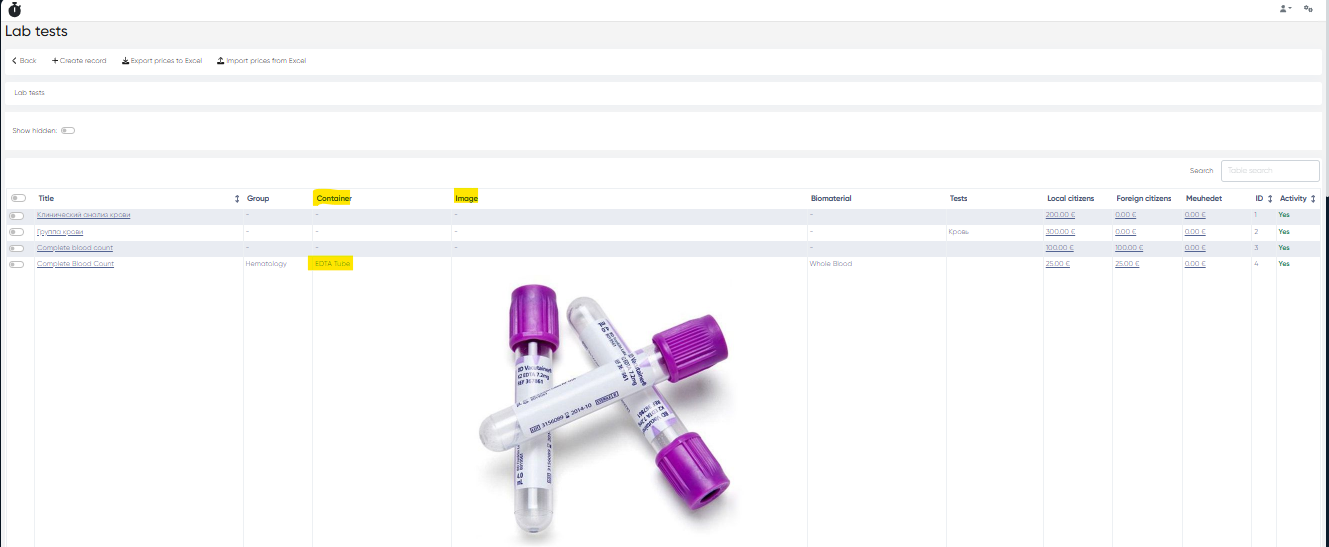
Link to Lab Tests:
When creating or editing a Lab Test, select the container from the list.
The container title and image will be displayed in the Lab Tests list for easy identification.
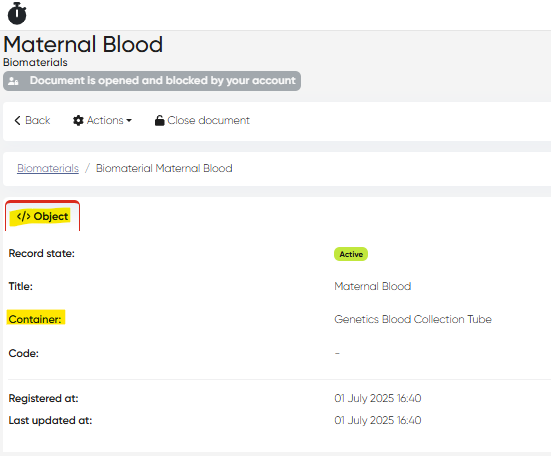
Link to Biomaterials:
Each Biomaterial card also references its associated container for accurate sample handling.
Summary Table
Functionality | Navigation |
|---|---|
Create Container | Directories > Laboratory Dictionaries > Containers > + Create |
View/Edit Container | Directories > Laboratory Dictionaries > Containers > Click Title |
Upload Container Image | Inside Container Card |
Link Container to Lab Test | Directories > Laboratory Dictionaries > Lab Tests > Create/Edit |
Link Container to Biomaterial | Directories > Laboratory Dictionaries > Biomaterials > Create/Edit |