
Card terminals integration
(Z-Credit Configuration & General Framework for Terminal Systems)
The Card Terminal Integration section in the Reception module enables clinics to connect and use external credit card terminals for secure and streamlined payment processing. This guide focuses on the configuration of the Z-Credit terminal system, which is currently supported, with the infrastructure designed to accommodate additional terminal providers in the future.
Enabling Terminal Integration
To activate card terminal payment functionality:
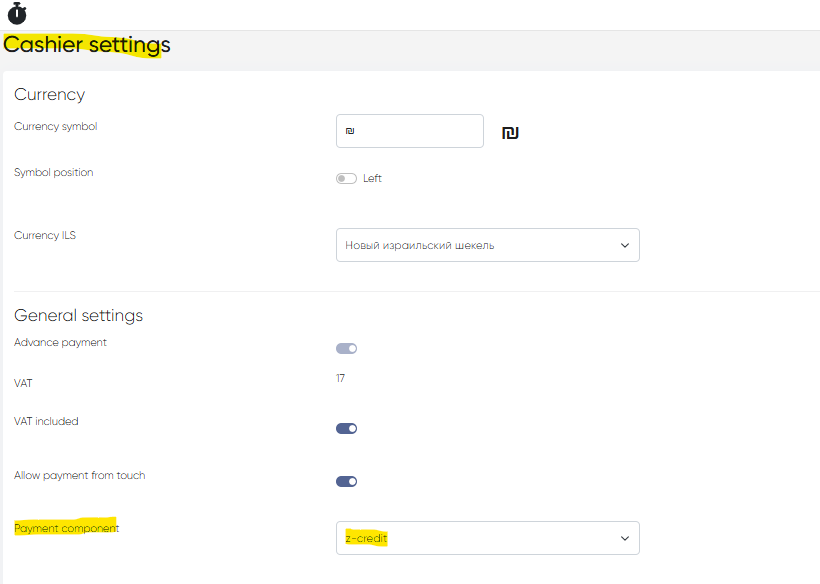
Go to Settings > Cashier Settings
Under the Payment Component setting, select Z-Credit from the available options.
Once Z-Credit is selected, relevant configuration fields will appear and must be completed to establish the connection.
Z-Credit Terminal Settings
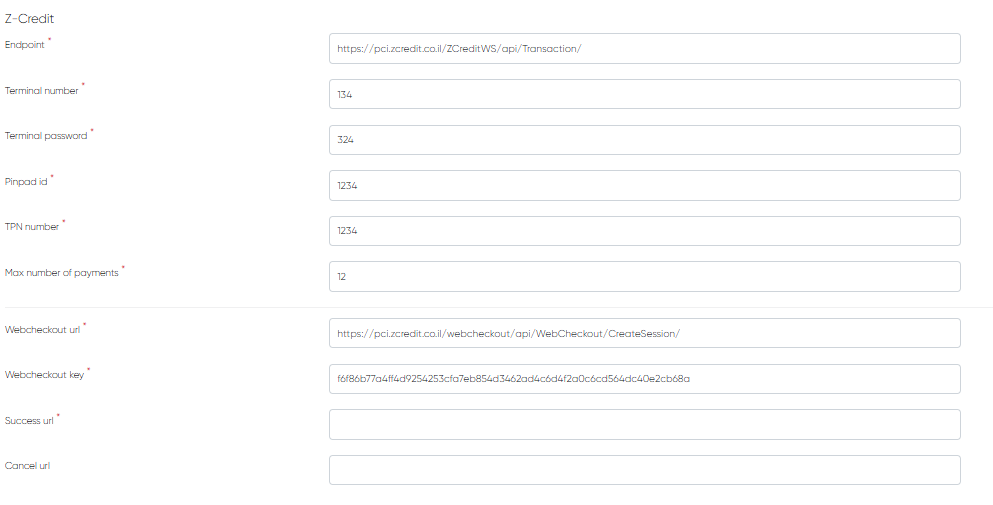
To ensure proper communication between your clinic system and the Z-Credit terminal, configure the following settings:
Setting | Description |
|---|---|
Endpoint | The base URL or API endpoint is provided by Z-Credit for communication with the terminal service. |
Terminal Number | The unique number assigned to your terminal by Z-Credit. Used for transaction identification. |
Terminal Password | Secure password for terminal authentication within the Z-Credit API. |
Pinpad ID | Identifier for the specific pinpad device connected to the terminal. Ensures correct hardware routing. |
TPN Number | Terminal Provider Number (TPN) is used to identify your clinic account in Z-Credit’s system. |
Max Number of Payments | Limits how many times a payment can be split or attempted in one transaction. Useful for installment logic or retry settings. |
Webcheckout URL | The endpoint for web-based checkout, enabling remote or browser-based payment flow if supported. |
Webcheckout Key | A secure key (API key or token) for validating access to the web checkout interface. |
Success URL | The redirect address used after a successful payment (e.g., returns the user to the clinic system or confirmation page). |
Cancel URL | The redirect address is used if the user cancels the transaction or if it fails to complete. |
All these fields must be filled in accurately with values provided by Z-Credit or your technical integration team.
Payment Flow in Reception (Z-Credit Terminal)
To process a payment via a Z-Credit terminal:
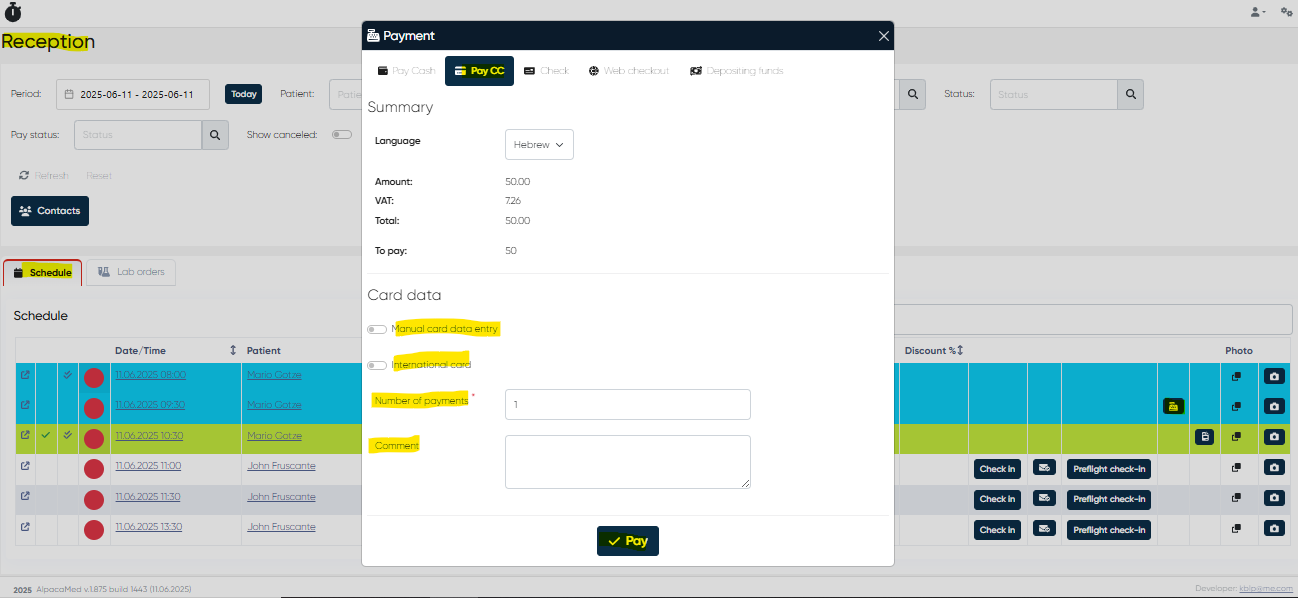
From the Reception module, go to the Schedule tab and locate the checked-in appointment.
Click the Pay button next to the appointment.
In the payment window, select the Pay CC section (Credit Card).
Configure the following options:
Manual Card Data Entry: Enable or disable manual input of card details.
International Card: Specify whether the card is international (
Yes/No).Number of Payments: Set the number of installments (if applicable).
Comment: Optionally add a note for the transaction.
Once configured, confirm the payment to initiate the transaction on the connected Z-Credit pinpad.
After successful payment:
The system updates the appointment as Paid (visually marked green).
Payment details are saved automatically in the patient’s financial record.
If the payment is canceled or fails, the appointment remains unpaid and requires further action.
Future Terminal Systems
The card terminal integration infrastructure is designed to support multiple providers. In future versions, new terminal systems can be enabled via:
Selecting a different Payment Component in settings.
Configuring system-specific fields (similar to Z-Credit).
Maintaining consistent interface behavior across different providers.
Each terminal provider will come with its own set of credentials and configuration steps, which will be documented similarly.
Summary
The Card Terminal Integration in the Reception module ensures seamless payment via external card terminals. Starting with Z-Credit, the system is ready for future expansion to additional payment hardware providers. Configuring the integration correctly guarantees fast, secure, and traceable payment experiences for both staff and patients.