
Back Office Protocols Review
Back Office Protocols Review – EHR Module
The Back Office Protocols Review feature allows medical centers to enforce an internal control layer for reviewing and approving medical protocols before they are sent to patients. When activated, this workflow ensures that all protocols undergo manual review by authorized staff before being finalized and dispatched via e-mail or SMS.
1. Enabling the Review Mode
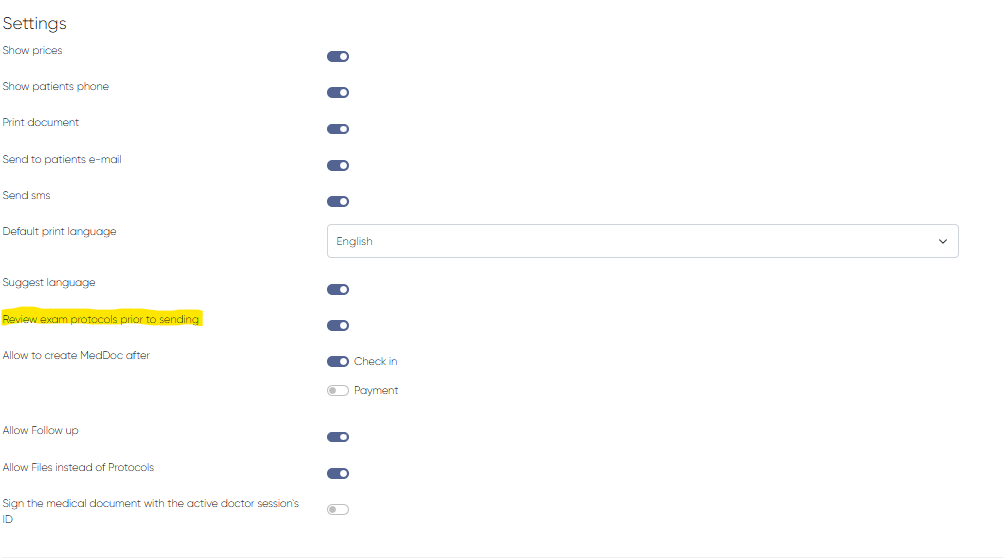
To activate the review process for all medical documents (protocols), the following setting must be enabled.
Navigation:Settings > Medical Document Settings > Settings Tab
Required Toggle:
Review Exam Protocols Prior to Sending
Enabled (ON):
Protocols must be manually reviewed and signed in the Medicine section by back office staff before they are sent to patients.
Disabled (OFF):
Protocols are sent automatically after the doctor clicks Save and Sign in the Doctor’s Cabinet.
🔒 Use this toggle to determine whether the protocol workflow includes a centralized approval step.
2. Accessing Protocols for Review
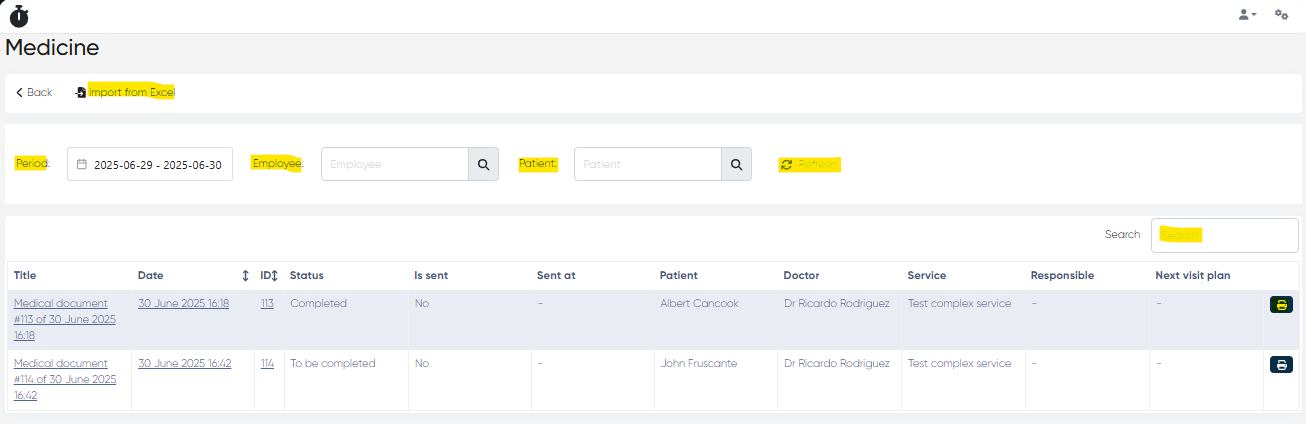
When the review mode is active, all unsigned or unapproved protocols appear in a centralized list within the Medicine section of the main menu.
Navigation:Main Menu > Medicine
Medical Documents Table
This interface allows authorized staff to view and process protocols pending review.
Columns:
Title – Name of the medical document
Date – Date of document creation
ID – Unique internal ID
Status –
CompletedorTo be completedIs Sent – Indicates whether the protocol has been sent to the patient
Sent At – Timestamp of delivery
Patient – Full name
Doctor – Issuing physician
Service – Related medical service
Responsible – Assigned employee for review
Next Visit Plan – Scheduled follow-up date
Print Med Doc Button - for direct document preview/printing
Filters and tools:
Period – Date range selector with calendar
Employee – Filter by the responsible doctor
Patient – Search by patient name
Import from Excel –
Allows importing a batch of medical document data directly from an Excel file. This is useful for clinics that manage external documentation workflows or migrate historical data.Refresh Button – Updates the list with the latest data
Table search bar
3. Reviewing and Sending the Protocol
Once the document is located in the Medicine section:
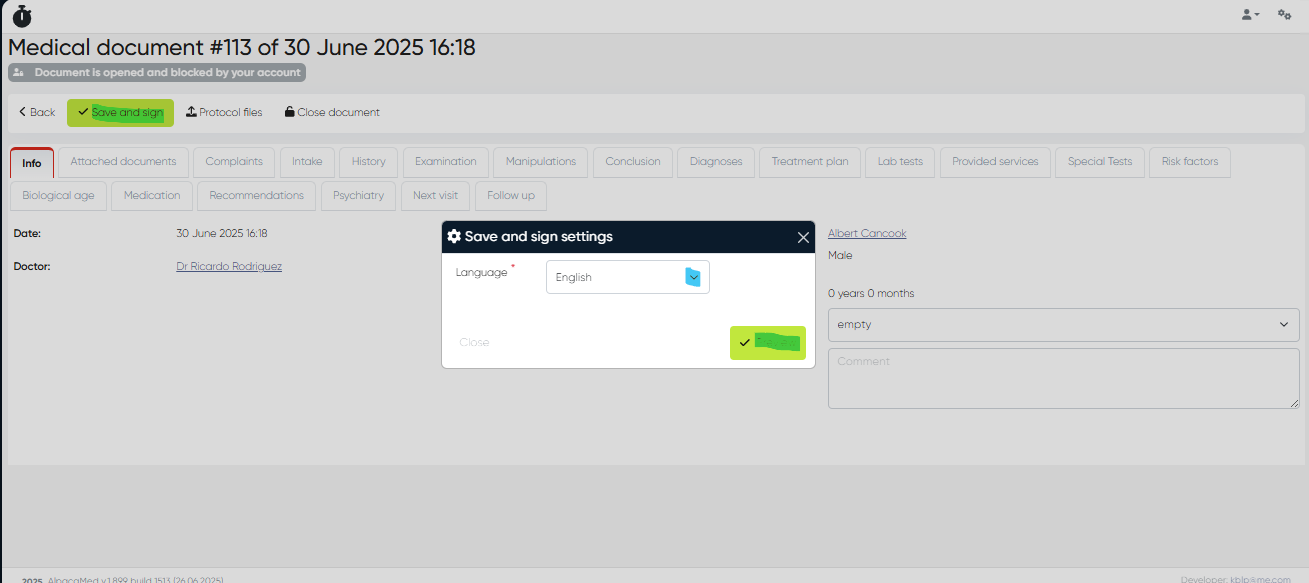
Open the desired medical document by clicking on it in the table.
Carefully review all medical notes, service details, and follow-up information.
Click Save and Sign to confirm the document.
A Language Selection Window will appear — choose the appropriate language for the patient’s copy.
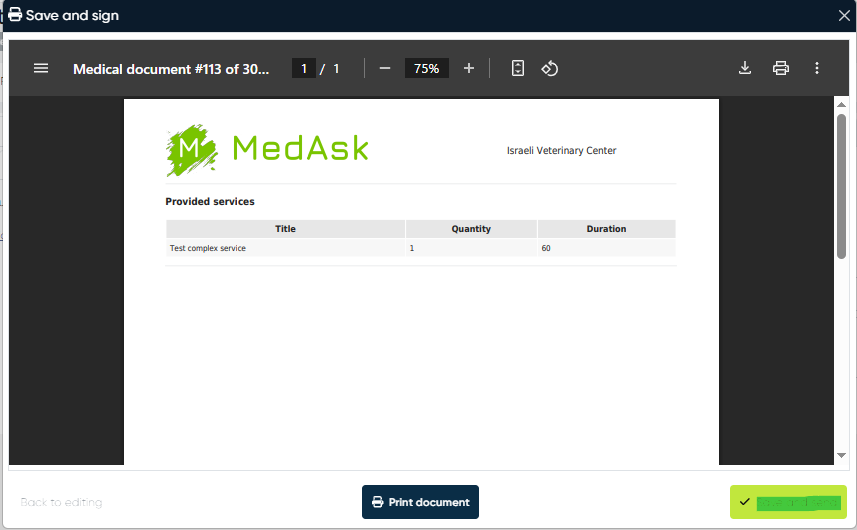
In the Preview Window, click Save and Send to finalize and deliver the protocol.
At this point, the protocol is officially signed and will be dispatched automatically to the patient’s e-mail or phone (via SMS) depending on your clinic's communication settings.
By activating Back Office Protocols Review, your clinic ensures an additional layer of oversight, improving accuracy, compliance, and document quality before releasing sensitive medical information to patients.