
Automated print forms
Navigation: Settings > Reception
The Automated Print Forms section allows administrators and reception staff to configure which print forms are automatically generated and printed at various stages of patient interaction. This reduces manual steps, improves consistency, and ensures that required documentation is always attached to the correct service, visit, or lab order.
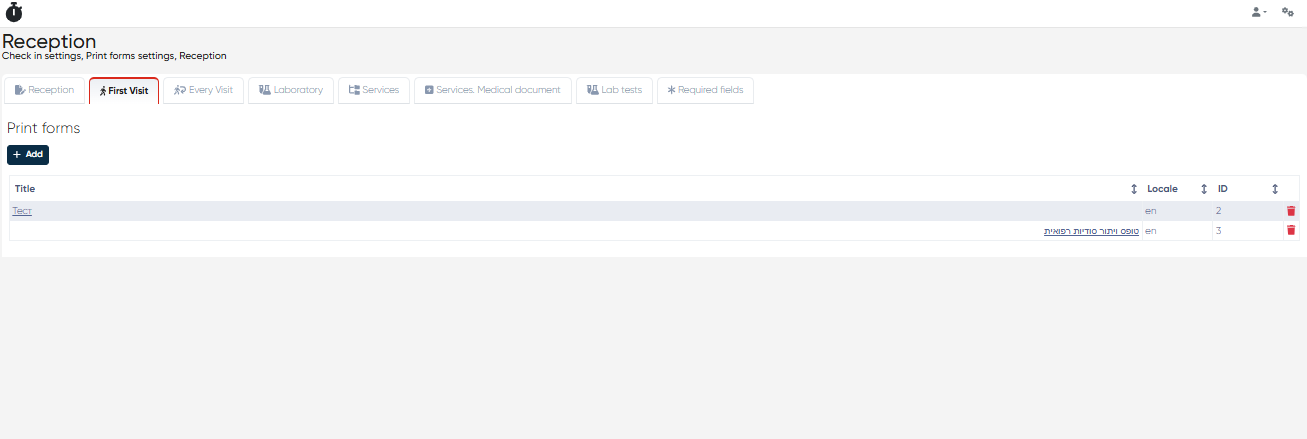
Main Functionality Overview
The section consists of multiple tabs, each corresponding to a different type of visit or service trigger. Each tab allows users to assign pre-created print form templates for automatic printing based on context.
Each tab supports the following standard features:
Search bar: Filter the table based on form name, service name, ID, or other attributes.
Add button (“+”): Assign an additional print form to a service or document.
Delete button: Remove an existing automated print form assignment.
1. First Visit
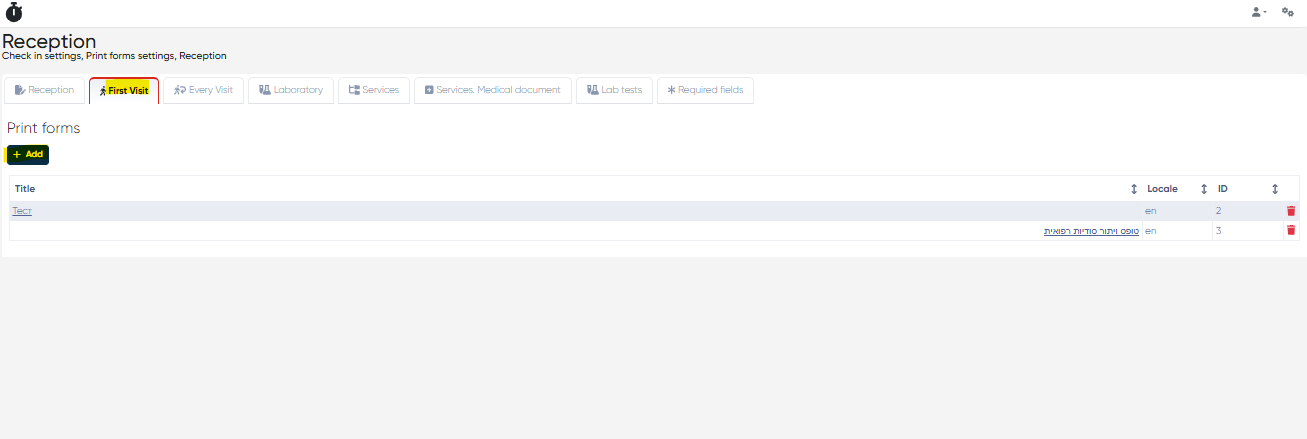
This tab allows the configuration of print forms to be automatically printed only during a patient's first visit.
Select an existing form from the list or click “Add” to choose from pre-created forms.
You can assign multiple forms per first visit.
All assigned forms will be automatically triggered during the first check-in.
2. Every Visit
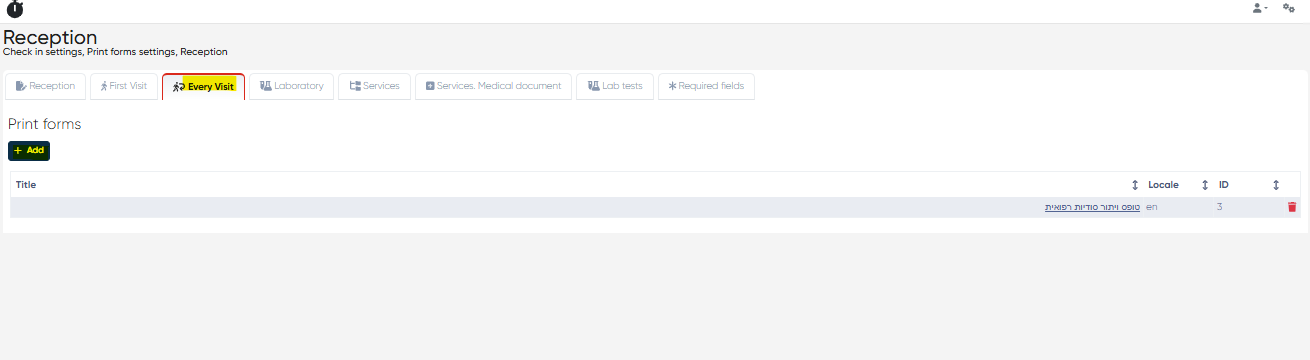
Similar to the First Visit tab, this section assigns forms that will be automatically printed for every patient visit, regardless of whether it's their first or a repeat visit.
Add, view, or remove assigned forms as needed.
Helps ensure recurring documentation (e.g., consent updates) is consistently printed.
3. Laboratory
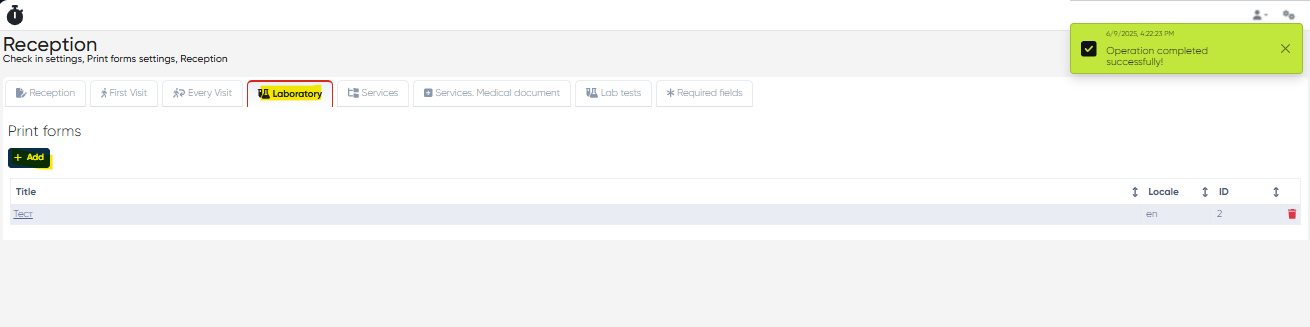
This tab manages automated print forms for laboratory visits and test check-ins.
Print forms can be linked to lab orders and are triggered automatically when a lab test is scheduled or initiated.
Ideal for lab test consent forms, instructions, and sample collection sheets.
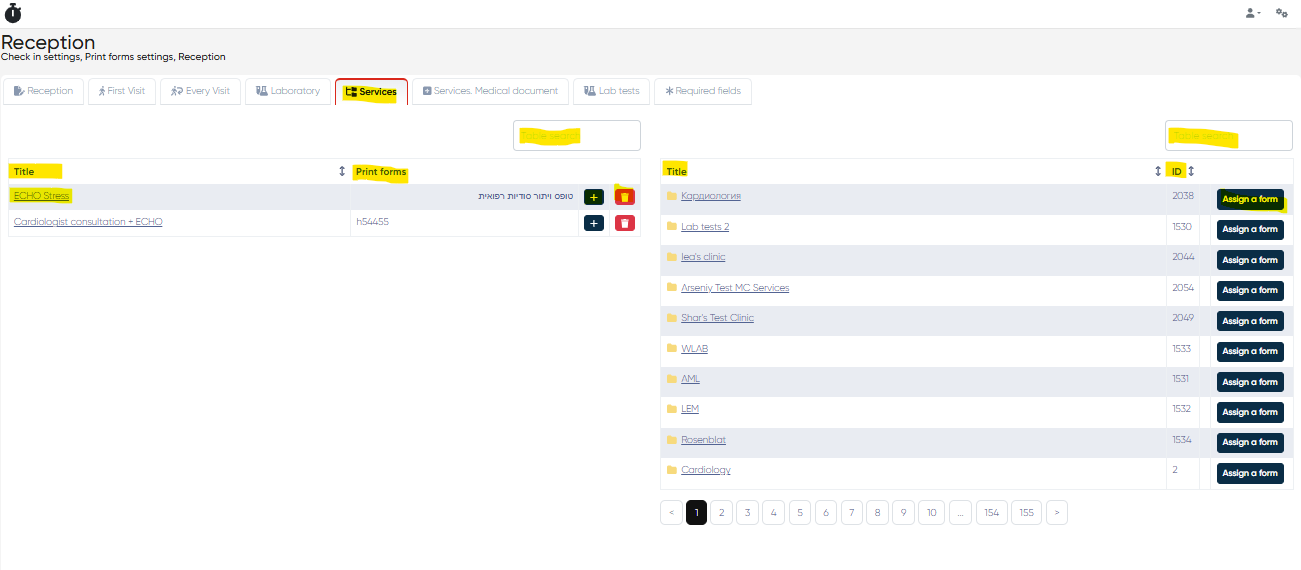
4. Services
This tab is split into two key areas:
🔹 Assigned Services List
A list of services with currently assigned print forms.
View all attached forms, add more using the “+” button, or remove them.
🔸 Full Services List
Shows all available services in the system.
Organized by name and directory.
Use the “Assign Form” button to attach one or more print forms to any listed service.
Each row includes the Service ID for quick reference and tracking.
This setup ensures each service has the appropriate documentation automatically printed at the time of the appointment or billing.
5. Services. Medical Documents
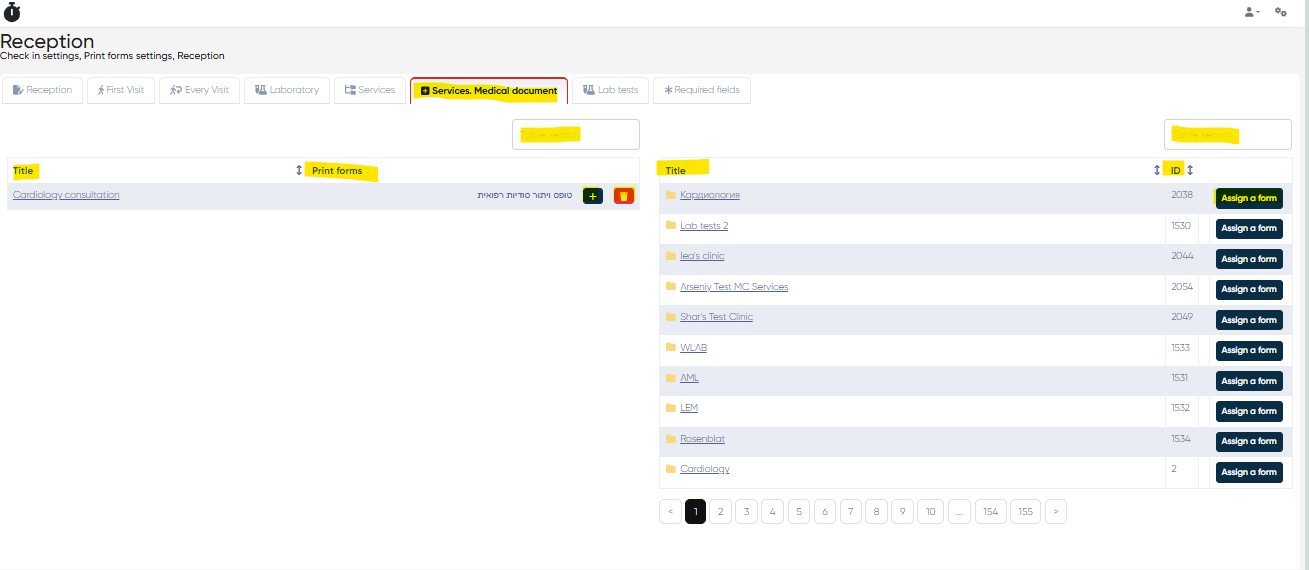
This tab mirrors the layout of the general Services tab but applies specifically to medical document templates linked to services.
🔹 Assigned Medical Docs List
Shows services with already assigned medical document print forms.
Use the “+” button to assign more forms or delete existing ones.
🔸 Full Services List
Displays all services with associated medical documentation.
Assign relevant print forms for each medical document using the “Assign Form” button.
Each item includes a Service ID for traceability.
6. Lab Tests
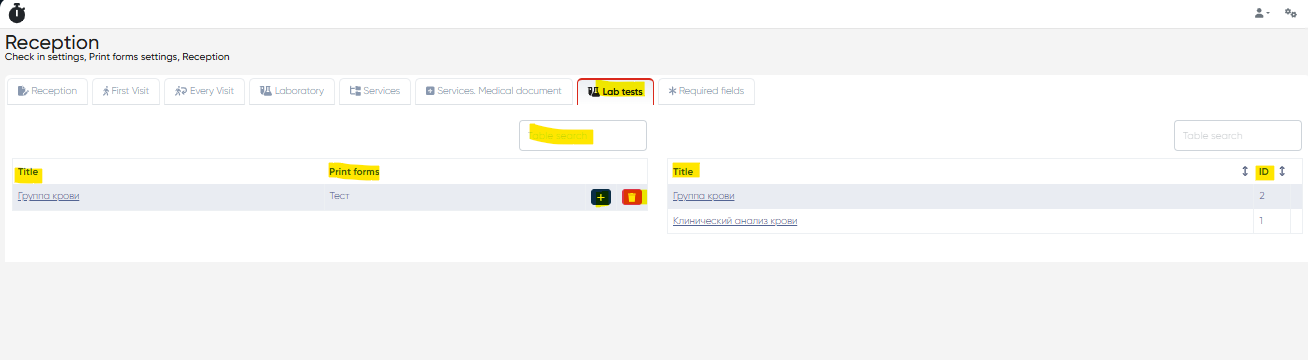
This tab supports automated forms linked to specific lab tests.
🔹 Assigned Lab Tests List
View existing print form assignments for individual lab tests.
Add or remove forms as needed.
🔸 Full Lab Tests List
A complete list of available lab tests in the system.
Click on the lab test to assign a print form.
Ideal for ensuring correct documentation is included with each test order, such as sample labels, instructions, or patient-specific checklists.
Search Functionality
Each tab includes a table-specific search bar, allowing users to quickly find services, documents, or tests by name, directory, or ID. This makes management of large datasets fast and user-friendly.
Summary
The Automated Print Forms section provides a powerful toolset for streamlining document workflows across various clinic services. With clear categorization, bulk assignment options, and smart search tools, clinics can maintain a highly automated and compliant document generation process.